


The new desktop home screen has a row of cards at the top that show the current network status at a glance. Click any card to open the related settings.

1. DNS: whether DNS resolution is normal or poisoned, and whether the provider and location of the overseas and China DNS match what's expected. Poisoning detected while the VPN is off is normal. See "How can I change DNS to reduce DNS pollution issues?" for DNS settings.
2. Policy: Global or Rule mode, plus the filters that are on, such as ad blocking and IPv6 blocking.
3. Apps: apps that bypass the VPN (Global mode) or apps that use the VPN (Rule mode); "All apps use the VPN" if none are set.
4. Core: whether the core is working, plus connection counts:
• Green: normal connections (data received).
• Yellow: waiting (opened less than 10 seconds ago, no data yet).
• Red: timed out (open for more than 10 seconds with no data). Many red connections mean a server or network problem; try another server or use AI Diagnosis.
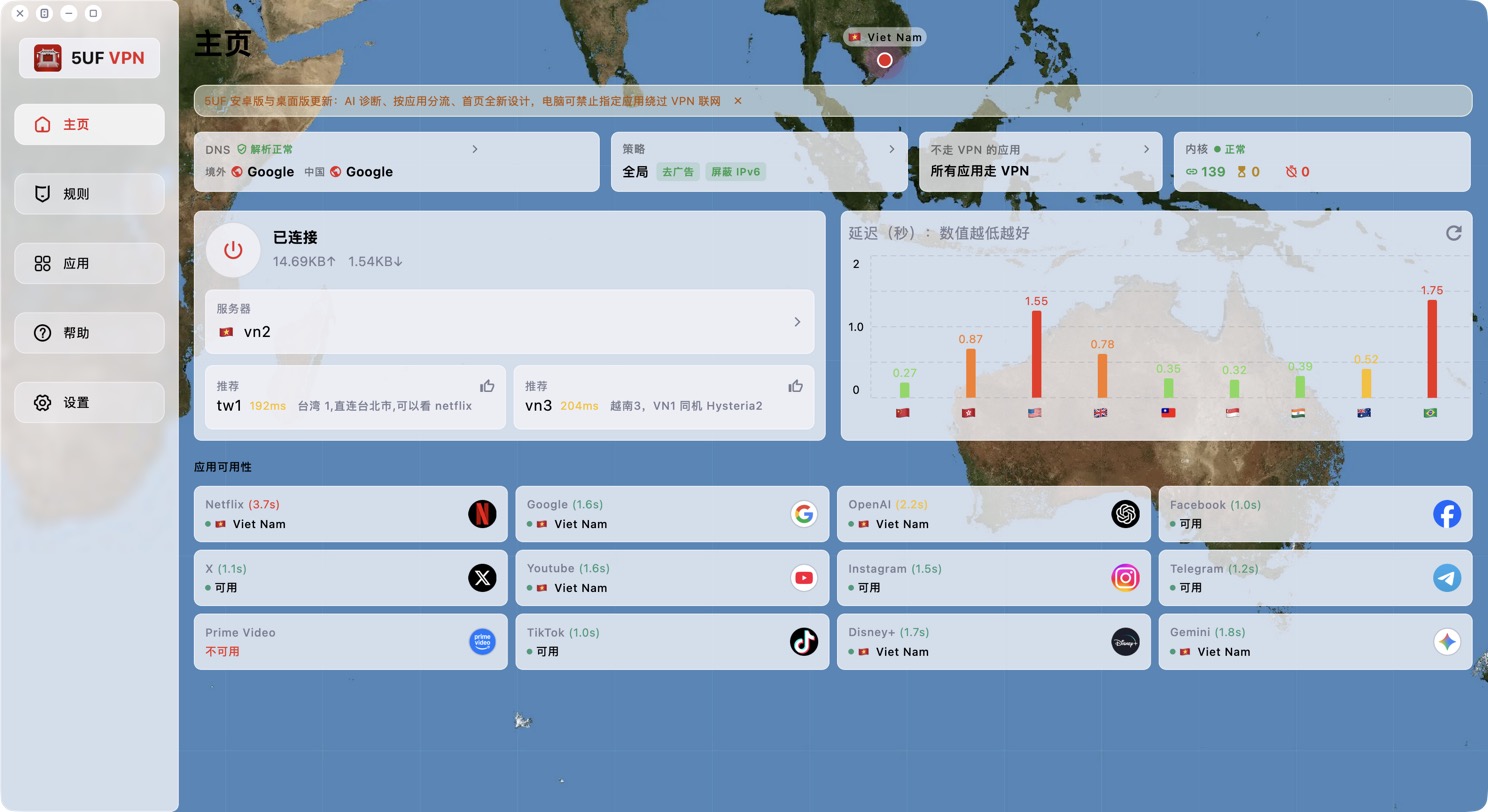
The desktop window can now also be maximized, with the map filling the screen; double-click an empty part of the map to switch between maximized and a comfortable size.


