


Some apps (browsers, chat or trading apps) should only ever be used with the VPN, so they don't expose your real IP if you forget to connect. The Apps page in the Windows and macOS apps handles this.
How to set it up:
1. Open Apps in the navigation, or press Ctrl+3 (⌘3 on macOS).
2. Click Add app and choose the program.
3. Once added, all of this app's traffic goes through the VPN while connected, instead of following the rules.
4. If needed, turn on Block network under it. When it shows "Active", the app has no network access at all while the VPN is off.
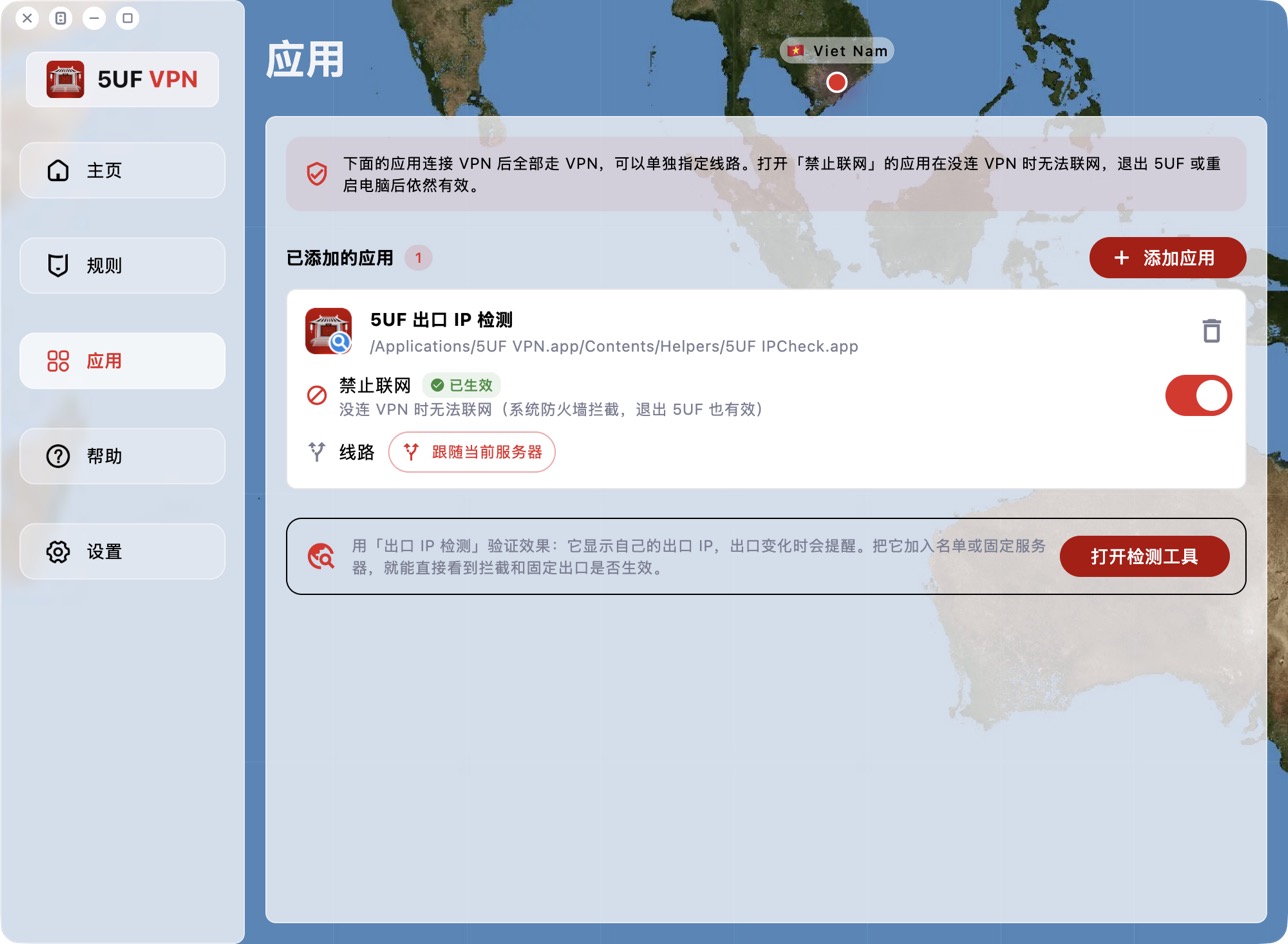
Block network is enforced by the system firewall, so it stays in effect after you quit 5UF or restart the computer. Turn the switch off or remove the app to restore normal access.
First time on macOS: Block network uses a macOS network filter extension. It's installed only the first time you turn the switch on; if you never use the feature, nothing is installed.
1. When macOS says the system extension was blocked, click Open System Settings in the app and turn on 5UF VPN under Network Extensions.
2. When macOS asks whether 5UF VPN may filter network content, click Allow.
The extension only blocks apps with Block network turned on; other apps are not affected.
Common messages:
• "One more step…": the network extension switch isn't on yet. Click Open System Settings and turn it on.
• "Blocking is not active… you chose Don't Allow": click Retry and choose Allow this time.
• "Please move 5UF VPN to the Applications folder first": macOS only lets apps in the Applications folder install extensions. Move it, then reopen 5UF.
To verify, use the Exit IP Check tool at the bottom of the page (see "How do I use Exit IP Check to see an app's exit IP?").


