


The new app includes AI Diagnosis. If you can't connect, a site or app won't open, the connection is slow or keeps dropping, let it check things for you first.
Where to find it: go to Help → Tickets / Feedback, tap + in the top-right corner and choose AI Diagnosis. On macOS you can also open it from Help → Network Diagnosis in the menu bar.
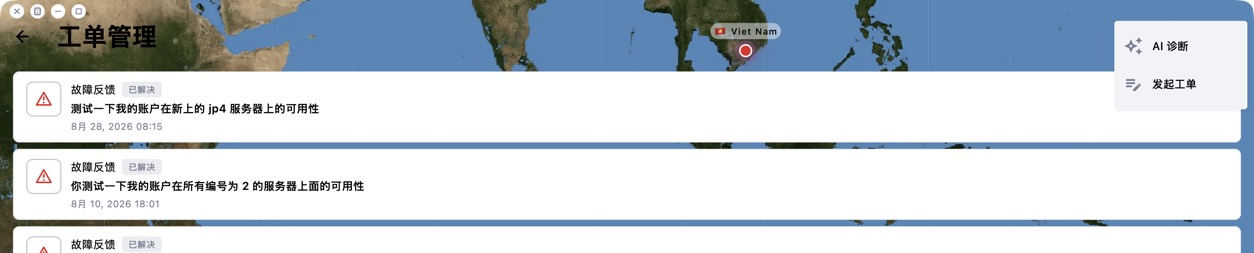
Steps:
1. Choose the problem, for example "Connected but sites won't open".
2. Optionally describe the problem, enter the sites that won't open (for example youtube.com), or choose the server that has problems. If you don't choose one, the currently selected server is tested.
3. Tap Start diagnosis.
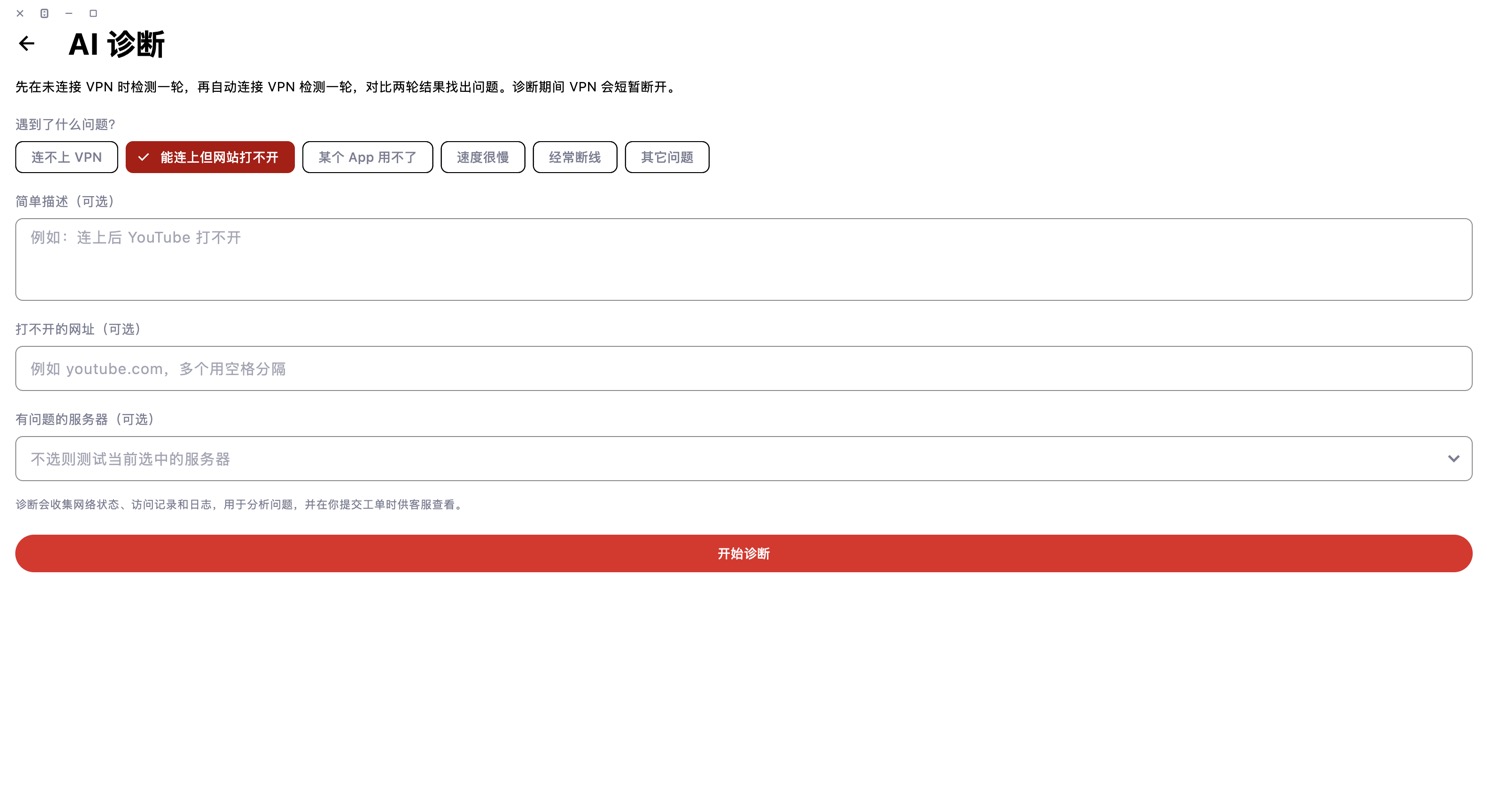
What happens: the app runs one round of checks without the VPN, then connects the VPN automatically and runs another round, compares the two and can test all servers. The VPN disconnects briefly during diagnosis, so please stay on this page.
Results: the AI explains the cause and what to do, for example DNS poisoning or an unavailable server. It may suggest switching to a working server or changing a setting (such as restoring the default DNS). It always asks before changing anything, then checks again.
Still not fixed? Tap "Not solved, submit a ticket". The diagnosis data and conversation are attached to the ticket, so support can see everything without you explaining it again.
Note: AI Diagnosis has a daily limit. After that, you'll see a preliminary conclusion based on the checks. Diagnosis collects network status, access records and logs, used only to analyse the problem.


