


We have released a new version of 5UF for Android and Desktop (Windows / macOS / Linux). This is our biggest update since 6.9, adding AI Diagnosis, per-app routing and a redesigned home screen, and fixing several issues that affected connectivity. Please update as soon as possible.
1. AI Diagnosis
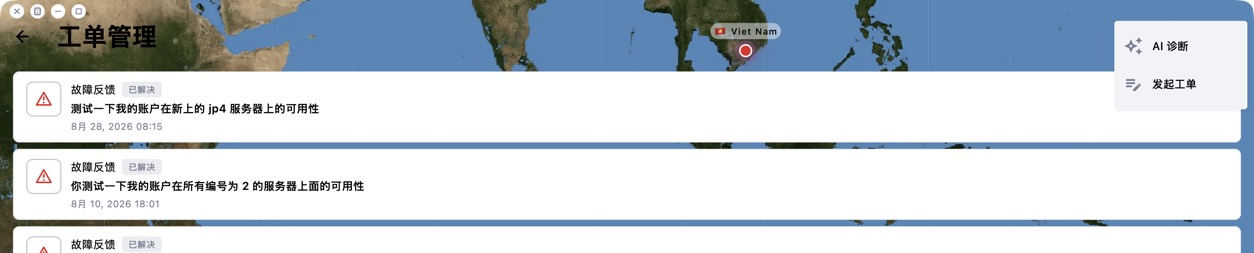
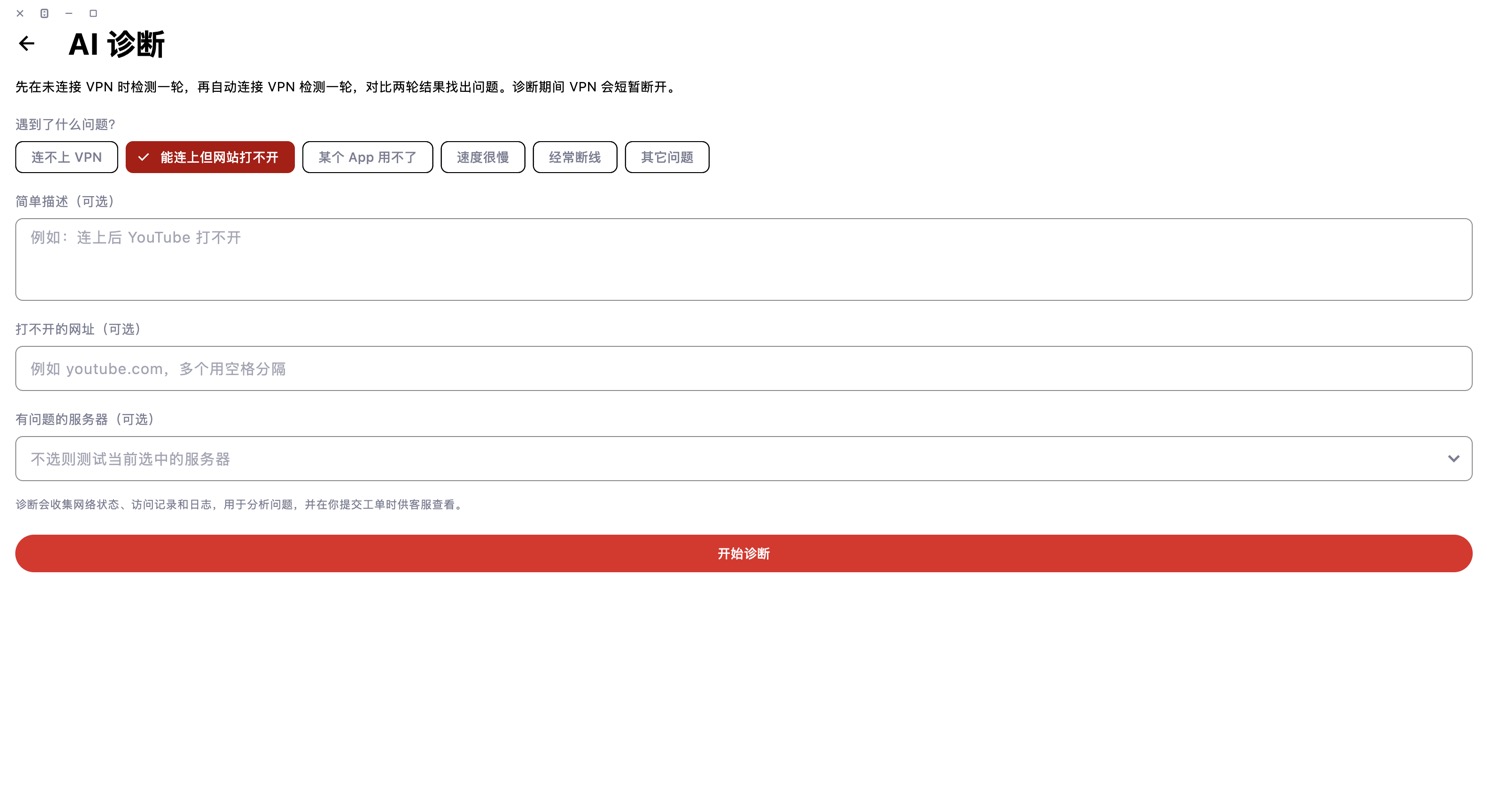
If you can't connect or the connection is slow, tap AI Diagnosis. The app runs one round of checks without the VPN and another with the VPN connected, compares the results to find the cause (for example DNS poisoning or an unavailable server), and tests switching to a server that works. If you still need help, you can submit the diagnosis result directly as a ticket.
2. Per-app routing (Windows / macOS)
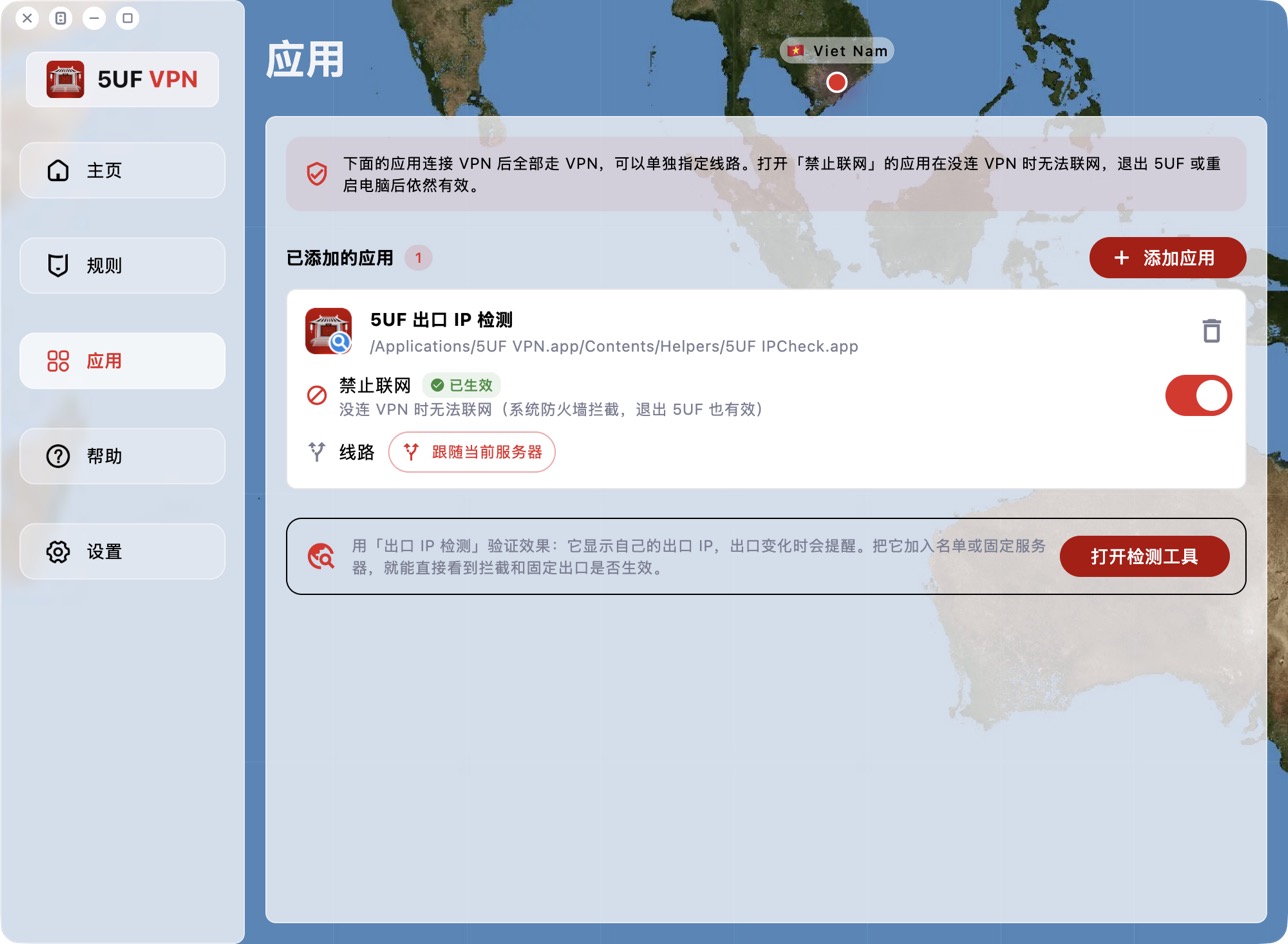
• In Global mode you can choose apps that bypass the VPN; in Rule mode you can choose apps that use the VPN. Changes take effect immediately, without reconnecting.
• New Apps page: pin a fixed exit server for a specific app.
• Block network: when turned on, the app can only go online through the VPN. While the VPN is off it has no network access at all, even after you quit 5UF or restart the computer, so it can't bypass the VPN and expose your real IP. On macOS, the first time you use it, follow the prompt to allow the 5UF network extension in System Settings.
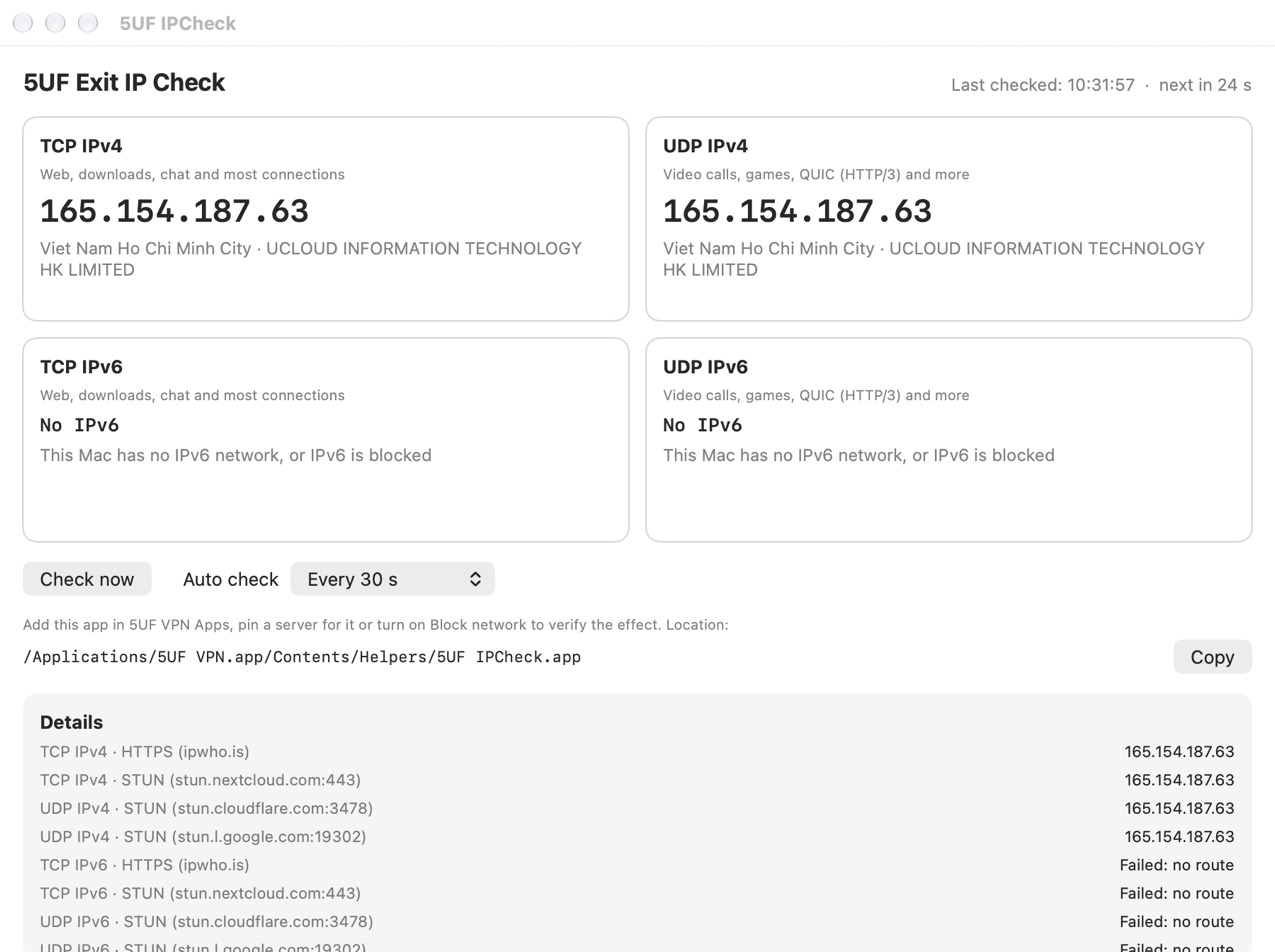
• Includes an Exit IP Check tool that shows the TCP, UDP, IPv4 and IPv6 exit IPs separately, so you can verify your settings.
3. Home screen and interface (Desktop)
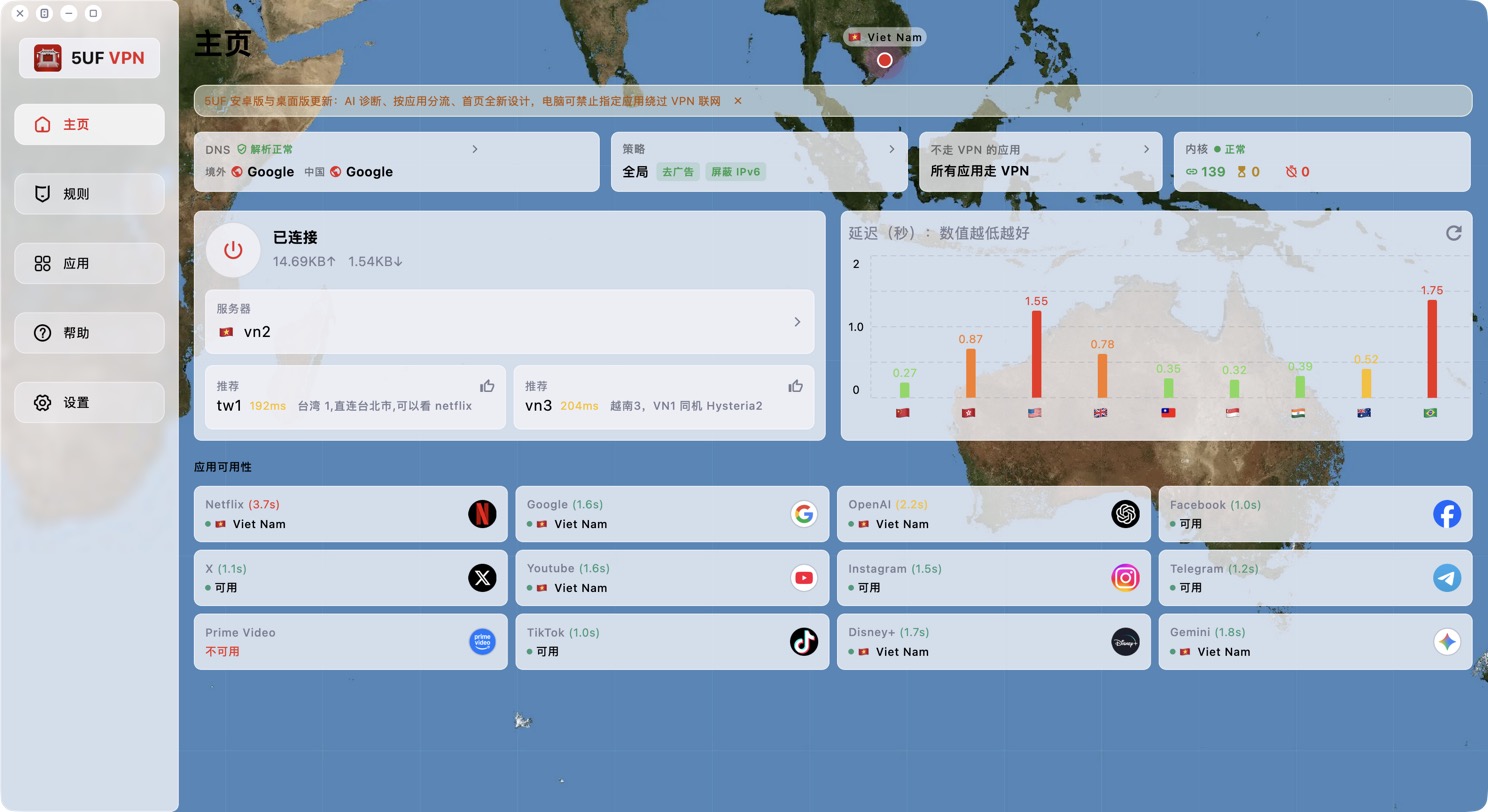
• Redesigned top info bar: see DNS poisoning status, current policy, routed apps and core status at a glance.
• Windows can be maximized with a full-screen map; map tiles load on demand to save memory.
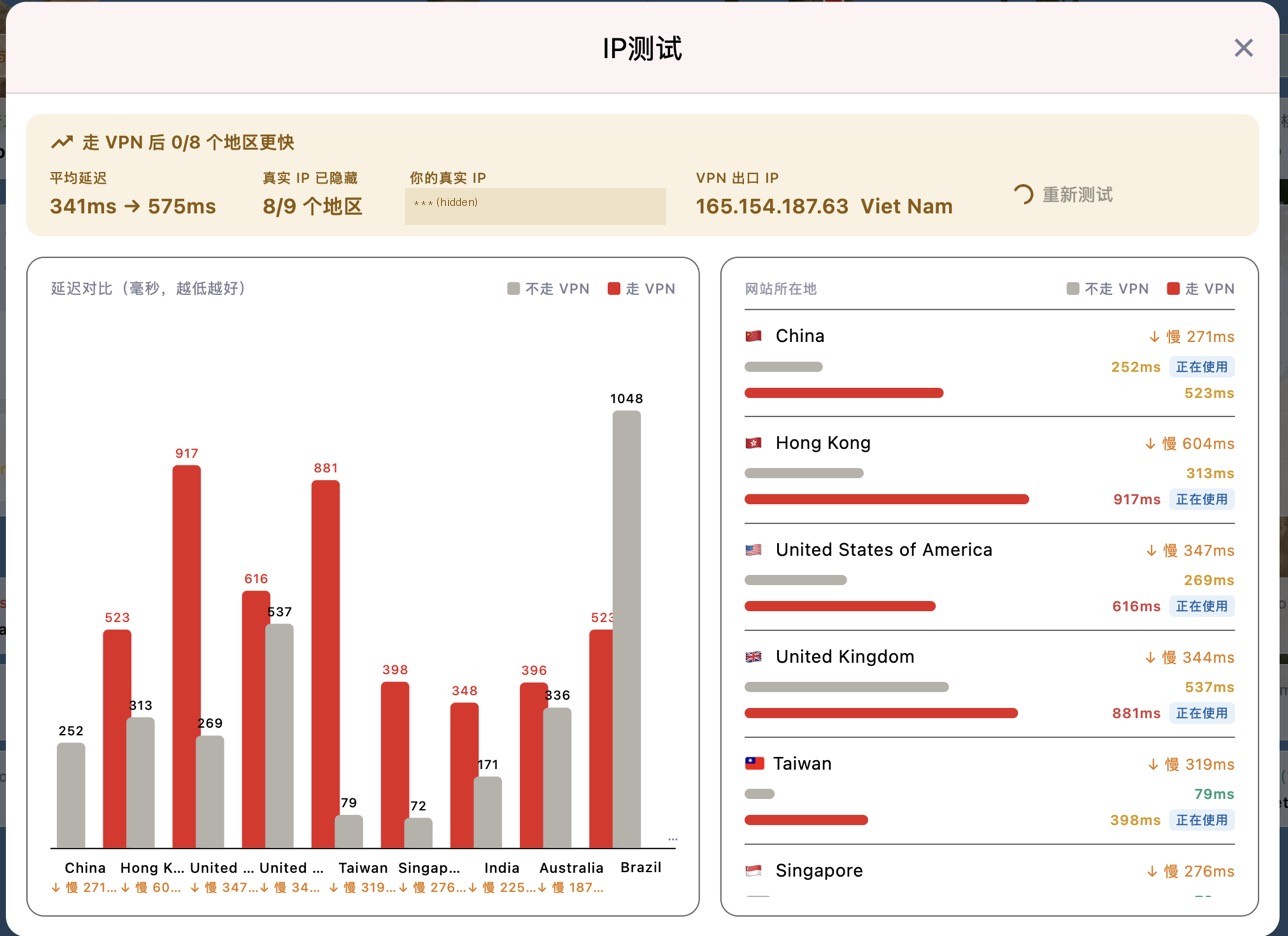
• IP Test now compares direct and VPN connections, without disconnecting the VPN.
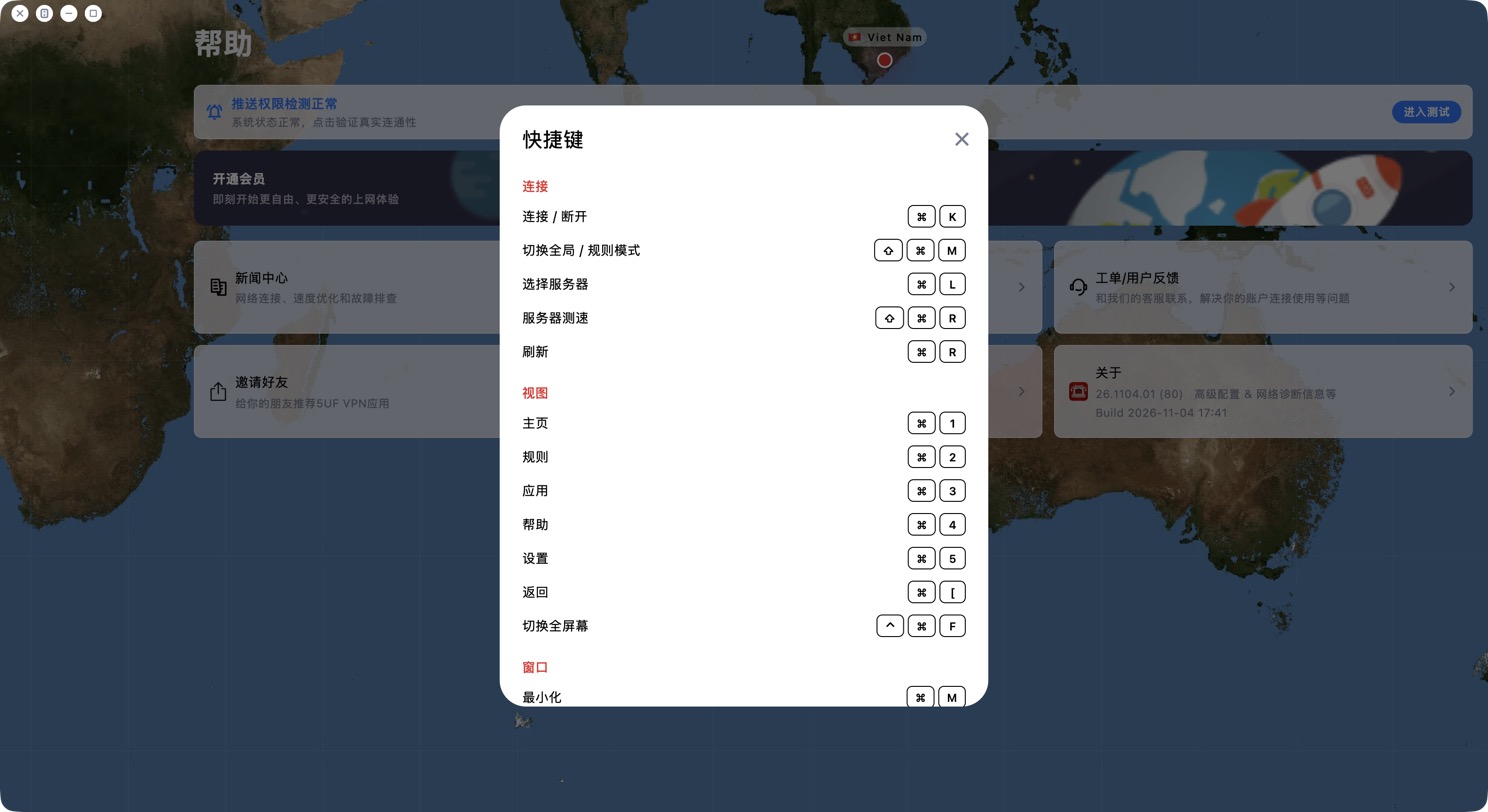
• New menu bar on macOS with keyboard shortcuts for common actions; Ctrl shortcuts on Windows / Linux, listed on the Help page.
• Fixed hard-to-read text in the light theme.
4. Safer and more stable
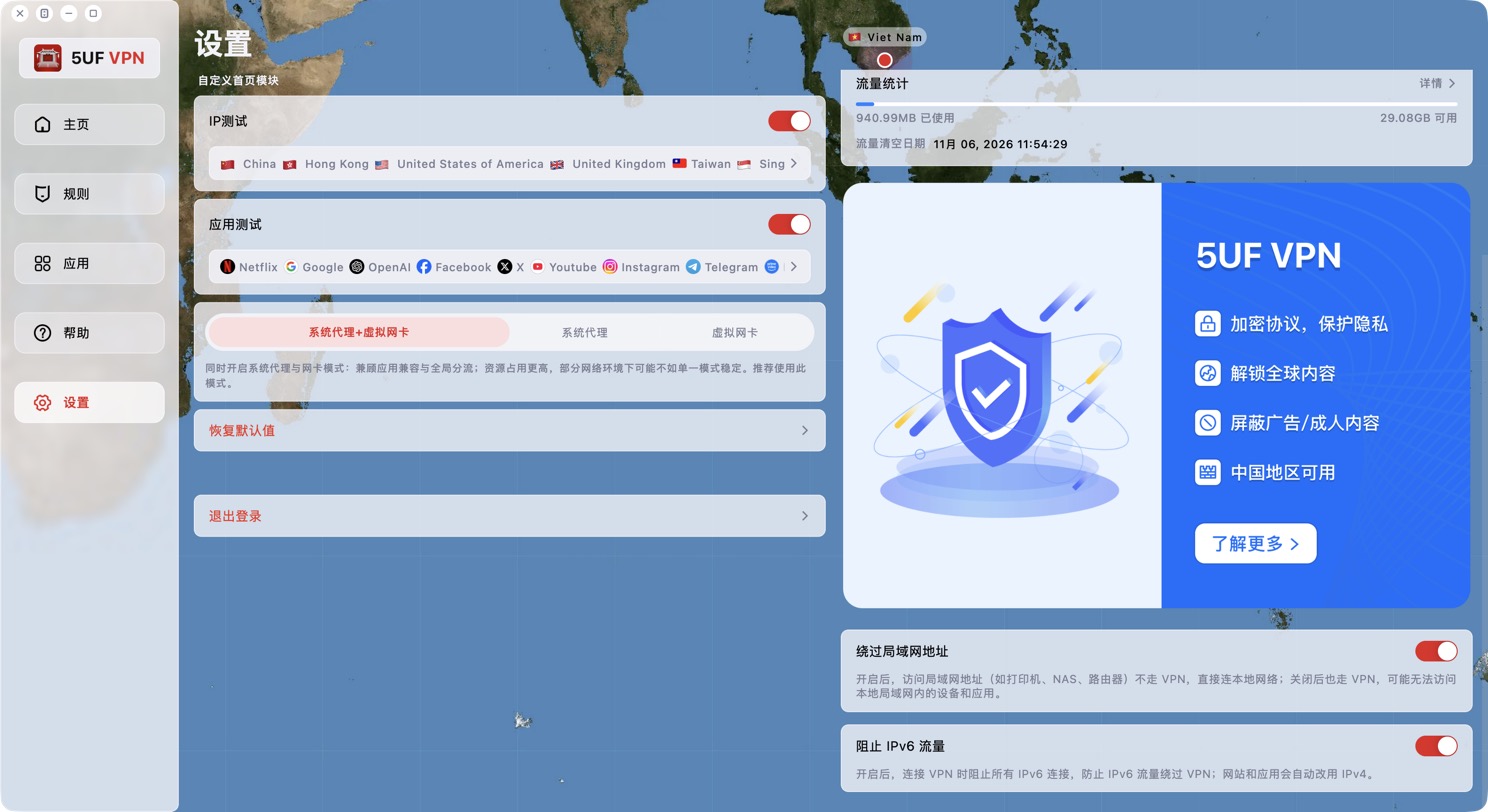
• Block IPv6 traffic (Desktop, on by default) prevents IPv6 traffic from bypassing the VPN.
• Disconnecting the VPN now closes all connections immediately, so ongoing downloads don't keep using the VPN; rule changes take effect immediately.
• The core recovers automatically if it stops responding (Desktop).
• After your traffic runs out or your plan expires, service resumes automatically once you renew, and your selected server is kept.
• Windows: the system proxy is restored automatically if the app exits unexpectedly, so browsers no longer lose internet access; the installer now includes the VC++ runtime; the first launch no longer hangs on loading.
• Windows: new Microsoft Store / UWP network check with one-click repair for these apps when they can't go online through the proxy; after a crash, the next launch offers to export a crash report you can send to support.
• macOS: fixed the core failing to start on some Macs, which left the home screen loading forever.
• Lower memory usage and better stability during long sessions.
5. Account
• You can change your username once.
• Changing your email now happens in a dialog and refreshes automatically when done; you'll be reminded to bind an email at login if you haven't.
• Fixed an empty server list after a new user's first login, and missing error messages when login fails.
6. Android and Android TV
• Improved the Google Play purchase flow, so payments are matched to your account more reliably.
• Improved stability of the VPN service while running in the background.
• The Android TV home screen now has a bottom control bar for easier remote control.
How to get the update
• Desktop: download the latest installer from our download page.
• Android: update from Google Play once the review is approved, or download the APK from our download page.
If problems continue after updating, try AI Diagnosis first, or contact support through a ticket and include your OS and client version.


