


The Windows and macOS apps include a small tool, 5UF Exit IP Check, to verify that the VPN and your Apps page settings really work.
How to open it: click Open checker at the bottom of the Apps page.
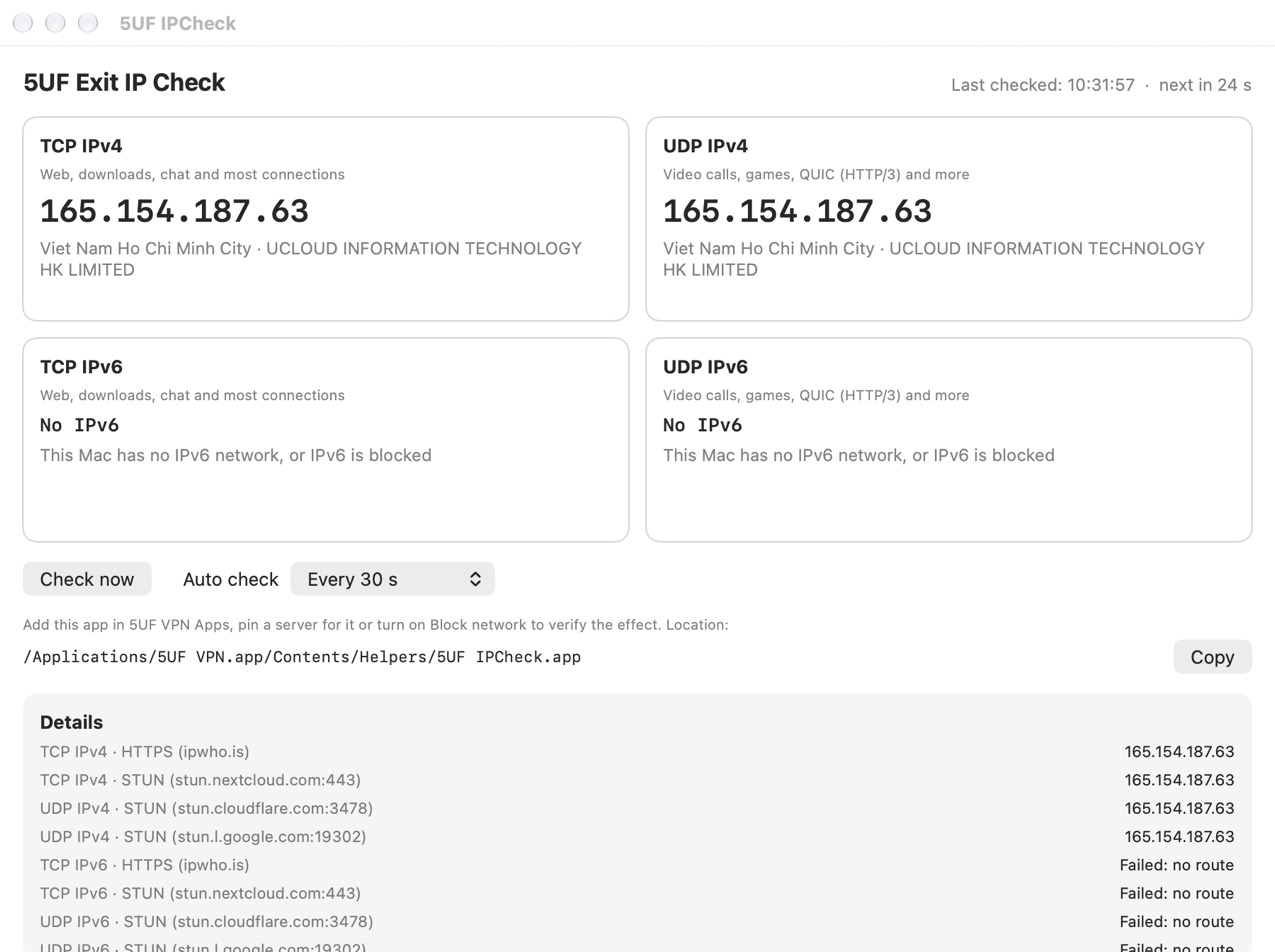
What it shows:
• TCP IPv4 / TCP IPv6: the exit IP for web, downloads, chat and most connections, with country, city and ISP.
• UDP IPv4 / UDP IPv6: the exit IP for video calls, games, QUIC (HTTP/3) and more.
• "No IPv6": this computer has no IPv6 network, or IPv6 is blocked (for example by Block IPv6 traffic). This is normal.
• "No network access": blocked, or the check server is unreachable.
• If TCP and UDP exit through different IPs, it warns that some traffic may not be going through the VPN.
It checks automatically at the chosen interval (every 30 seconds by default) and right away when the network changes (VPN connected or disconnected, Wi-Fi changed). When the exit IP changes it shows an alert, sends a system notification and records it in the change history.
Testing Block network: add the checker itself on the Apps page (click "Add to list"), turn on Block network, then disconnect the VPN: it should show "No network access". After connecting, it should show the VPN server's IP.
Testing a pinned route: pin an exit server for it; the IP shown should change to that server's IP.


