


FAQ
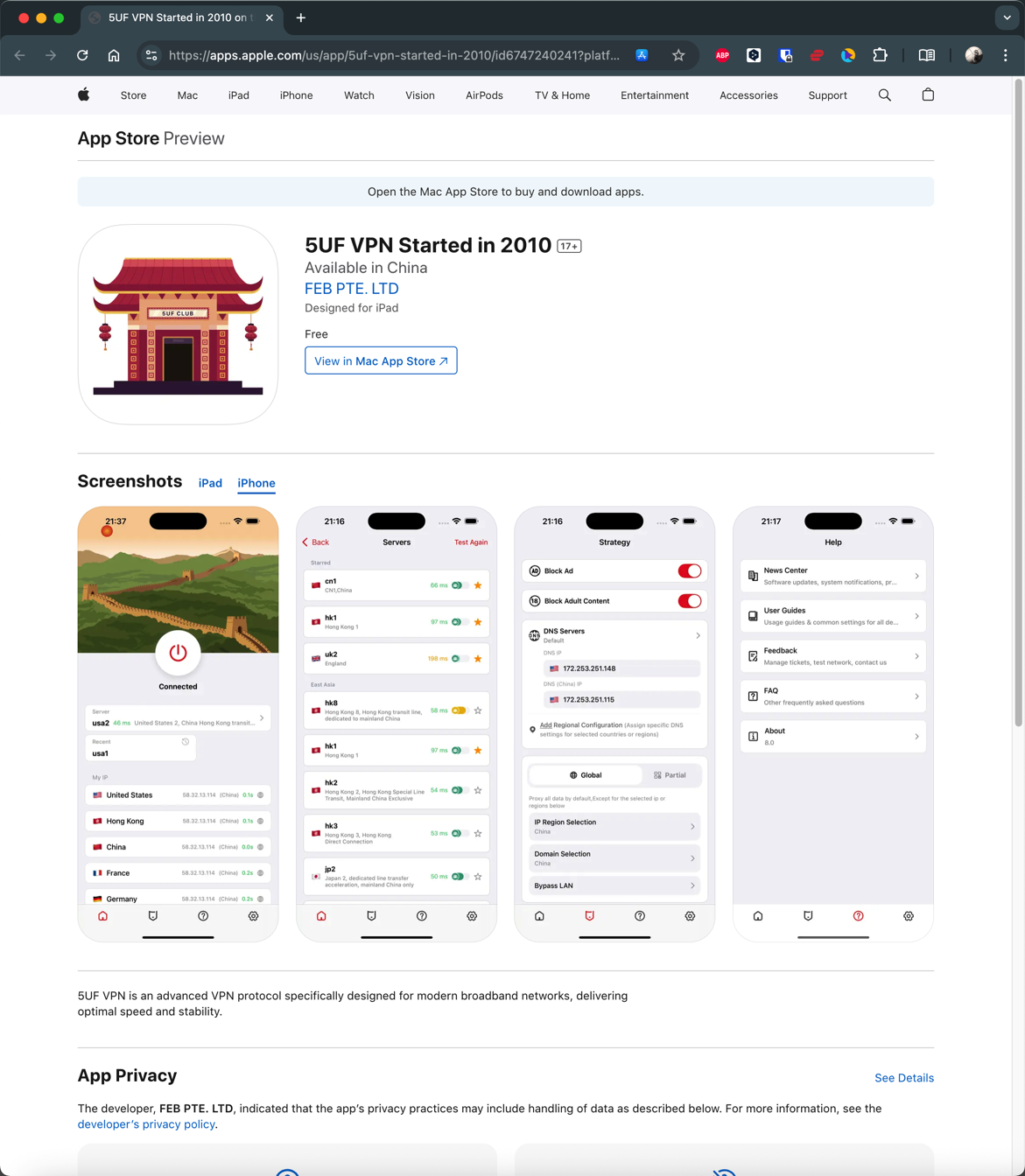
How to install 5UF APP in iPhone 

IOS download:
https://apps.apple.com/us/app/id6747240241
Chinese users need to use an account from a non-mainland China app store to download the app.
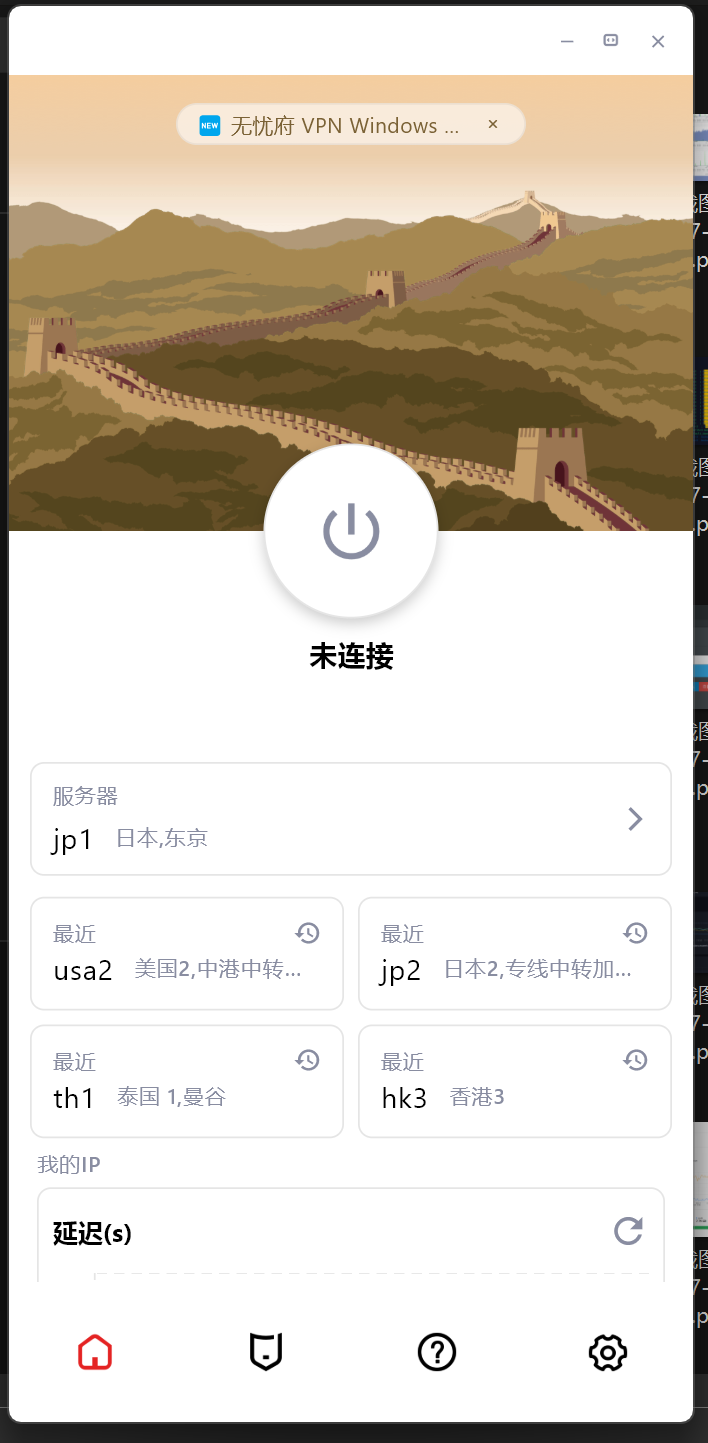
5UF VPN for Android (recommended, with changelog)
1. Download
Download here ,

2. Installation
Install APK file. (If after downloading, file becomes .zip, you will need to rename the file by deleting the .zip at the end)Support android4.0 above.
3. Use
Use the username and password on our website to Login.
PS:
Since version 3.0, the new Android client supports Trojan protocol, has a new interface, more servers, is more stable, and faster.
The old version can be used, but it is no longer updated.
Changelog:
2025.8.14 Version 4.2 Allows 5UF to be added to control panel
2025.8.8 Version 4.1 Brand New UI
2025.6.63.1 Multi-language fix
2025.5.31 Dragon Boat Festival
3.0 New kernel version, internationalization, update to Google Play
2020.04.08
Get packages from the official download center
2018.11.23
2.3 fix android 9 bug.
September 1, 2017
1.8 fix same bugs.
1.7 Added support for SS protocol
July 1, 2017
1.5 Repair customer service system error
May 12, 2017
1.1 The first public beta
May 1, 2017
1.0 released the first beta version
Windows one-click setup for all clients (recommended, with changelog)
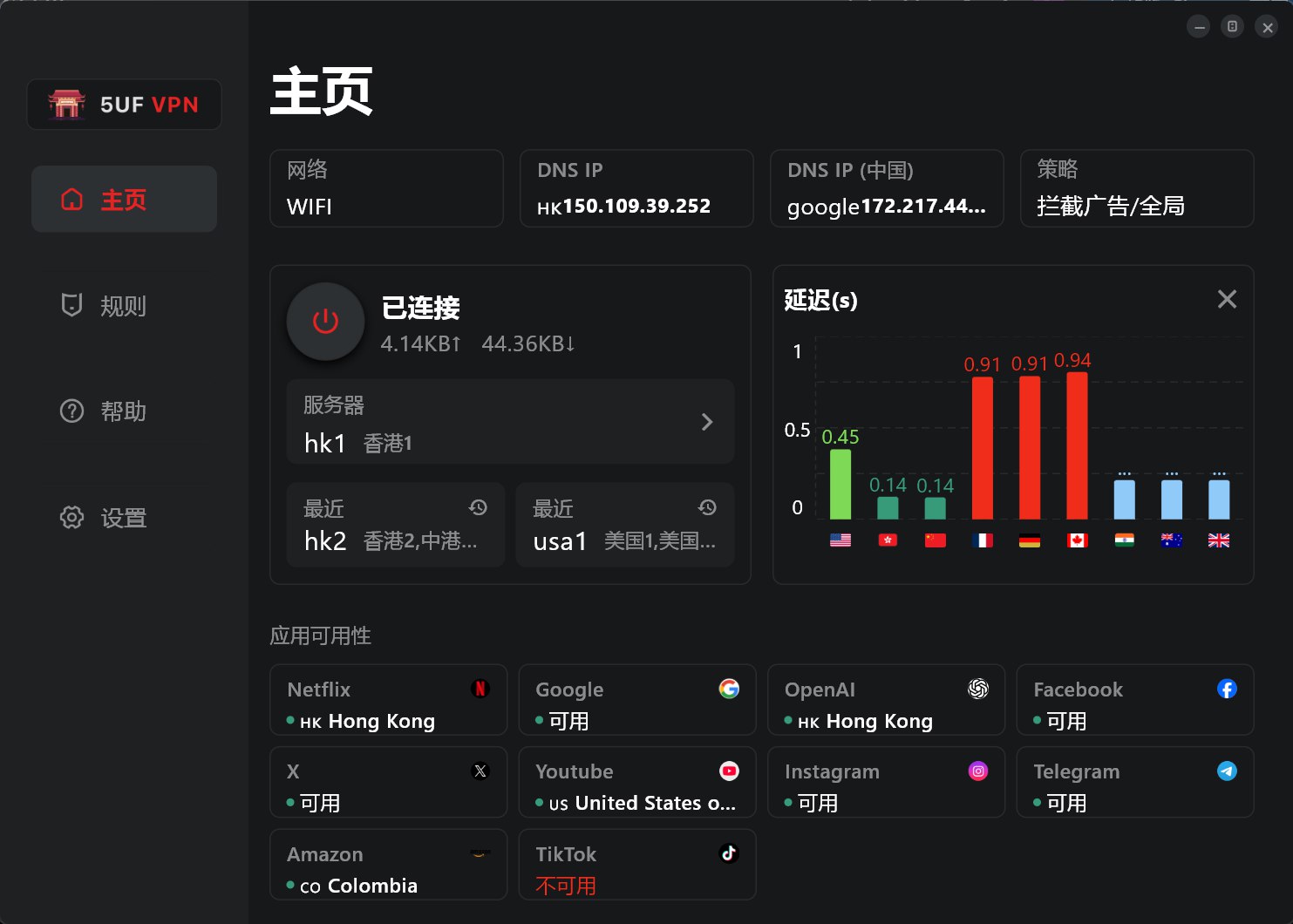
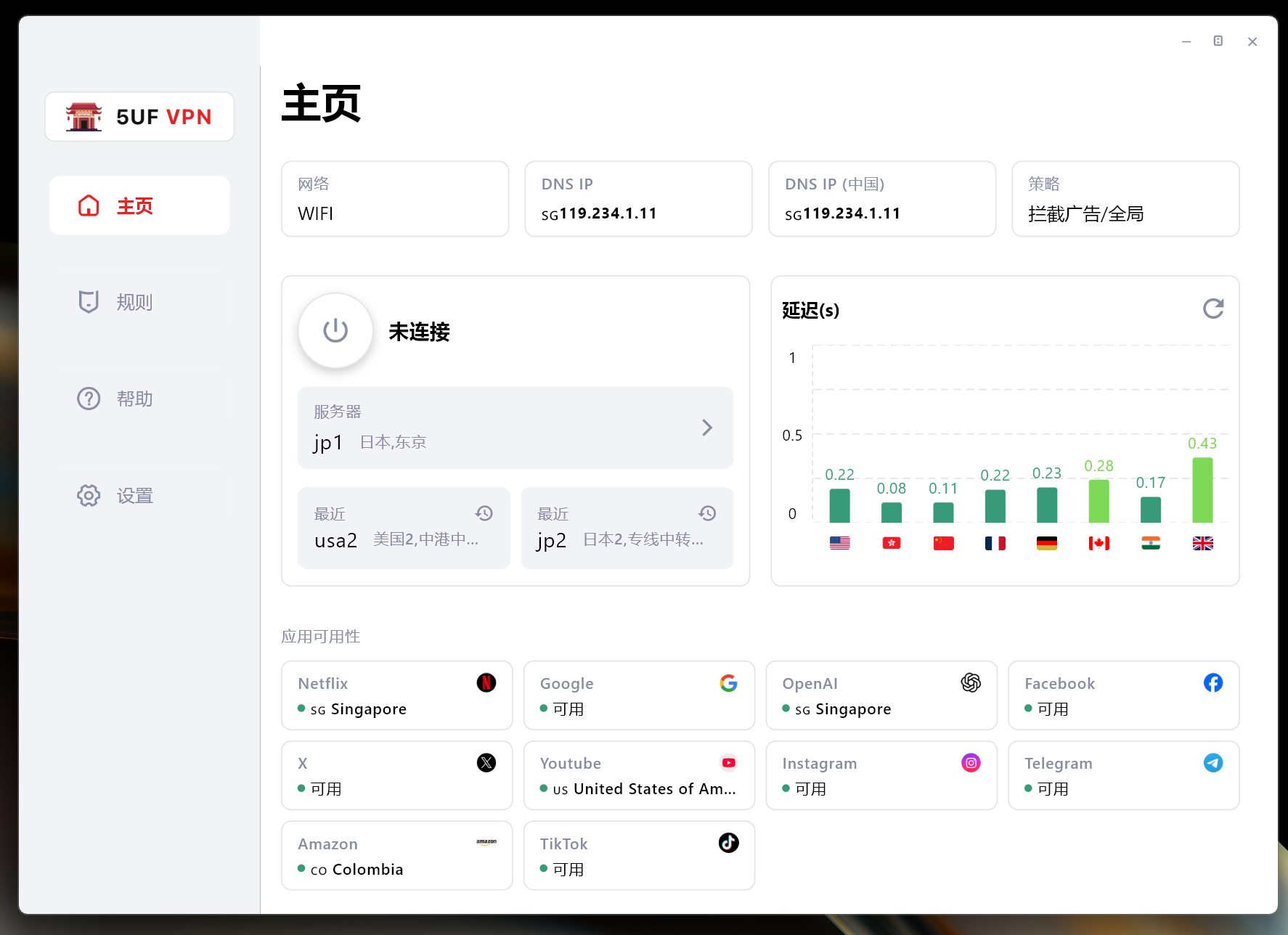
最新版 4.1 客户端,修正了多个BUG,支持更多协议,连接更稳定,速度更流程,有效保护数据免受篡改与窥探。

Changelog:
2014年12月11日 1.07版 对外公布,之前我们内部测试多次,多个版本,所以首个对外的版本是1.07
2014年12月18日 1.08版 修正了最小化窗体后,会自动弹出窗口的问题。
2015年01月07日 1.09版 修正更新域名后不能使用的问题。
2015年02月11日 2.0.0.0版,增加了N多功能
解决了部分杀毒软件报病毒的问题,是因为压缩的问题,现在已经不压缩。
增加了更换DNS的功能
增加了永久路由功能
增加了添加路由和删除路由时显示百分比
测速时重新加载服务器列表
增加了恢复hosts文件的功能,部分用户因为修改了这个文件,造成部分网站不能访问
生成支持文件(方便我们的帮部分用户分析问题)
优化了部分操作逻辑,比如点击退出时提示是否清空路由,是否最小化,是否断开VPN等问题。
2015年02月15日 2.0.0.1
修复程序退出的时候,右下角的状态栏图标没有消失的问题,鼠标要放一下会自动消失,现在这个问题已经修复。
修复程序启动的时候,如果没有网络出错的问题,现在已经提示正常
win8启动的时候不再自动使用修复sstp功能,只在需要的时候在工具菜单那里运行下
2015年04月29日 2.0.0.2
修复了xp系统下,如果本地网卡是使用自定义DNS,使用我们的工具里设置google dns等后还原后会丢失原来的dns配置的问题。
增强了性能,现在不同的服务器,不同的类型都使用独立的拨号链接,互不影响,解决了以前如果前一个vpn断不开,后面一个不能拨号的问题,(以前是必须重启机器才能恢复)。
2015年09月18日 2.0.0.3
修复深圳部分小运营商运行时,初始化的问题。
增加PPTP是否加密的选项。
在设置工具里增加快速打开“网络连接”。
在没有拨号的情况下退出软件提示“退出会断开VPN" 的提示的逻辑问题。
2015年09月23日 2.0.0.4
断开和连上时在线人数自动加减1,解决断线后需要重新运行程序的问题。
2015年12月23日 2.0.0.5
修复多个连接数时,有时候判断超过连接数错误bug。
针对国内DNS环境不稳定的情况,优化了部分地区有时候 初始化 问题,现在更加稳定。
取消自动创建的拨号链接功能,现在用户的VPN连接里不会出现我们程序里自动配置的VPN连接。
除了L2TP协议外,360不再提示需要修改pbk文件。
2015年12月26日 2.0.0.6
修复L2TP协议时,重新启动时无法拨号的bug。
修复PPTP加密重新启动时无法记忆的问题。
2016年1月6日 2.0.0.7
修复在测速列表双击服务器选择不了的bug。
windows10需要禁用掉IPV6,才能解决DNS污染的问题.
2016年2月24日 2.0.0.8
修复windows10用户l2tp不能使用的问题.
增强部分网络情况下初始化失败的问题,增强了更多网络环境下的可用性.
windows10用户拨号的时候提示修复禁用IPv6.
修复生成技术支持文件的bug,同时把这个按钮放在登陆页面,确保没有登陆时也能生成技术支持文件.
修复部分网络下断开连接不生效的问题,提示已经断开,事实上没有断开,造成多个连接重拨.
修复不停的点击断开按钮,在线数会减少的bug,事实上不会真减少.
2017.4.20 3.0
完全重新架构的新版本,使用C++重新开发,更加高效
新增加:
直接支持openvpn
多语言系统中不再乱码(但还都显示是简体中文)
全新界面
增加和删除国内路由更快了,可以瞬间完成,以前需要很久的百分比,且增加过程中占用cpu比较高。
连接更多稳定可靠,旧版本在某些环境中l2tp,ikev2不能稳定使用,需要重启机器才行。
更多网络环境中可以用,以前的版本中可能会出现“登陆失败”,新版本已经对这种情况做了更多兼容处理。
2017.4.21 3.1 3.2
修复iKev2模式下,默认网关没有设置的bug
更改点击X为隐藏窗体,更熟悉国人的操作习惯,如果要退出,请在右下角托盘那里,右键退出。
3.2 修复下载配置文件不能更新的bug
2025.7.28 日 4.0
全新架构
2025.8.8 日 4.1
修复了界面还有一些链接问题
Linux: how do I enable the virtual network adapter (TUN) with sudo if I don't know an admin password?
The first time you turn on the virtual network adapter (TUN) in the Linux app, it needs administrator rights and asks you to "enter the admin password". The app then uses sudo to authorize the 5UF core (it makes root the owner and adds the setuid bit), after which the core can create the virtual adapter.
Which password is this?
The password is passed to sudo, so on Ubuntu, Debian and most other systems it's your own login password, not the root password. If you normally run sudo with your own password, just enter it in the dialog.
When do you need the command line?
• On a company or school computer where sudo is set up without a password (NOPASSWD); the dialog won't accept an empty password.
• You don't know any administrator password, but you're allowed to use sudo or sudo -i to become root.
• The dialog keeps saying the password is wrong.
In these cases you can authorize the core yourself in a terminal. Afterwards the app sees it as authorized and won't ask for a password again.
Steps (deb / rpm packages):
1. Quit 5UF VPN completely (choose Quit from the tray icon).
2. Open a terminal and run these two commands. The packages install the core at /usr/share/wufclub/5UFClashCore:
sudo chown root:root /usr/share/wufclub/5UFClashCore
sudo chmod +sx /usr/share/wufclub/5UFClashCore
If you've already switched to root with sudo -i or sudo su -, run them without the leading sudo.
3. Check the result:
stat -c '%U:%G %A' /usr/share/wufclub/5UFClashCore
Output like root:root -rwsr-sr-x (starting with root and containing rws) means it worked.
4. Open 5UF VPN again, choose "Tun" or "System proxy+TUN" mode in Settings and connect. It won't ask for a password any more.
Can't find the file? Use these commands to locate the core, then use that path in the commands above:
dirname "$(readlink -f "$(command -v wufclub)")"
sudo find / -name 5UFClashCore -type f 2>/dev/null
AppImage: an AppImage is mounted read-only while it runs, so the core inside it can't be authorized. If you need the virtual adapter, we recommend the deb or rpm package instead. Alternatively, run ./5UF_VPN-xxx.AppImage --appimage-extract, run the two commands above on 5UFClashCore inside the extracted squashfs-root folder, then start squashfs-root/AppRun.
Notes:
• After every upgrade or reinstall the core file is replaced and loses the setuid bit, so run the commands again (or enter the password in the dialog).
• Once authorized, the core runs with root rights, which is required to create the virtual adapter. Only do this on computers you trust, and on a company computer, ask your administrator first.
• To undo it, run sudo chmod -s /usr/share/wufclub/5UFClashCore.
• If you don't need the virtual adapter, System proxy mode needs no administrator rights, although programs that ignore the system proxy won't go through the VPN.
On desktop, can I make an app always exit through one specific VPN server?
Yes. App rules in the Windows and macOS apps can lock an app to a single VPN exit: whatever server you choose on the home screen, that app always exits through the server you picked, so websites always see the same country and the same server IP.
Useful for: trading apps, ad dashboards, cross-border e-commerce and social accounts that are sensitive to the login IP. Frequent IP changes can trigger risk checks, verification or account bans; a fixed exit avoids that.
How to set it up:
1. Open Apps (Ctrl+3, or ⌘3 on macOS), click Add app and choose the app.
2. Click its Route ("Follow current server" by default) and choose the server to pin.
3. When the route shows "Exit xxx", you're done.
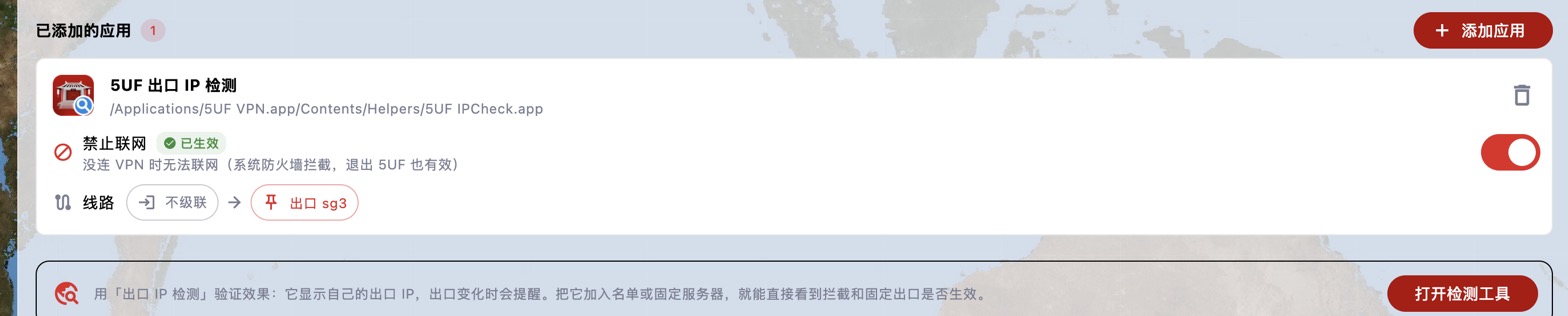
For extra safety, also turn on Block network for the app. It can then only go out through the chosen server:
• VPN connected: only through the pinned exit, even if you change servers on the home screen.
• VPN off or 5UF closed: no network access at all, so it never signs in with your real IP.
• Pinned server unreachable: the app can't connect, instead of silently switching to another server or going direct.
To verify: add the Exit IP Check tool to the list and pin it to the same server; the IP it shows should be that server's IP. The screenshot below shows the tool after it was moved from a Vietnam server to Singapore sg3: it reports that the exit IP changed.
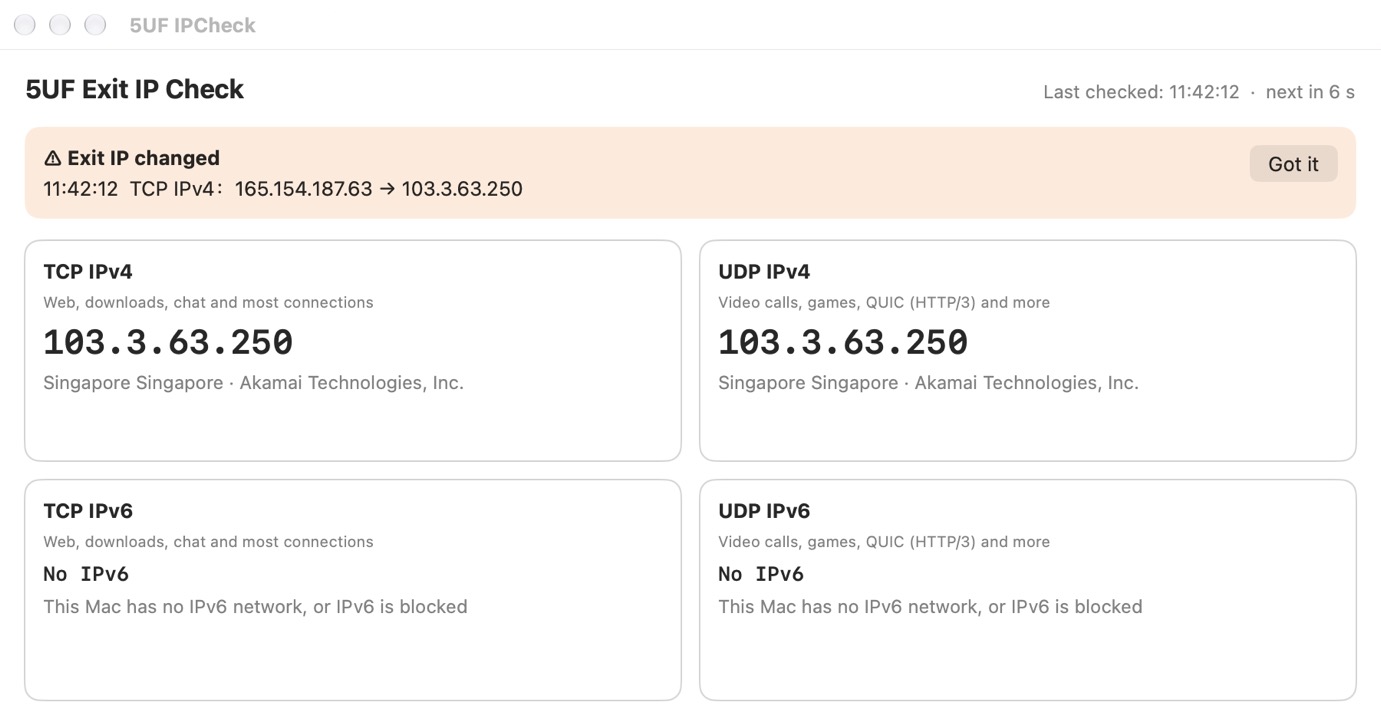
If the pinned server is later removed from the server list, the Apps page tells you so; choose another server. To chain two servers, see "What is a two-hop proxy (chaining)? How do I use it on desktop?".
What is a two-hop proxy (chaining)? How do I use it on desktop?
What it is: normally your traffic goes "your computer → one server → website". With a two-hop proxy (chaining), it goes through two servers: "your computer → first hop → exit server → website".
• Websites see the exit server's IP.
• The first hop only sees encrypted traffic and doesn't know what you visit.
• The exit server doesn't see your real IP, only the first hop.
When it helps:
• Using it from mainland China but needing an IP in a specific country: connecting directly to a distant country may be unstable. Use a relay server optimised for mainland China (tagged as relay in the server list) as the first hop and a server in the target country as the exit, so you get both stability and the right exit location.
• Better privacy: no single server knows both who you are and what you visit.
How to set it up (Windows / macOS): chaining is set per app on the Apps page.
1. Add the app on the Apps page.
2. Click its Route and choose the exit server first.
3. A "No chaining" button then appears on the left. Click it and choose the first-hop server.
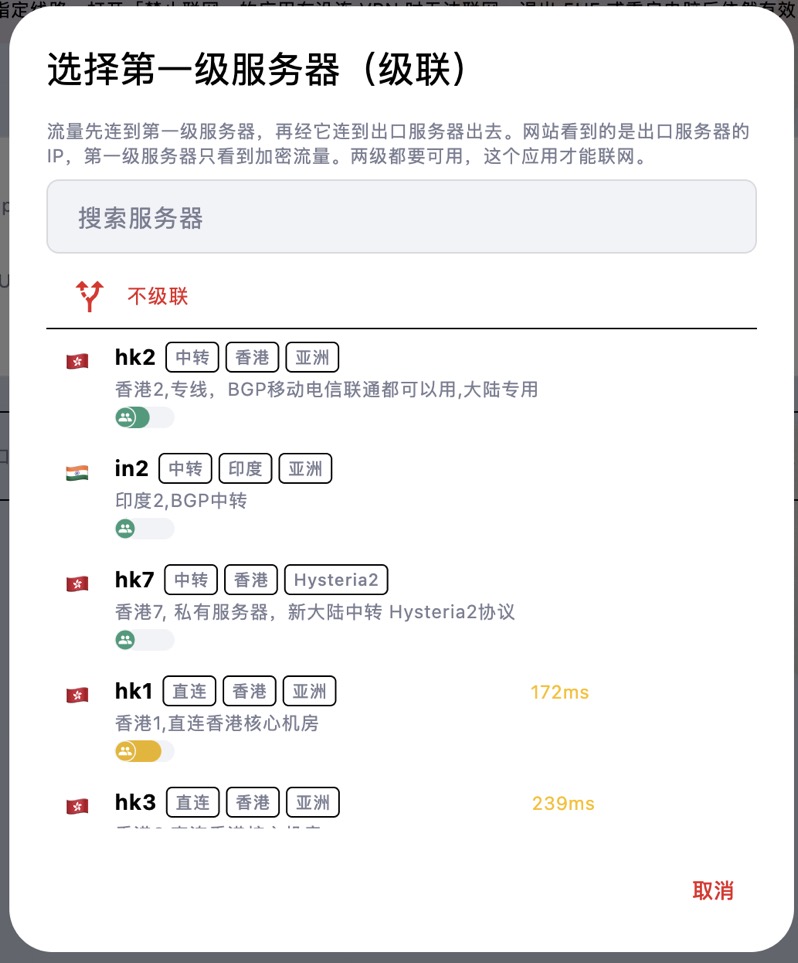
Once set, the route shows "First hop xxx → Exit xxx":
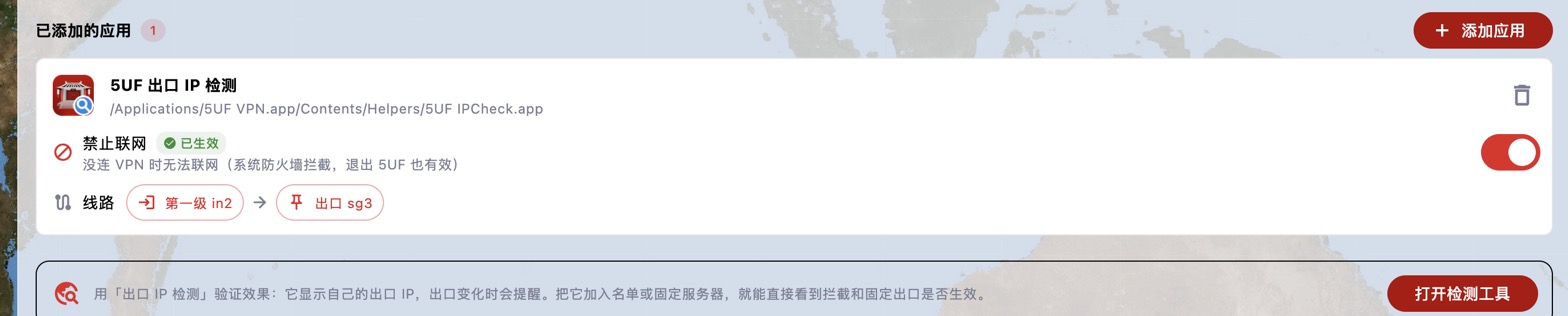
Notes:
• Both servers must be available for the app to go online. If either fails, the app can't connect; it won't switch routes automatically.
• The extra hop adds some latency, so use it for apps that need a particular exit location rather than for everything.
• To remove the first hop, choose "No chaining"; to go back to normal, set the exit to "Follow current server".
• Use the Exit IP Check tool to confirm the exit IP is the exit server's IP.
On Windows, what if the Microsoft Store or other UWP apps can't go online?
By default Windows doesn't let UWP apps such as the Microsoft Store, Mail or Weather use the local system proxy. In system proxy mode, their requests may be blocked by Windows before they reach 5UF, so they won't load or keep spinning. Turning on the virtual network adapter (TUN) as well doesn't remove this restriction.
Check and repair:
1. Open 5UF and go to Settings → Microsoft Store / UWP network check.
2. The app checks the system proxy, whether the selected app may use the local proxy, and whether Microsoft services are reachable.
3. Choose the affected app (the Microsoft Store by default).
4. If it says local proxy access isn't allowed yet, click Repair and click Yes in the Windows administrator prompt.
5. When it confirms that access is enabled and verified, fully close the app and open it again.
Repair only allows the selected app to reach local services; existing exemptions and routing rules are kept. If the Microsoft Store isn't listed, open the Store once and check again.
If some Microsoft services are still unreachable after repair, the problem isn't app permissions: check the server, DNS and routing rules, try switching to virtual adapter (TUN) mode in Settings and restarting the affected app, or use AI Diagnosis.
What is "Block IPv6 traffic"? Should I turn it on?
The desktop apps (Windows / macOS) have a new Block IPv6 traffic switch on the right side of Settings. It is on by default.
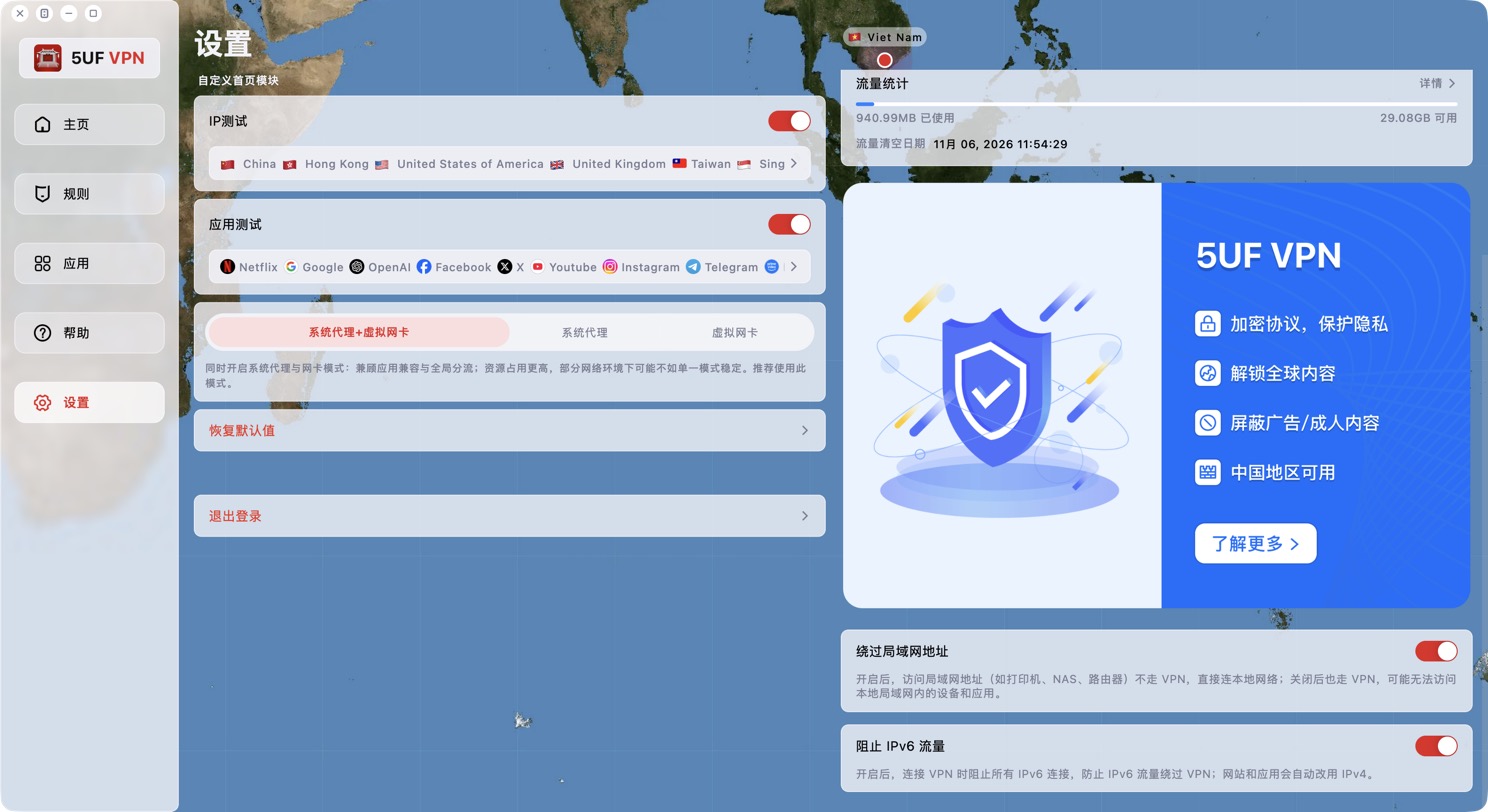
What it does: while the VPN is connected, all IPv6 connections are blocked so IPv6 traffic can't bypass the VPN and expose your real network address. Websites and apps automatically fall back to IPv4, so you normally won't notice any difference.
Recommendation: keep it on. Only turn it off if you really need to reach a service over IPv6. Changing it closes existing connections and takes effect immediately.
With it on, Exit IP Check shows "No IPv6" for IPv6, which is expected. The "Bypass LAN addresses" switch on the same page decides whether local devices such as printers, NAS and routers are reached directly; it's normally left on too.
How do I read the direct vs. VPN comparison in IP Test?
The new IP Test measures both direct and VPN connections at the same time, so you can compare them without disconnecting. Click the latency chart on the home screen to open it.
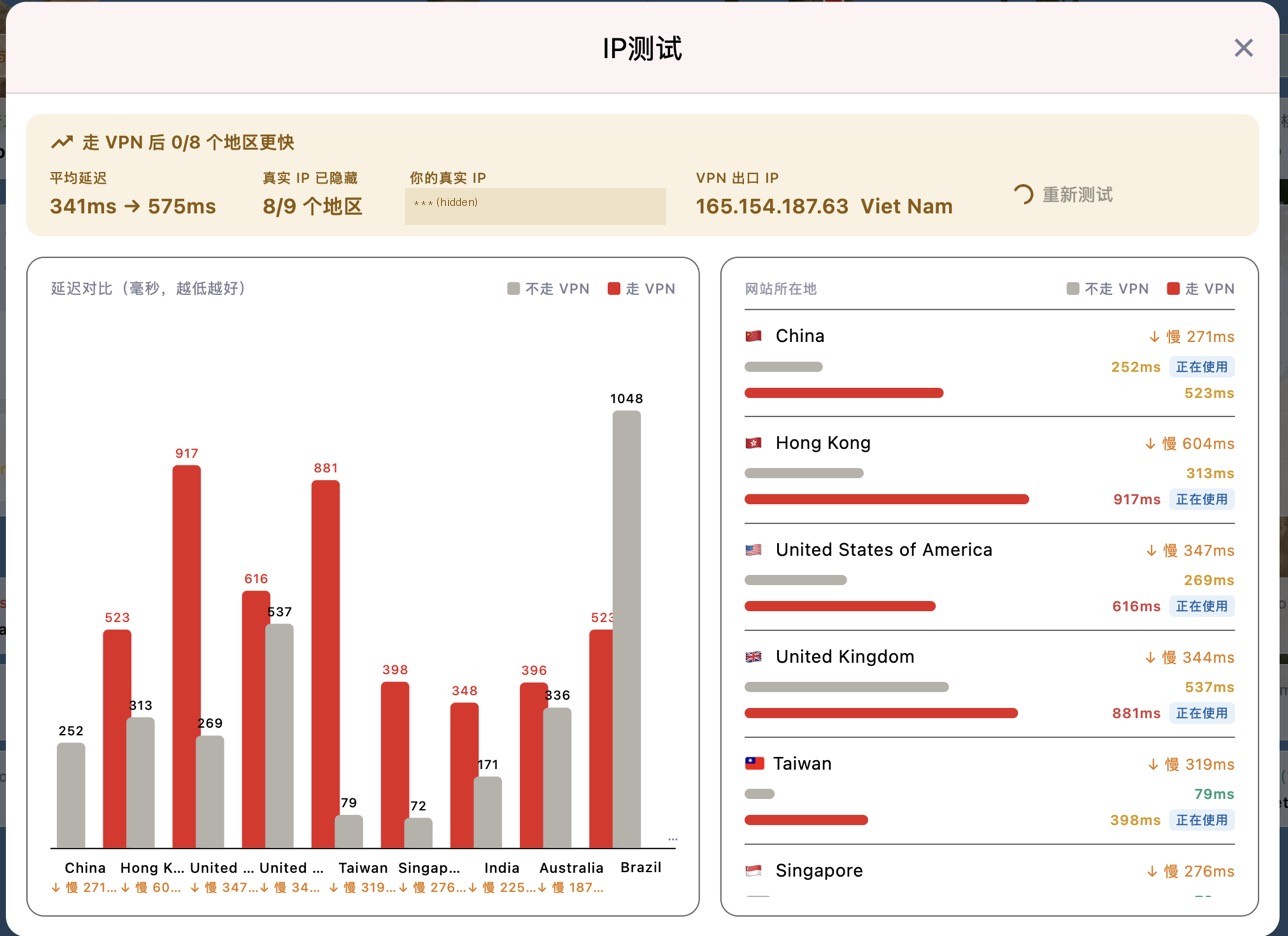
Summary at the top:
• Regions faster with VPN: how many regions have lower latency through the VPN than direct.
• Average latency: direct → VPN.
• Real IP hidden: in how many regions websites see the VPN IP instead of your real IP.
• Your real IP and VPN exit IP: these should be different.
Chart on the left, details on the right: grey is direct, red is VPN; lower is better. Each region is marked "In use" on the path your traffic actually takes under your current rules. For example, if mainland China sites go direct under your rules, the direct row is marked.
How to judge it: the VPN being somewhat slower than direct is normal, because traffic takes a longer route. What matters is that the regions you need are reachable with acceptable latency. If a region is very slow or fails through the VPN, try a closer server and test again.
What do the four cards at the top of the new desktop home screen mean?
The new desktop home screen has a row of cards at the top that show the current network status at a glance. Click any card to open the related settings.

1. DNS: whether DNS resolution is normal or poisoned, and whether the provider and location of the overseas and China DNS match what's expected. Poisoning detected while the VPN is off is normal. See "How can I change DNS to reduce DNS pollution issues?" for DNS settings.
2. Policy: Global or Rule mode, plus the filters that are on, such as ad blocking and IPv6 blocking.
3. Apps: apps that bypass the VPN (Global mode) or apps that use the VPN (Rule mode); "All apps use the VPN" if none are set.
4. Core: whether the core is working, plus connection counts:
• Green: normal connections (data received).
• Yellow: waiting (opened less than 10 seconds ago, no data yet).
• Red: timed out (open for more than 10 seconds with no data). Many red connections mean a server or network problem; try another server or use AI Diagnosis.
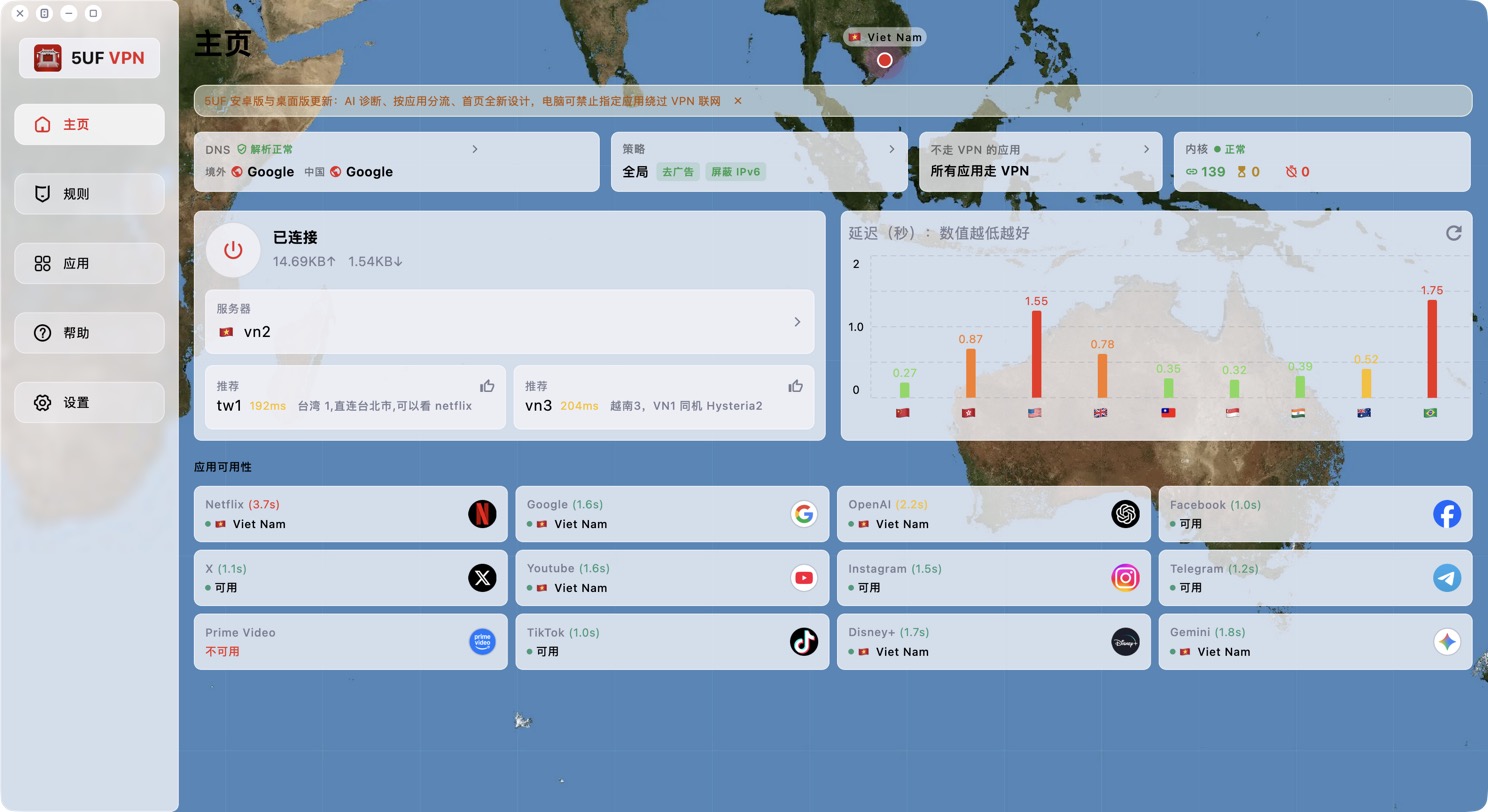
The desktop window can now also be maximized, with the map filling the screen; double-click an empty part of the map to switch between maximized and a comfortable size.
How do I use Exit IP Check to see an app's exit IP?
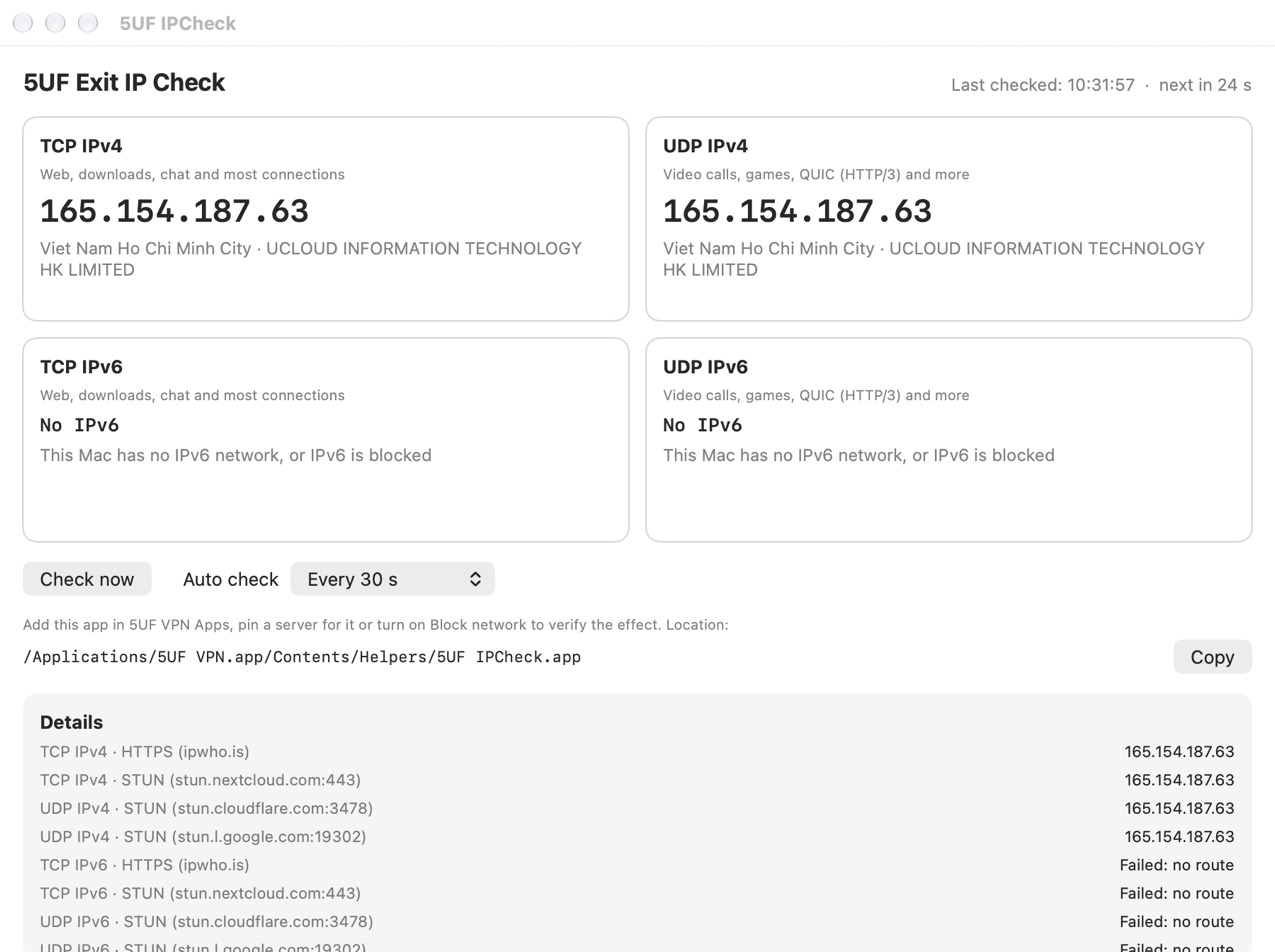
The Windows and macOS apps include a small tool, 5UF Exit IP Check, to verify that the VPN and your Apps page settings really work.
How to open it: click Open checker at the bottom of the Apps page.
What it shows:
• TCP IPv4 / TCP IPv6: the exit IP for web, downloads, chat and most connections, with country, city and ISP.
• UDP IPv4 / UDP IPv6: the exit IP for video calls, games, QUIC (HTTP/3) and more.
• "No IPv6": this computer has no IPv6 network, or IPv6 is blocked (for example by Block IPv6 traffic). This is normal.
• "No network access": blocked, or the check server is unreachable.
• If TCP and UDP exit through different IPs, it warns that some traffic may not be going through the VPN.
It checks automatically at the chosen interval (every 30 seconds by default) and right away when the network changes (VPN connected or disconnected, Wi-Fi changed). When the exit IP changes it shows an alert, sends a system notification and records it in the change history.
Testing Block network: add the checker itself on the Apps page (click "Add to list"), turn on Block network, then disconnect the VPN: it should show "No network access". After connecting, it should show the VPN server's IP.
Testing a pinned route: pin an exit server for it; the IP shown should change to that server's IP.
On desktop, how do I pin an exit server for an app, or chain two servers?
After adding an app on the Apps page, each app has a Route option. The default is "Follow current server", the same server you chose on the home screen.
Pin an exit server: click "Follow current server" and choose a server from the list (you can search). The app then always exits through that server, and changing the server on the home screen doesn't affect it. Useful for sites, accounts or trading apps that need a fixed IP.
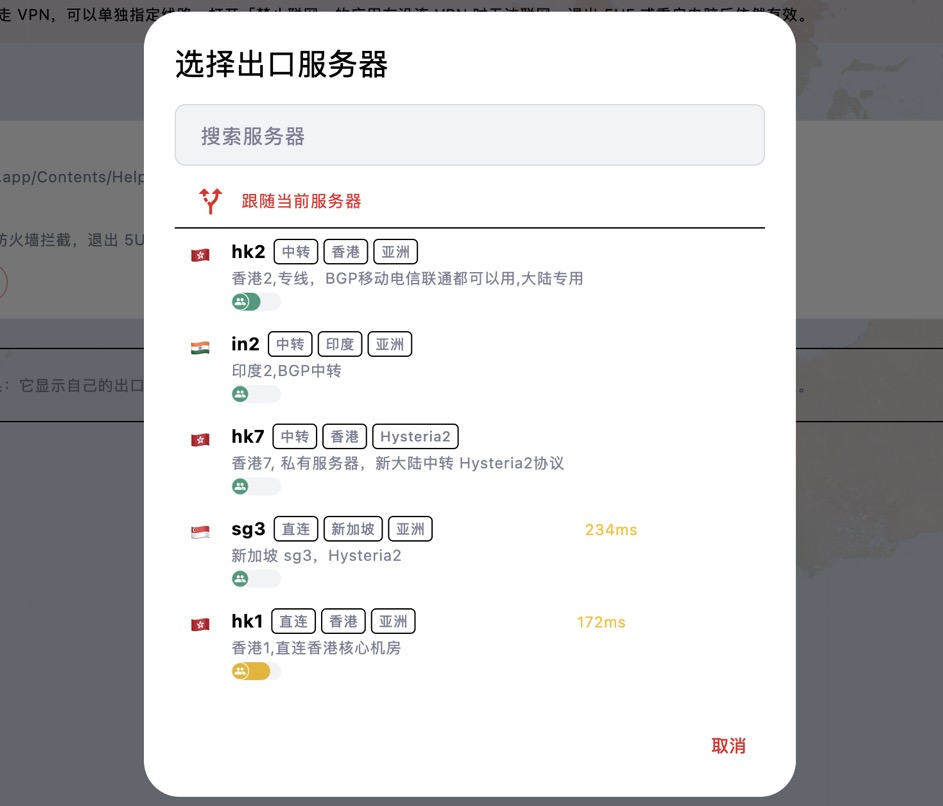
Two-hop chain: after choosing an exit server you can also choose a first-hop server. Traffic connects to the first hop, then through it to the exit server. Websites see the exit server's IP; the first hop only sees encrypted traffic. Both servers must be available for the app to go online.
To undo, choose "Follow current server". If the pinned server is no longer in the server list, the page says so and the app can't go online until you choose another one.
On desktop, how do I stop an app from going online without the VPN? (Block network on the Apps page)
Some apps (browsers, chat or trading apps) should only ever be used with the VPN, so they don't expose your real IP if you forget to connect. The Apps page in the Windows and macOS apps handles this.
How to set it up:
1. Open Apps in the navigation, or press Ctrl+3 (⌘3 on macOS).
2. Click Add app and choose the program.
3. Once added, all of this app's traffic goes through the VPN while connected, instead of following the rules.
4. If needed, turn on Block network under it. When it shows "Active", the app has no network access at all while the VPN is off.
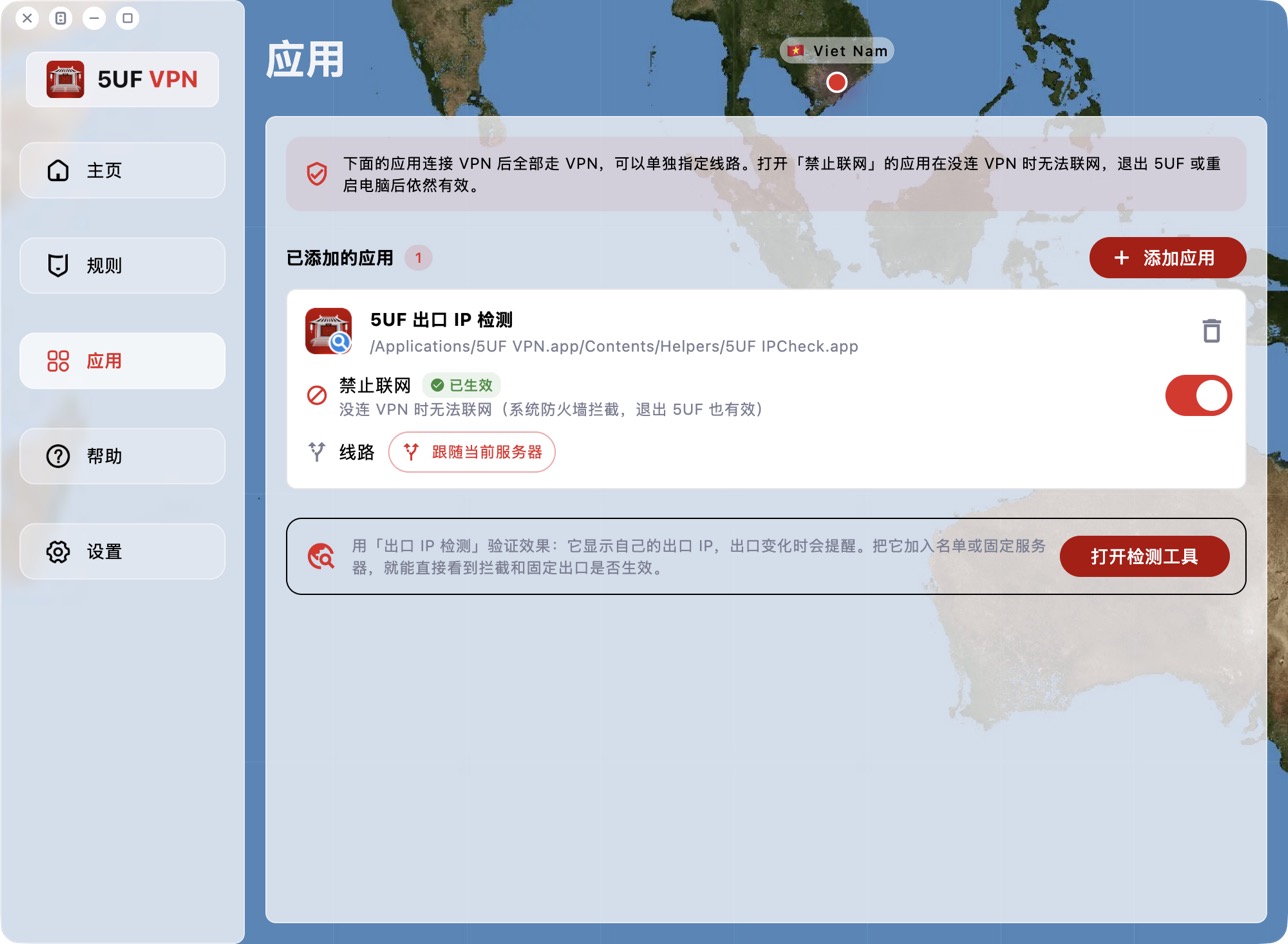
Block network is enforced by the system firewall, so it stays in effect after you quit 5UF or restart the computer. Turn the switch off or remove the app to restore normal access.
First time on macOS: Block network uses a macOS network filter extension. It's installed only the first time you turn the switch on; if you never use the feature, nothing is installed.
1. When macOS says the system extension was blocked, click Open System Settings in the app and turn on 5UF VPN under Network Extensions.
2. When macOS asks whether 5UF VPN may filter network content, click Allow.
The extension only blocks apps with Block network turned on; other apps are not affected.
Common messages:
• "One more step…": the network extension switch isn't on yet. Click Open System Settings and turn it on.
• "Blocking is not active… you chose Don't Allow": click Retry and choose Allow this time.
• "Please move 5UF VPN to the Applications folder first": macOS only lets apps in the Applications folder install extensions. Move it, then reopen 5UF.
To verify, use the Exit IP Check tool at the bottom of the page (see "How do I use Exit IP Check to see an app's exit IP?").
How do I use AI Diagnosis to find out why I can't connect or a site won't open?
The new app includes AI Diagnosis. If you can't connect, a site or app won't open, the connection is slow or keeps dropping, let it check things for you first.
Where to find it: go to Help → Tickets / Feedback, tap + in the top-right corner and choose AI Diagnosis. On macOS you can also open it from Help → Network Diagnosis in the menu bar.
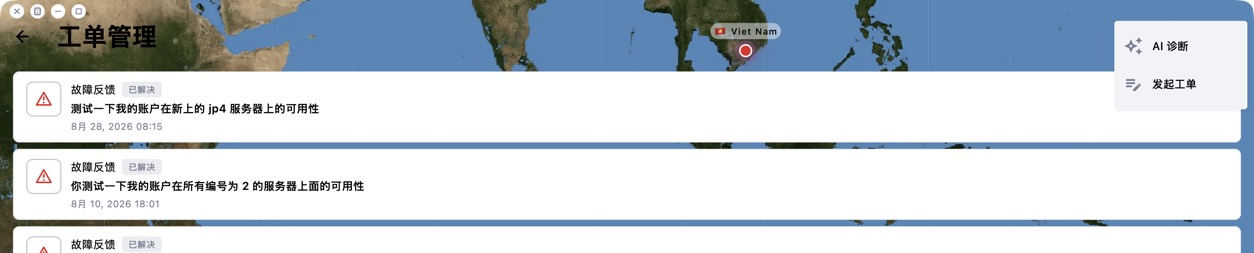
Steps:
1. Choose the problem, for example "Connected but sites won't open".
2. Optionally describe the problem, enter the sites that won't open (for example youtube.com), or choose the server that has problems. If you don't choose one, the currently selected server is tested.
3. Tap Start diagnosis.
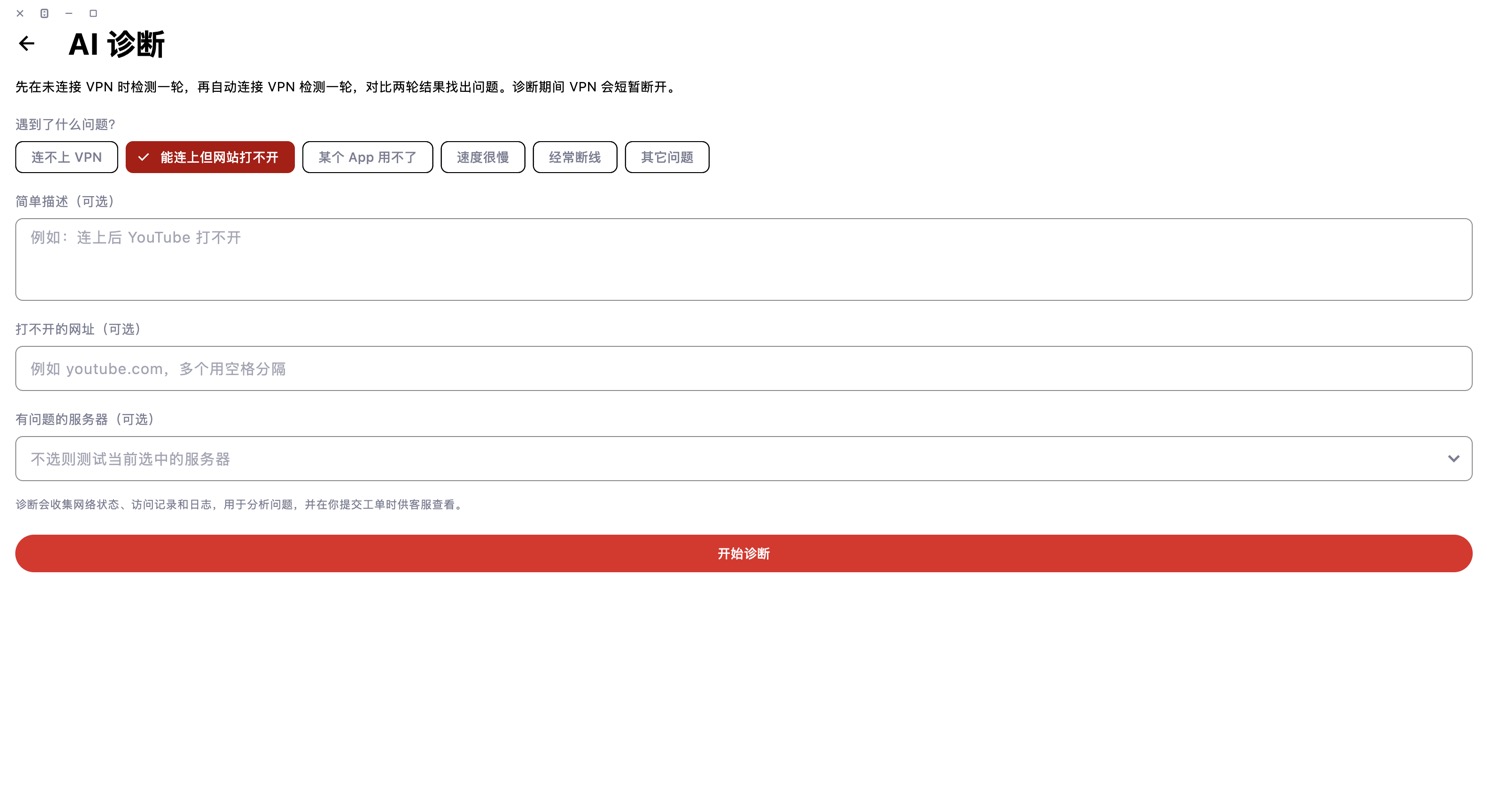
What happens: the app runs one round of checks without the VPN, then connects the VPN automatically and runs another round, compares the two and can test all servers. The VPN disconnects briefly during diagnosis, so please stay on this page.
Results: the AI explains the cause and what to do, for example DNS poisoning or an unavailable server. It may suggest switching to a working server or changing a setting (such as restoring the default DNS). It always asks before changing anything, then checks again.
Still not fixed? Tap "Not solved, submit a ticket". The diagnosis data and conversation are attached to the ticket, so support can see everything without you explaining it again.
Note: AI Diagnosis has a daily limit. After that, you'll see a preliminary conclusion based on the checks. Diagnosis collects network status, access records and logs, used only to analyse the problem.
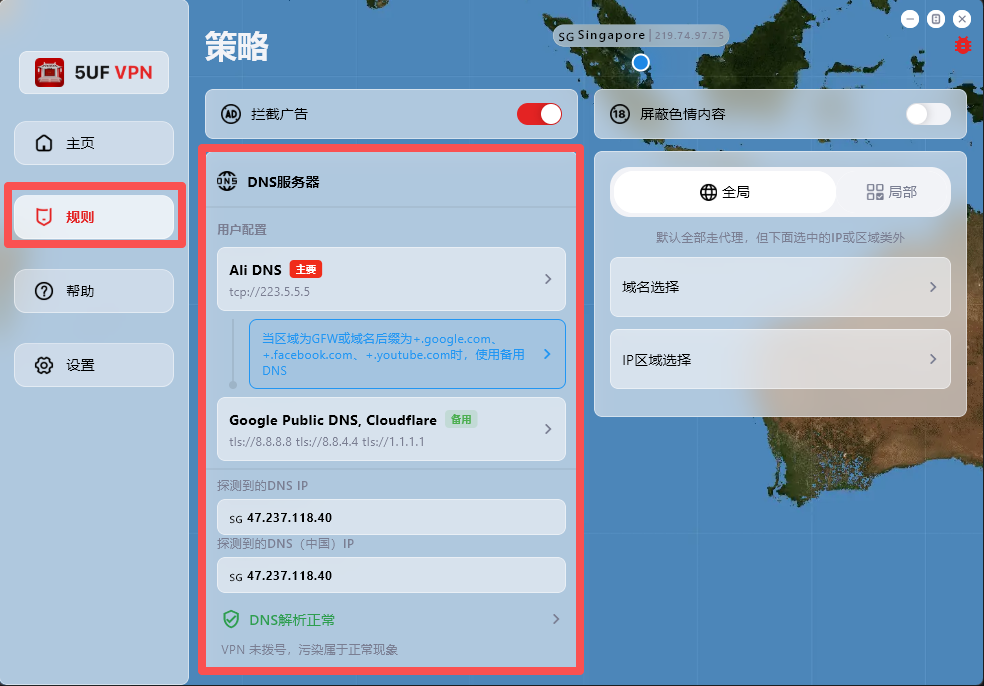
How can I change DNS to reduce DNS pollution issues?
If your network access behaves abnormally, first check and adjust DNS settings in the Rules page.
The app has built-in support for:
1. Changing DNS settings after dial-up/connection.
2. DNS connectivity checks.
3. DNS pollution detection.
Where to configure: open the app main screen, go to Rules, then modify the default DNS request settings.
One-tap preset recovery: at the bottom of the Rules page, we provide built-in presets for common regions, including Mainland China, Hong Kong/Macau, and default profiles for countries/regions such as Iran and Russia.
Dynamic IP database update: the Rules page also includes dynamic IP database update, which you can run when needed.
Why detected DNS may differ from configured DNS:
DNS probing uses temporary domain resolution to identify the actual egress resolver IP within a DNS cluster, so the detected result may not be exactly the DNS address you entered.
For example, even if you configure Google Public DNS (8.8.8.8), the detected resolver may be another cluster node responding to your request.
How do I collect logs and report issues to you quickly?
When you hit connection issues, unstable speed, or anything hard to reproduce, rich diagnostics help us troubleshoot much faster.
Recommended (best): use the in-app ticket / feedback flow. In recent builds you can attach profiles, network diagnostics, speed-test results, and detailed logs right inside the ticket so support can triage quickly.
Can't find the ticket entry? Open Help → About (or the equivalent section in your client) — you'll usually find shortcuts to logs and network diagnostics there; export or capture what you can, then reach out through whichever channel you prefer.
Tips: try to reproduce once before sending, note time, network type (cellular vs Wi‑Fi, rough region), and your app version; it speeds things up.
How can I verify that using 5UF VPN is safe?
A VPN adds an encrypted tunnel between you and the internet, which lowers the chance of casual eavesdropping on plain HTTP in untrusted networks. Below is a practical checklist plus notes on privacy, technology, and how we operate.
1. Install only from official sources
- Use official app stores on mobile and the official 5UF website (or links we publish) on desktop; verify the domain before installing.
- Avoid “cracked” builds and random APK shares. Many free or unknown VPNs have a poor track record for ads, data resale, or malware.
2. Account work only on real HTTPS sites
For login, billing, or subscription pages, confirm a trusted domain and HTTPS in the address bar.
3. After connecting, test your IP and DNS (recommended)
With the VPN on and other proxies off, open BrowserLeaks — My IP Address to see the exit IP and rough region. The same site offers DNS leak and WebRTC tests. Results depend on split tunneling, extensions, and dual-stack networks—use them as signals, not a single proof.
4. Can ISPs or police “know I use a VPN”?
Technically, providers often see that your device talks to a remote endpoint with encrypted traffic, volume, and timing. They generally cannot read your HTTPS page contents the way they could with old plain HTTP. Sites and modern apps add another layer of end-to-end TLS that the VPN operator normally cannot decrypt either. What authorities may obtain still depends on law and due process—a VPN is not invisibility.
5. Xray-based stack
Our service commonly builds on open projects such as Xray (for example XTLS/Xray-core) with transports like Trojan wrapped in TLS. Open source enables community review; it is not the same as a formal proof against every adversary, but it is far more inspectable than a closed black box. Keep clients updated and download only from trusted sources.
6. What can the operator see?
In typical HTTPS browsing, we cannot decrypt the payload between you and the website. Exact data categories are spelled out in our privacy policy.
7. Singapore company and compliance
We are incorporated in Singapore and operate under its legal framework. The privacy policy explains retention, security practices, and how we may respond to lawful requests. We do not treat selling user privacy as a business model. Read the policy on our site; open a ticket for questions.
8. Bottom line
No VPN replaces good hygiene—official clients first, skepticism toward “free” unknown VPNs, and regular updates. Report suspicious clones through official channels.
What is the difference between relay nodes and direct nodes?

Relay (transit) nodes send traffic to a relay inside mainland China first, then forward it toward overseas destinations over dedicated or optimized backhaul. That path is often more predictable than raw public-internet crossings, which can mean better stability and higher peak performance for cross-border use. Building and operating relays costs more, so relay plans may differ from plain direct routes in pricing or lineup.
Direct nodes rely more on the public internet, connecting straight to overseas servers. Cross-border public paths may see packet loss, throttling, or intermittent blocking in some regions or hours. Even when a route works, speeds can plunge at busy times. If you are in mainland China and need reliability, relay lines are usually the safer choice.
5UF is among the few providers that can offer lawful mainland relay capacity alongside standard options. We also tune routing for selected sites and services. Example: some Hong Kong nodes may not work well with OpenAI ChatGPT over a plain path, but with relay and routing optimization, Hong Kong and similar regions can reach those AI services more reliably. If a specific AI site or service fails for you, contact support so we can prioritize routing fixes.
Available nodes depend on the app and the list on our site; plans differ in node types and counts. See your subscription details for what applies to you.
How to quickly select a server and run speed tests in the 5UF VPN app
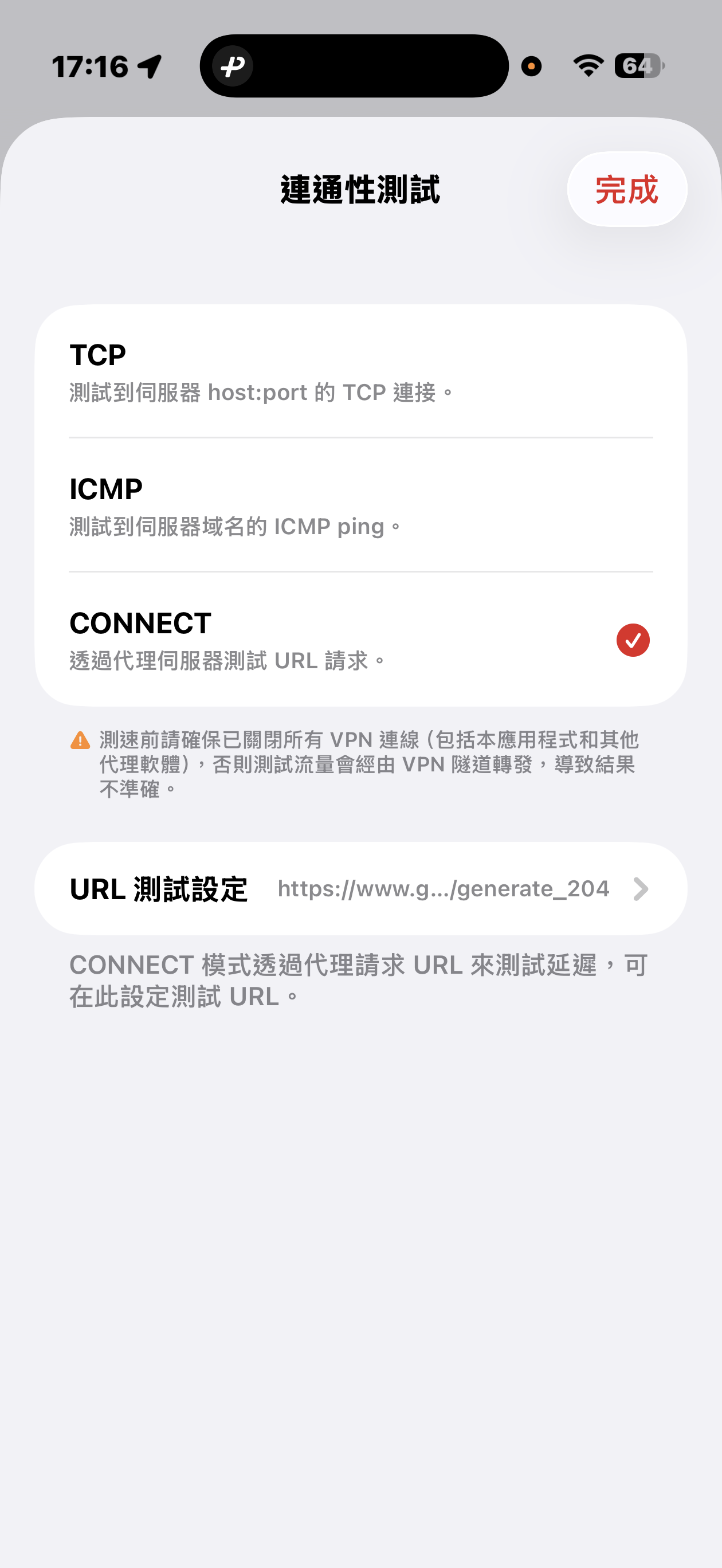
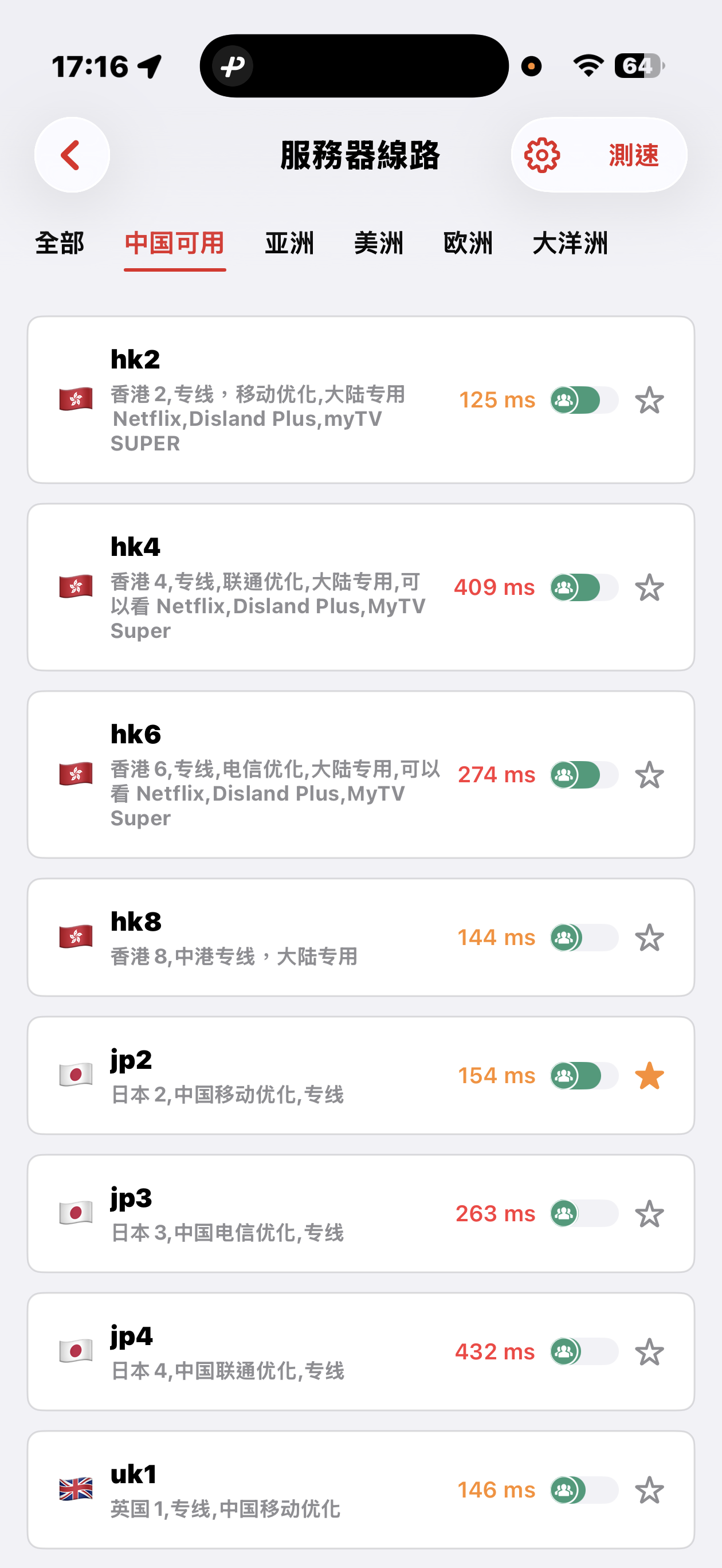
The 5UF VPN app offers quick connectivity tests from the server list screen: tap Speed test at the top right (sometimes next to a settings icon), open Connectivity test, then pick a method.
Three test modes
- TCP: Measures how long it takes to complete a TCP handshake to each server host and port. The app runs multiple probes and shows an average so you can compare routes quickly.
- ICMP: Sends ICMP echo (ping) to the server hostname, similar to the ping tools built into desktop and mobile systems, to see round-trip latency.
- CONNECT: Issues an HTTP(S) request to a test URL through the proxy path, which best mimics real VPN usage. It is usually the slowest mode, but in heavily restricted networks it helps find nodes that still work. You can change the test URL under URL test settings.
Before testing, disconnect all VPN and proxy software, including this app. Otherwise traffic may still go through a tunnel and the numbers will not reflect your raw local path.
Mainland China: Strict blocking may make some overseas nodes unreachable; that can be normal. Use the Available in China category for optimized dedicated lines that aim to stay usable under heavy filtering, with carrier hints for China Mobile, China Unicom, and China Telecom. Pick a line that matches your ISP or SIM.
Choosing a server: Auto-select uses TCP results, then picks one server at random from among the fastest, balancing speed and load. You can also browse by geography (for example Asia, Americas, Europe) and choose manually.
Why are servers fast at peak hours? How does the Mainland China–Hong Kong dedicated line keep service stable?
Many people ask whether a VPN gets slow or flaky during evening peak hours. For users in Mainland China, our design relies on contracted dedicated circuits between Mainland China and Hong Kong: you get committed, non–best-effort bandwidth on a path that does not compete with the busiest public international internet exits at night. The cross-border access leg therefore usually stays low-latency and predictable at peak times, on carrier-grade private connectivity with the SLAs that come with it.
Important distinction: once traffic leaves our Hong Kong edge toward faraway destinations (for example services that only have a US front door), it crosses Hong Kong’s international interconnects and submarine segments. During Hong Kong peak hours, that international segment can congest. You may then notice a few sites or apps feel slower—that is usually the HK→destination path, not our Mainland–HK dedicated access “throttling.”
Major apps are generally optimized for Hong Kong and APAC with local or nearby points of presence, so day-to-day browsing rarely shows those effects. A smaller set of services that mostly live in the US and hit a busy path are more likely to feel slower at peak.
We have served the China market for sixteen years. Planned work, major events, and routing updates are announced through our official news feed; you can browse the archive at news and past notices.


