FAQ
Why does Block network need a network extension on macOS but not on Windows? 
Block network has to make sure that a specific app can't open any connection while the VPN is off, even after you quit 5UF or restart. That requires the operating system to block outgoing connections per app, and the two systems provide this differently.
Windows: built in, nothing extra to install
Windows has a built-in network filtering framework (the Windows Filtering Platform, which the Windows firewall is built on) that accepts per-program blocking rules. 5UF already installs a background service with administrator rights, which adds the blocking rules to the Windows Filtering Platform, so no extra driver or extension is needed.
macOS: only possible through Apple's network extensions
• The built-in macOS firewall only handles incoming connections; it can't stop an app from connecting out.
• The low-level packet filter (pf) only knows IP addresses and ports; it can't tell which app opened a connection.
• Apple requires third-party software that filters network traffic per app to use Apple's Network Extension framework. So 5UF installs a small network filter extension: macOS tells it which app each connection comes from, and it allows or blocks it.
Why you have to approve it yourself: a network extension can see network connections, so for security Apple requires the user to turn it on in System Settings and allow it to filter network content. No software can do this step for you. The 5UF extension is notarized by Apple, only blocks apps you turned Block network on for, and doesn't record or change other apps' traffic.
Not installed unless you use it: the extension is installed only the first time you turn on Block network. Using the VPN, per-app routing or pinned routes doesn't need it. To stop using it, turn off 5UF VPN in System Settings → General → Login Items & Extensions → Network Extensions.
For installation steps and common messages, see "On desktop, how do I stop an app from going online without the VPN?".
On desktop, can I make an app always exit through one specific VPN server?
Yes. App rules in the Windows and macOS apps can lock an app to a single VPN exit: whatever server you choose on the home screen, that app always exits through the server you picked, so websites always see the same country and the same server IP.
Useful for: trading apps, ad dashboards, cross-border e-commerce and social accounts that are sensitive to the login IP. Frequent IP changes can trigger risk checks, verification or account bans; a fixed exit avoids that.
How to set it up:
1. Open Apps (Ctrl+3, or ⌘3 on macOS), click Add app and choose the app.
2. Click its Route ("Follow current server" by default) and choose the server to pin.
3. When the route shows "Exit xxx", you're done.
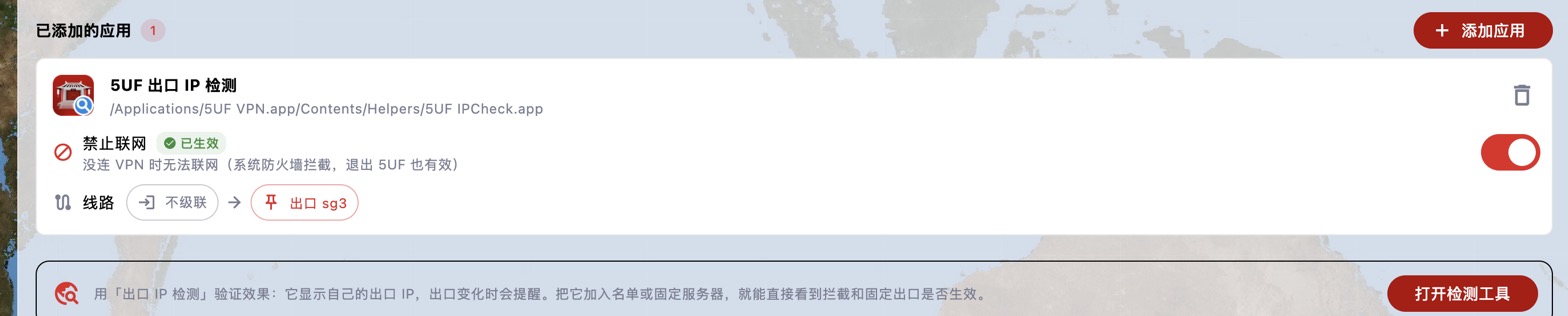
For extra safety, also turn on Block network for the app. It can then only go out through the chosen server:
• VPN connected: only through the pinned exit, even if you change servers on the home screen.
• VPN off or 5UF closed: no network access at all, so it never signs in with your real IP.
• Pinned server unreachable: the app can't connect, instead of silently switching to another server or going direct.
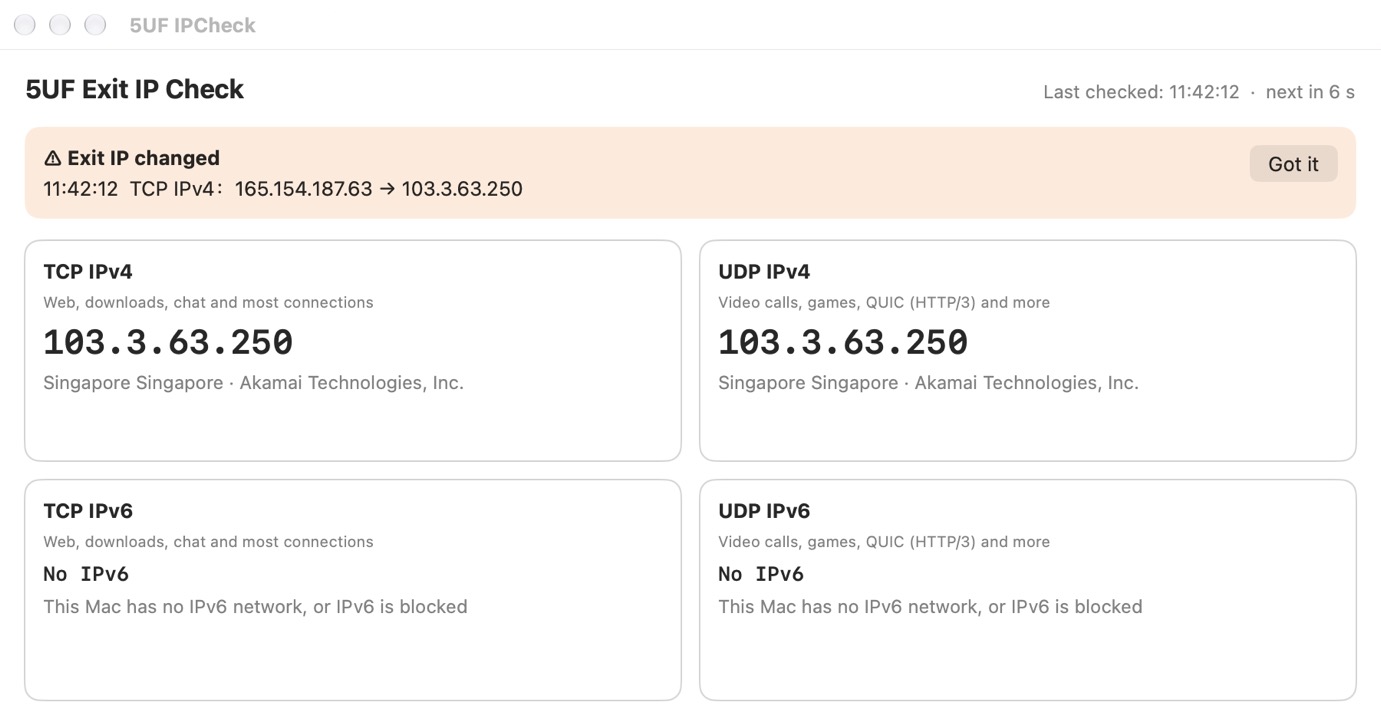
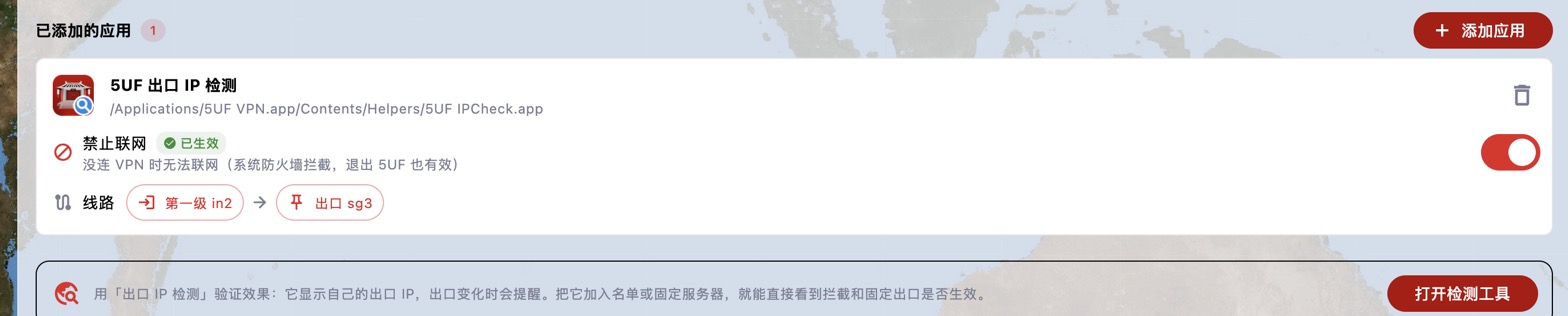
To verify: add the Exit IP Check tool to the list and pin it to the same server; the IP it shows should be that server's IP. The screenshot below shows the tool after it was moved from a Vietnam server to Singapore sg3: it reports that the exit IP changed.
If the pinned server is later removed from the server list, the Apps page tells you so; choose another server. To chain two servers, see "What is a two-hop proxy (chaining)? How do I use it on desktop?".
What is a two-hop proxy (chaining)? How do I use it on desktop?
What it is: normally your traffic goes "your computer → one server → website". With a two-hop proxy (chaining), it goes through two servers: "your computer → first hop → exit server → website".
• Websites see the exit server's IP.
• The first hop only sees encrypted traffic and doesn't know what you visit.
• The exit server doesn't see your real IP, only the first hop.
When it helps:
• Using it from mainland China but needing an IP in a specific country: connecting directly to a distant country may be unstable. Use a relay server optimised for mainland China (tagged as relay in the server list) as the first hop and a server in the target country as the exit, so you get both stability and the right exit location.
• Better privacy: no single server knows both who you are and what you visit.
How to set it up (Windows / macOS): chaining is set per app on the Apps page.
1. Add the app on the Apps page.
2. Click its Route and choose the exit server first.
3. A "No chaining" button then appears on the left. Click it and choose the first-hop server.
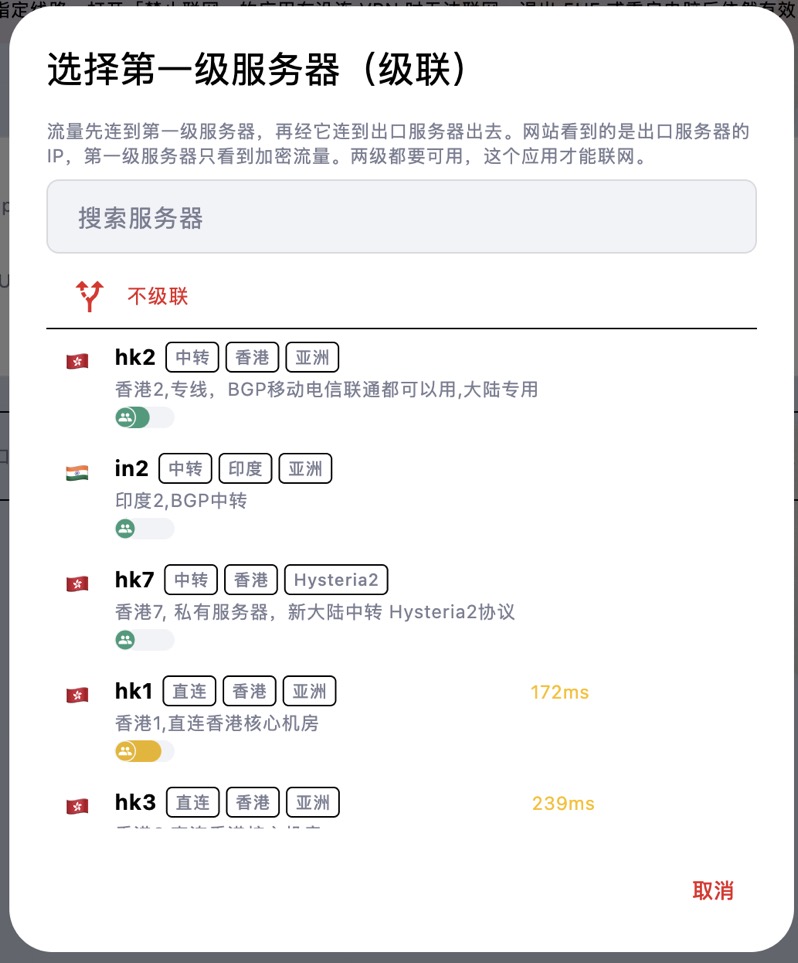
Once set, the route shows "First hop xxx → Exit xxx":
Notes:
• Both servers must be available for the app to go online. If either fails, the app can't connect; it won't switch routes automatically.
• The extra hop adds some latency, so use it for apps that need a particular exit location rather than for everything.
• To remove the first hop, choose "No chaining"; to go back to normal, set the exit to "Follow current server".
• Use the Exit IP Check tool to confirm the exit IP is the exit server's IP.
What keyboard shortcuts does the desktop app have?
The new desktop app can be used entirely from the keyboard. The macOS app now has a menu bar with all common actions; Windows / Linux use Ctrl shortcuts. The full list is under Help → Keyboard shortcuts.
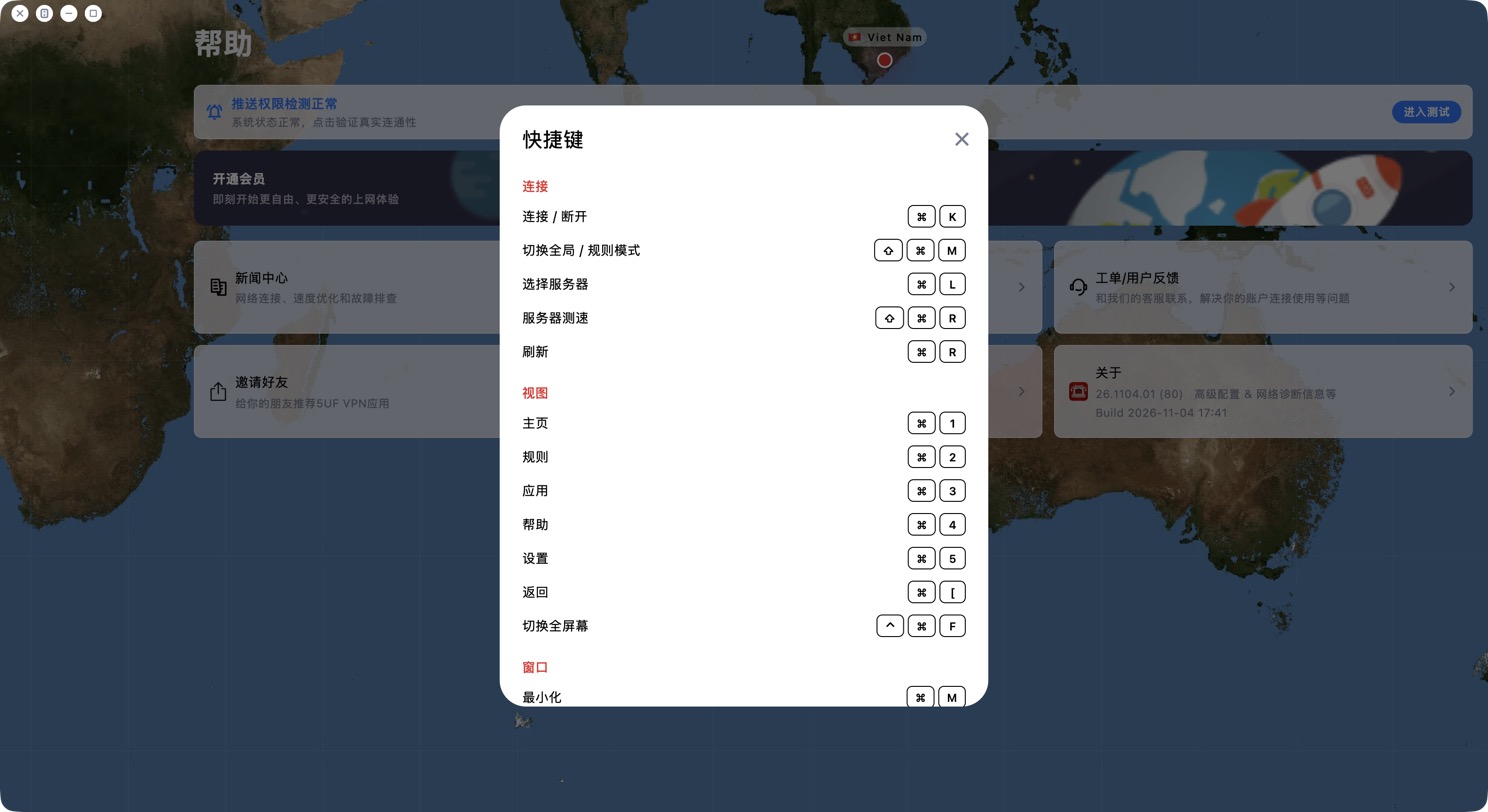
Common shortcuts (⌘ on macOS, Ctrl on Windows / Linux):
• Connect / disconnect: ⌘K
• Switch Global / Rule mode: ⇧⌘M
• Choose server: ⌘L
• Test server speed: ⇧⌘R; Refresh: ⌘R
• Pages: ⌘1 Home, ⌘2 Rules, ⌘3 Apps, ⌘4 Help, ⌘5 Settings
• Back: ⌘[
• Toggle full screen: ⌃⌘F (macOS)
General: Esc closes a dialog or goes back; Tab moves between buttons (Shift+Tab goes back) and shows a focus outline; Enter or Space activates the selected button.
What is "Block IPv6 traffic"? Should I turn it on?
The desktop apps (Windows / macOS) have a new Block IPv6 traffic switch on the right side of Settings. It is on by default.
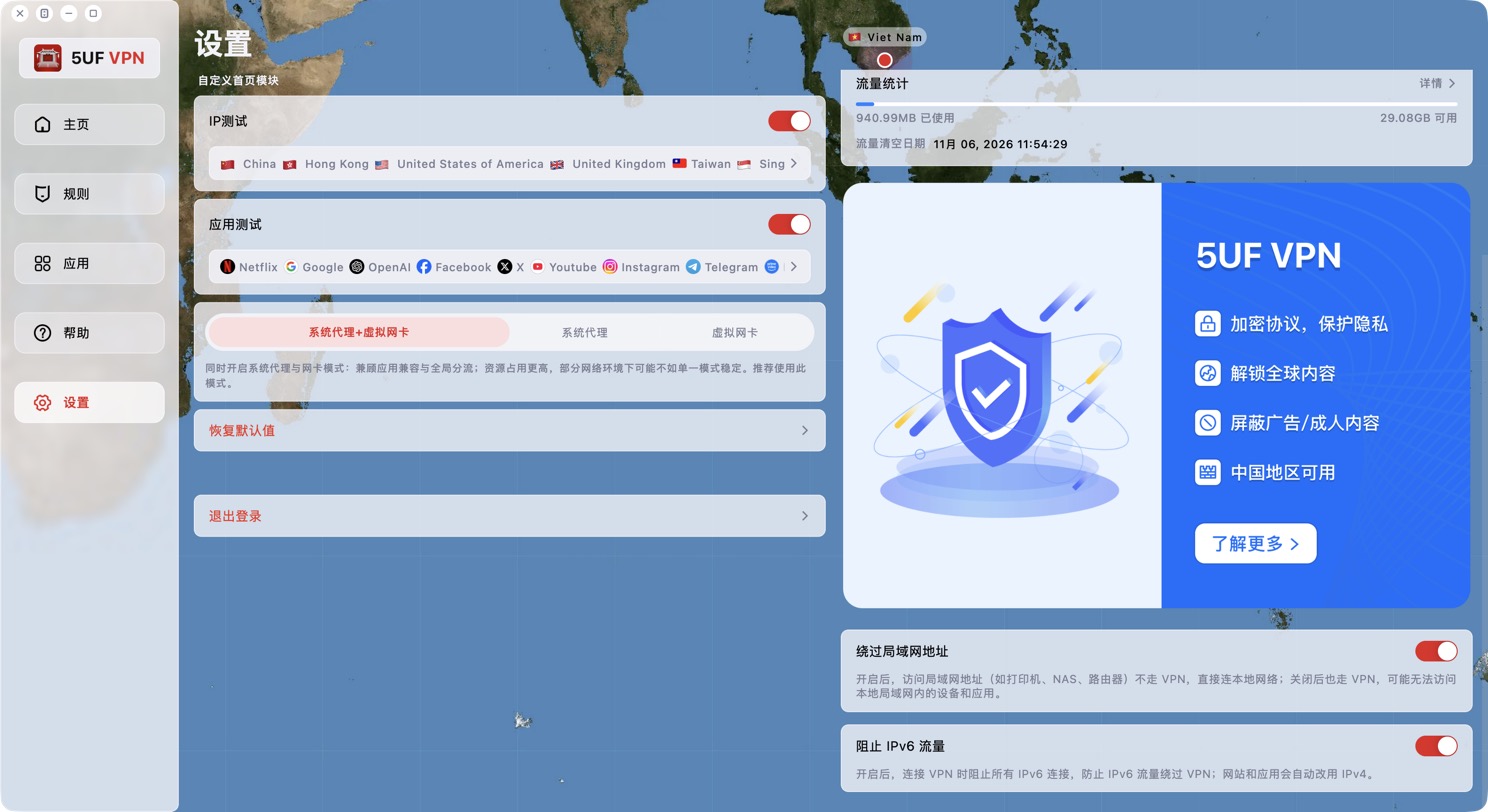
What it does: while the VPN is connected, all IPv6 connections are blocked so IPv6 traffic can't bypass the VPN and expose your real network address. Websites and apps automatically fall back to IPv4, so you normally won't notice any difference.
Recommendation: keep it on. Only turn it off if you really need to reach a service over IPv6. Changing it closes existing connections and takes effect immediately.
With it on, Exit IP Check shows "No IPv6" for IPv6, which is expected. The "Bypass LAN addresses" switch on the same page decides whether local devices such as printers, NAS and routers are reached directly; it's normally left on too.
What do the four cards at the top of the new desktop home screen mean?
The new desktop home screen has a row of cards at the top that show the current network status at a glance. Click any card to open the related settings.

1. DNS: whether DNS resolution is normal or poisoned, and whether the provider and location of the overseas and China DNS match what's expected. Poisoning detected while the VPN is off is normal. See "How can I change DNS to reduce DNS pollution issues?" for DNS settings.
2. Policy: Global or Rule mode, plus the filters that are on, such as ad blocking and IPv6 blocking.
3. Apps: apps that bypass the VPN (Global mode) or apps that use the VPN (Rule mode); "All apps use the VPN" if none are set.
4. Core: whether the core is working, plus connection counts:
• Green: normal connections (data received).
• Yellow: waiting (opened less than 10 seconds ago, no data yet).
• Red: timed out (open for more than 10 seconds with no data). Many red connections mean a server or network problem; try another server or use AI Diagnosis.
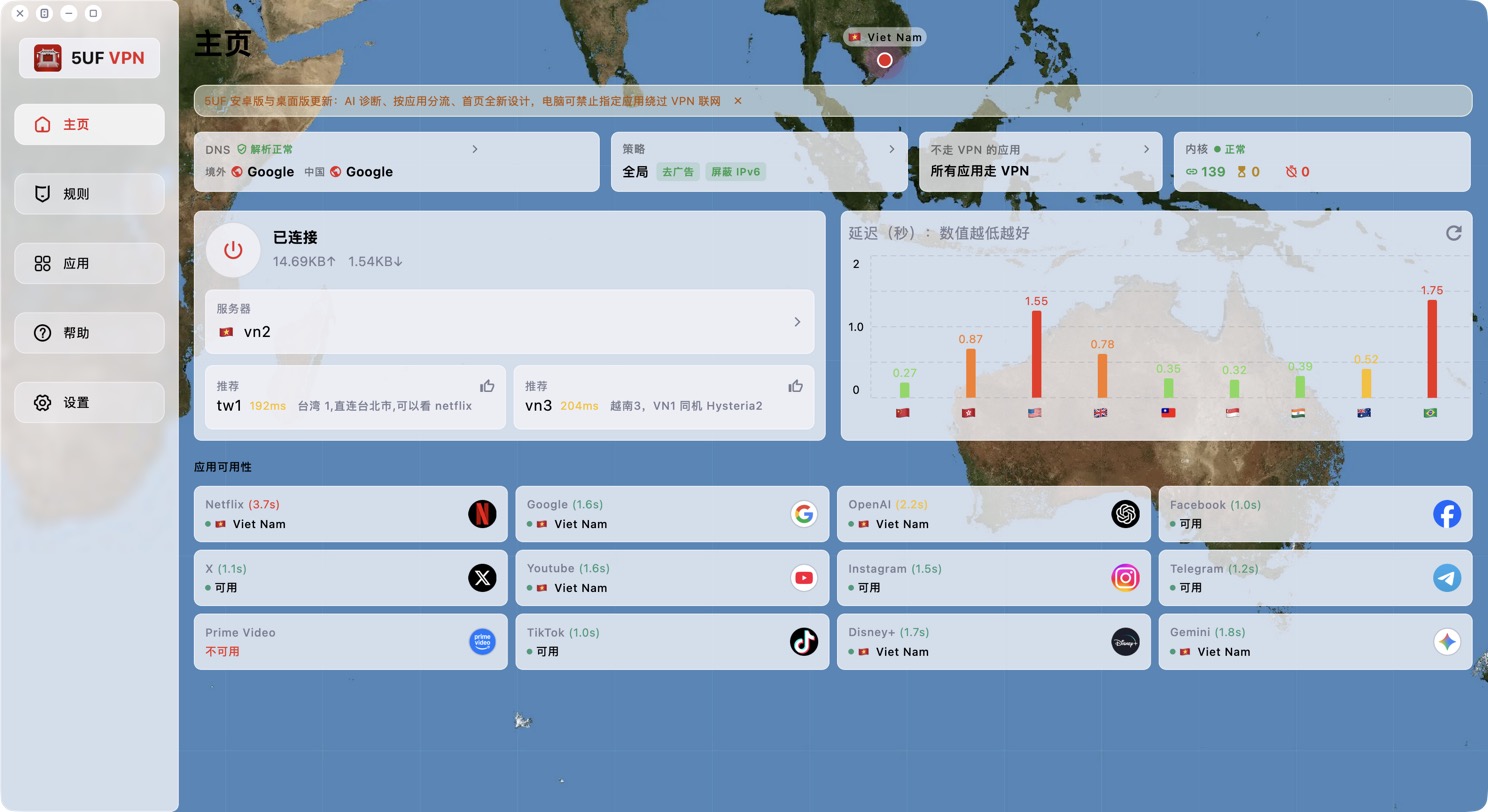
The desktop window can now also be maximized, with the map filling the screen; double-click an empty part of the map to switch between maximized and a comfortable size.
How do I use Exit IP Check to see an app's exit IP?
The Windows and macOS apps include a small tool, 5UF Exit IP Check, to verify that the VPN and your Apps page settings really work.
How to open it: click Open checker at the bottom of the Apps page.
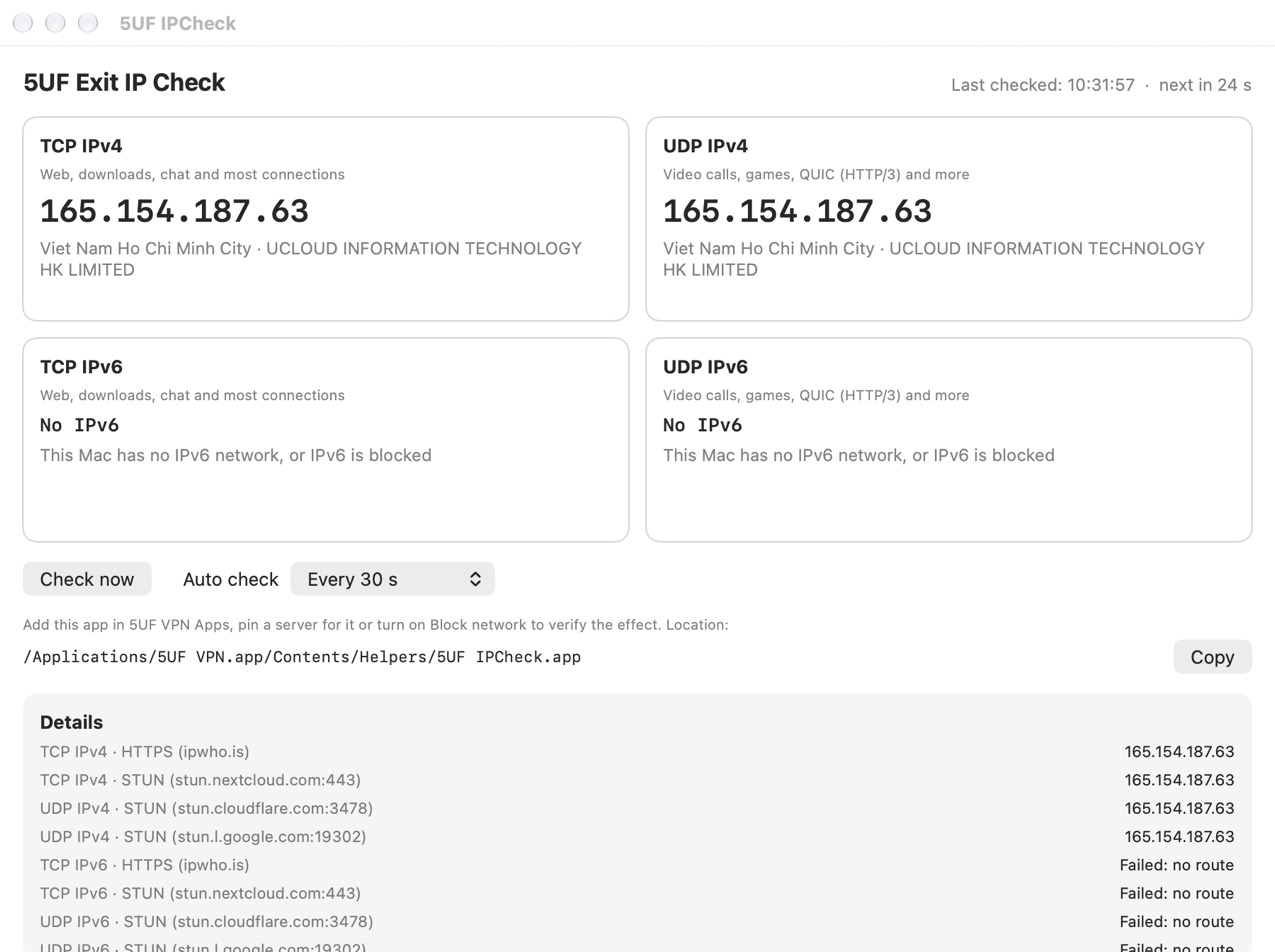
What it shows:
• TCP IPv4 / TCP IPv6: the exit IP for web, downloads, chat and most connections, with country, city and ISP.
• UDP IPv4 / UDP IPv6: the exit IP for video calls, games, QUIC (HTTP/3) and more.
• "No IPv6": this computer has no IPv6 network, or IPv6 is blocked (for example by Block IPv6 traffic). This is normal.
• "No network access": blocked, or the check server is unreachable.
• If TCP and UDP exit through different IPs, it warns that some traffic may not be going through the VPN.
It checks automatically at the chosen interval (every 30 seconds by default) and right away when the network changes (VPN connected or disconnected, Wi-Fi changed). When the exit IP changes it shows an alert, sends a system notification and records it in the change history.
Testing Block network: add the checker itself on the Apps page (click "Add to list"), turn on Block network, then disconnect the VPN: it should show "No network access". After connecting, it should show the VPN server's IP.
Testing a pinned route: pin an exit server for it; the IP shown should change to that server's IP.
On desktop, how do I pin an exit server for an app, or chain two servers?
After adding an app on the Apps page, each app has a Route option. The default is "Follow current server", the same server you chose on the home screen.
Pin an exit server: click "Follow current server" and choose a server from the list (you can search). The app then always exits through that server, and changing the server on the home screen doesn't affect it. Useful for sites, accounts or trading apps that need a fixed IP.
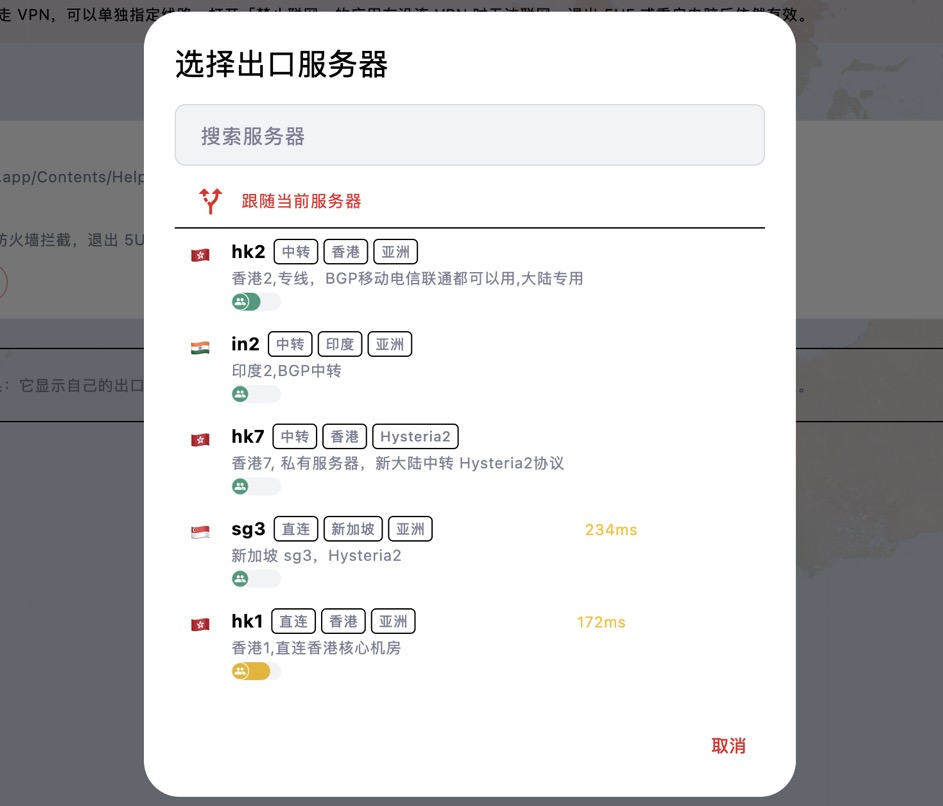
Two-hop chain: after choosing an exit server you can also choose a first-hop server. Traffic connects to the first hop, then through it to the exit server. Websites see the exit server's IP; the first hop only sees encrypted traffic. Both servers must be available for the app to go online.
To undo, choose "Follow current server". If the pinned server is no longer in the server list, the page says so and the app can't go online until you choose another one.
On desktop, how do I stop an app from going online without the VPN? (Block network on the Apps page)
Some apps (browsers, chat or trading apps) should only ever be used with the VPN, so they don't expose your real IP if you forget to connect. The Apps page in the Windows and macOS apps handles this.
How to set it up:
1. Open Apps in the navigation, or press Ctrl+3 (⌘3 on macOS).
2. Click Add app and choose the program.
3. Once added, all of this app's traffic goes through the VPN while connected, instead of following the rules.
4. If needed, turn on Block network under it. When it shows "Active", the app has no network access at all while the VPN is off.
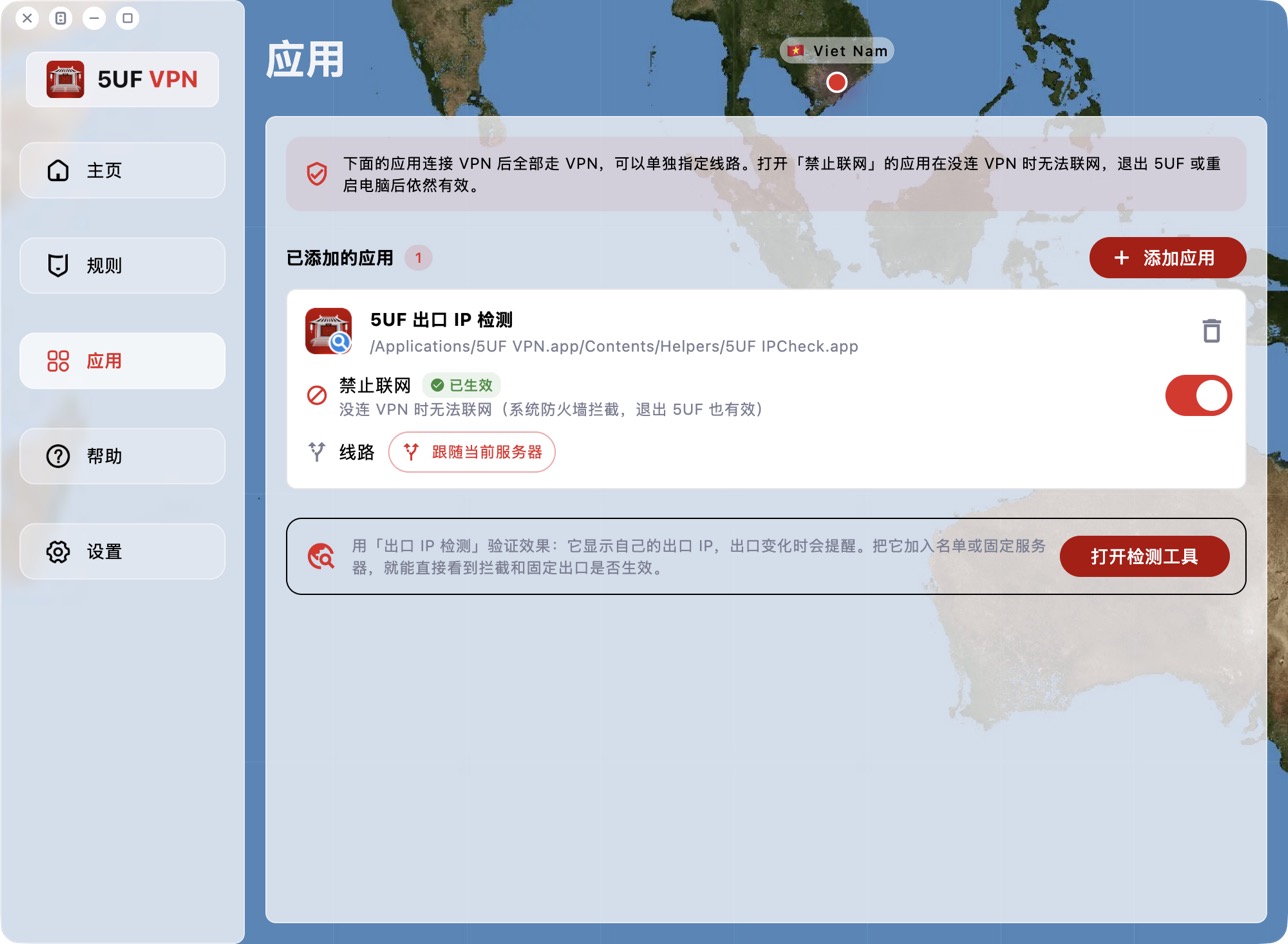
Block network is enforced by the system firewall, so it stays in effect after you quit 5UF or restart the computer. Turn the switch off or remove the app to restore normal access.
First time on macOS: Block network uses a macOS network filter extension. It's installed only the first time you turn the switch on; if you never use the feature, nothing is installed.
1. When macOS says the system extension was blocked, click Open System Settings in the app and turn on 5UF VPN under Network Extensions.
2. When macOS asks whether 5UF VPN may filter network content, click Allow.
The extension only blocks apps with Block network turned on; other apps are not affected.
Common messages:
• "One more step…": the network extension switch isn't on yet. Click Open System Settings and turn it on.
• "Blocking is not active… you chose Don't Allow": click Retry and choose Allow this time.
• "Please move 5UF VPN to the Applications folder first": macOS only lets apps in the Applications folder install extensions. Move it, then reopen 5UF.
To verify, use the Exit IP Check tool at the bottom of the page (see "How do I use Exit IP Check to see an app's exit IP?").
On desktop, how do I make specific apps bypass the VPN, or only send specific apps through it?
The Windows and macOS apps support per-app routing, set on the Rules page. What you choose depends on the current Global / Rule mode:
• Global mode: all apps use the VPN by default. The item is shown as "Apps that bypass the VPN"; apps you add use your local network directly, for example local banking, games or work software.
• Rule mode: traffic is split by domain and IP rules. The item is shown as "Apps that use the VPN"; all traffic from apps you add goes through the VPN regardless of the rules.
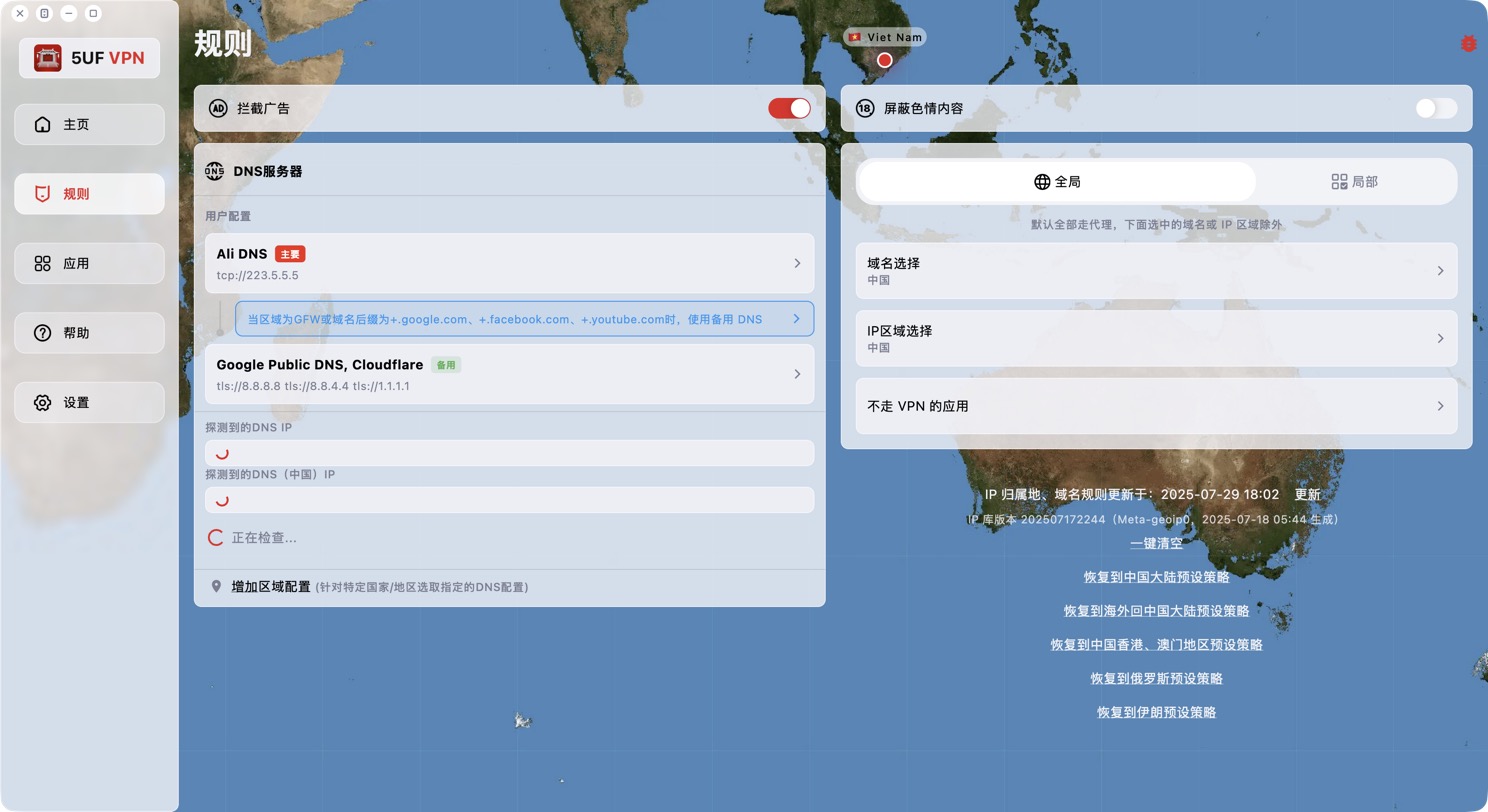
Adding apps: open the item and click Add app. Pick from Applications (Start menu on Windows) or Running apps, or click Browse… to choose a program, then click Add.
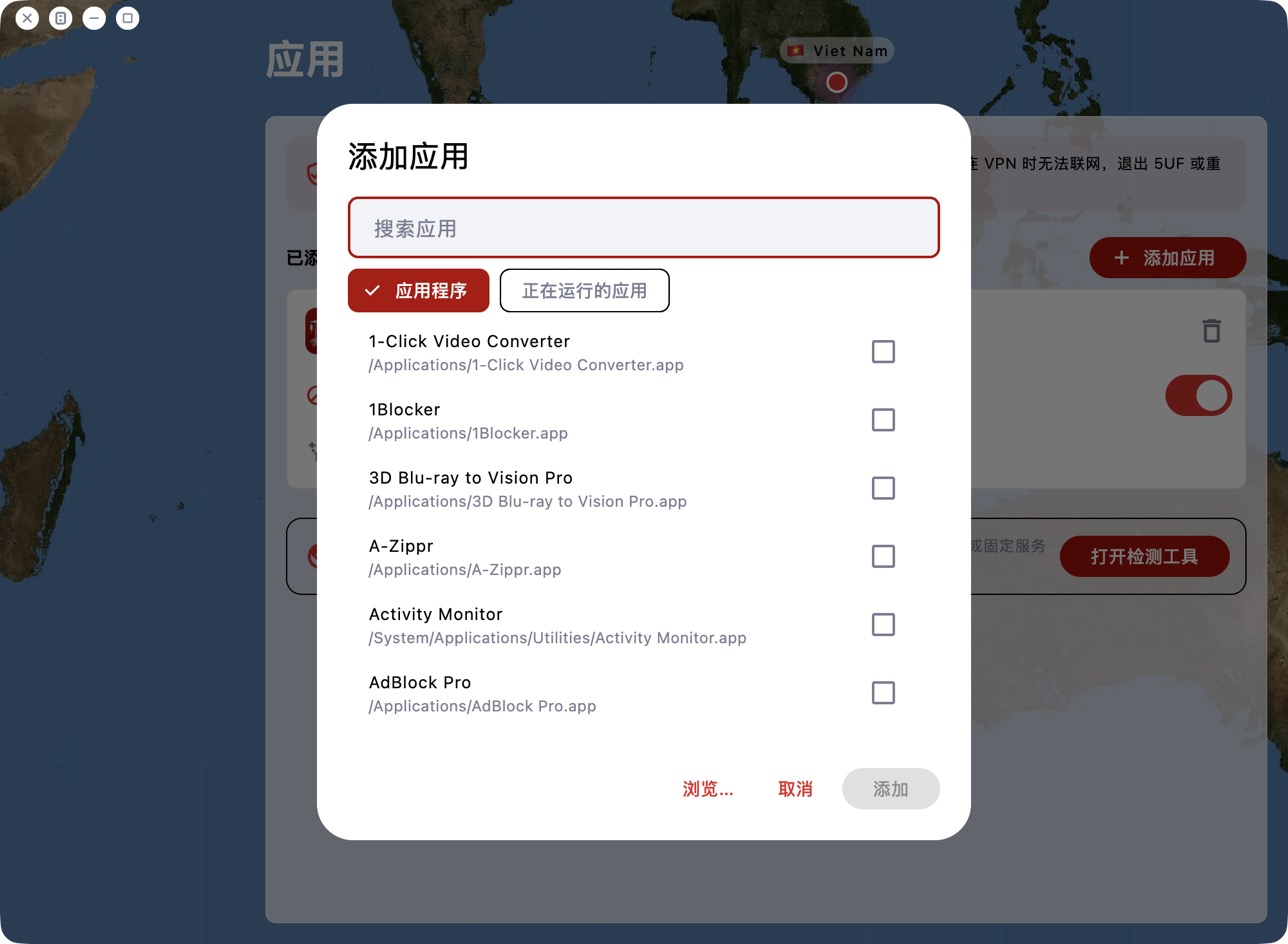
Changes take effect immediately, without reconnecting. The card at the top of the home screen shows the icons of routed apps. On macOS, choosing Safari also covers Safari's web content processes.
To clear the list, remove apps one by one; "Restore defaults" in Settings also clears it.
Using Sing-box VT on Mac with 5UF VPN
To use a third-party client on macOS, install Sing-box VT from the Mac App Store (third-party software, not published by 5UF). 5UF serves a Trojan (Xray) compatible profile as a sing-box subscription that includes server lists and routing rules.
1. Install the app
You need a non-Mainland-China Apple ID. Install from the App Store: Sing-box VT
2. Copy your sing-box URL
Sign in to the 5UF user panel in a browser and open the Xray (Trojan) configuration page (typically /xray_config). Copy the full sing-box configuration subscription URL with the one-click copy button.
That URL embeds your private UUID—do not share it. If it may have leaked, use Change UUID on the same page so the old URLs stop working immediately, then copy the new sing-box link and import again.
3. Import into Sing-box VT
In the app, add or update a profile by importing from URL / subscription (wording depends on the app version), paste the copied link, save, and let the app refresh nodes and rule sets.
4. Connect and test
Enable the profile and visit any site that shows your public IP to confirm traffic exits through the VPN. If import or connection fails, check that the URL was copied completely, your account is active, and the network is not blocking the endpoints; generating a new UUID and re-importing often resolves stale links.
Screenshots (UI may change between releases):
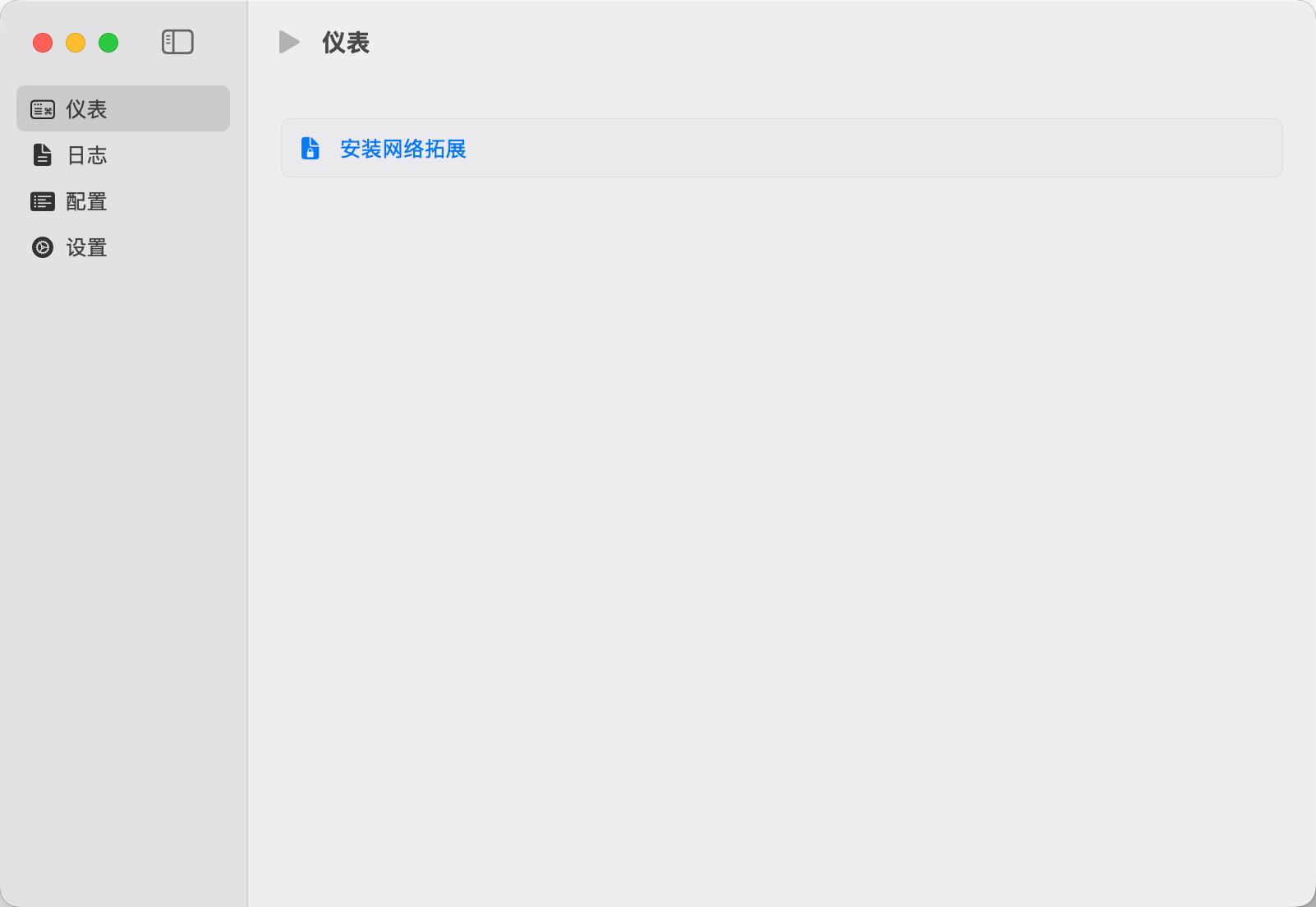
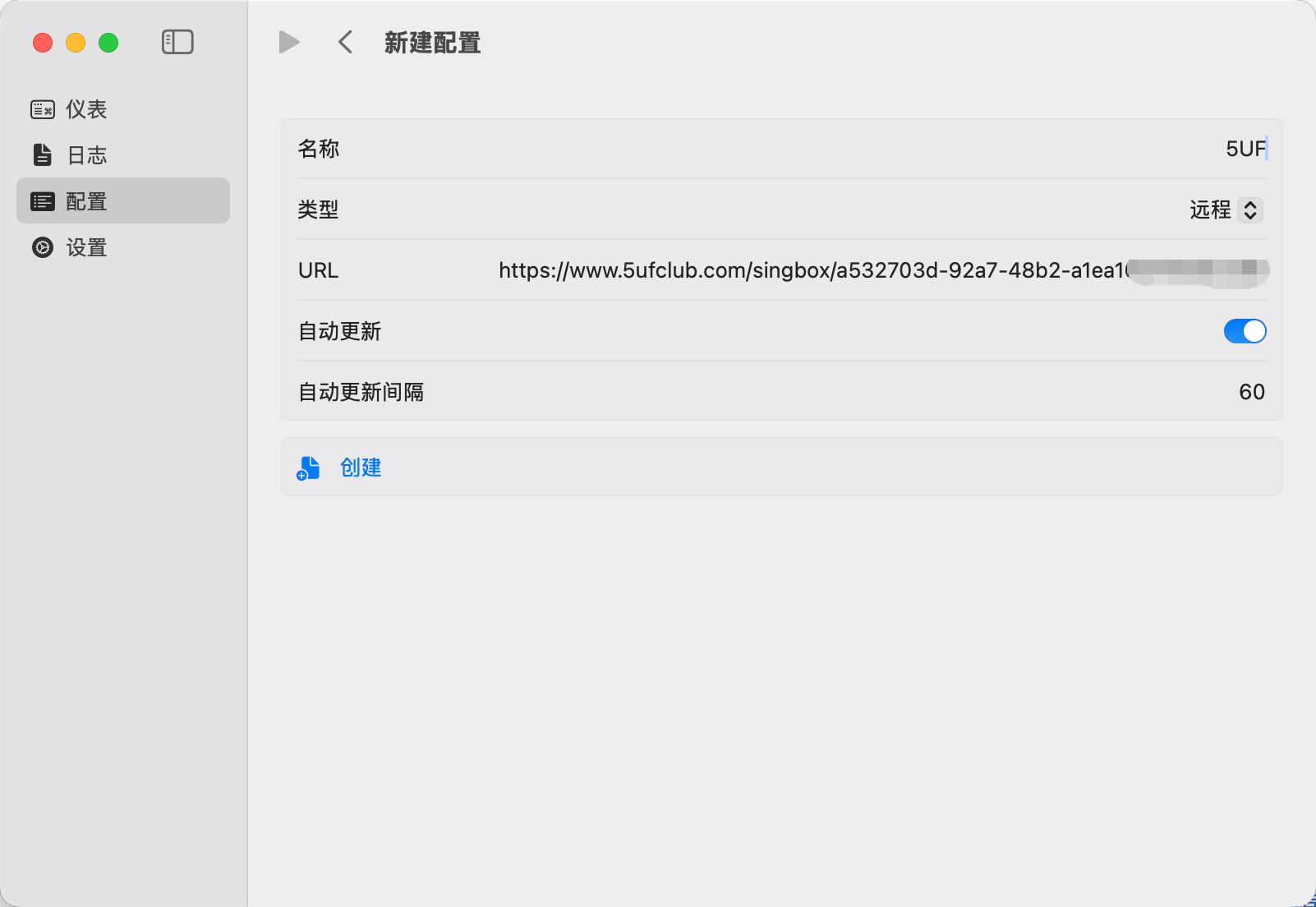
For the official all-in-one experience, use the 5UF VPN Mac app from our site. This article targets users who prefer the sing-box ecosystem.
How to open 5UF VPN automatically at login (macOS)
Mac Setup Instructions
Method 1: Using the Dock
-
Launch 5UF VPN.
-
In the Dock, right-click (or Control-click) the 5UF VPN icon.
-
Hover over Options and select Open at Login.
Launch 5UF VPN.
In the Dock, right-click (or Control-click) the 5UF VPN icon.
Hover over Options and select Open at Login.
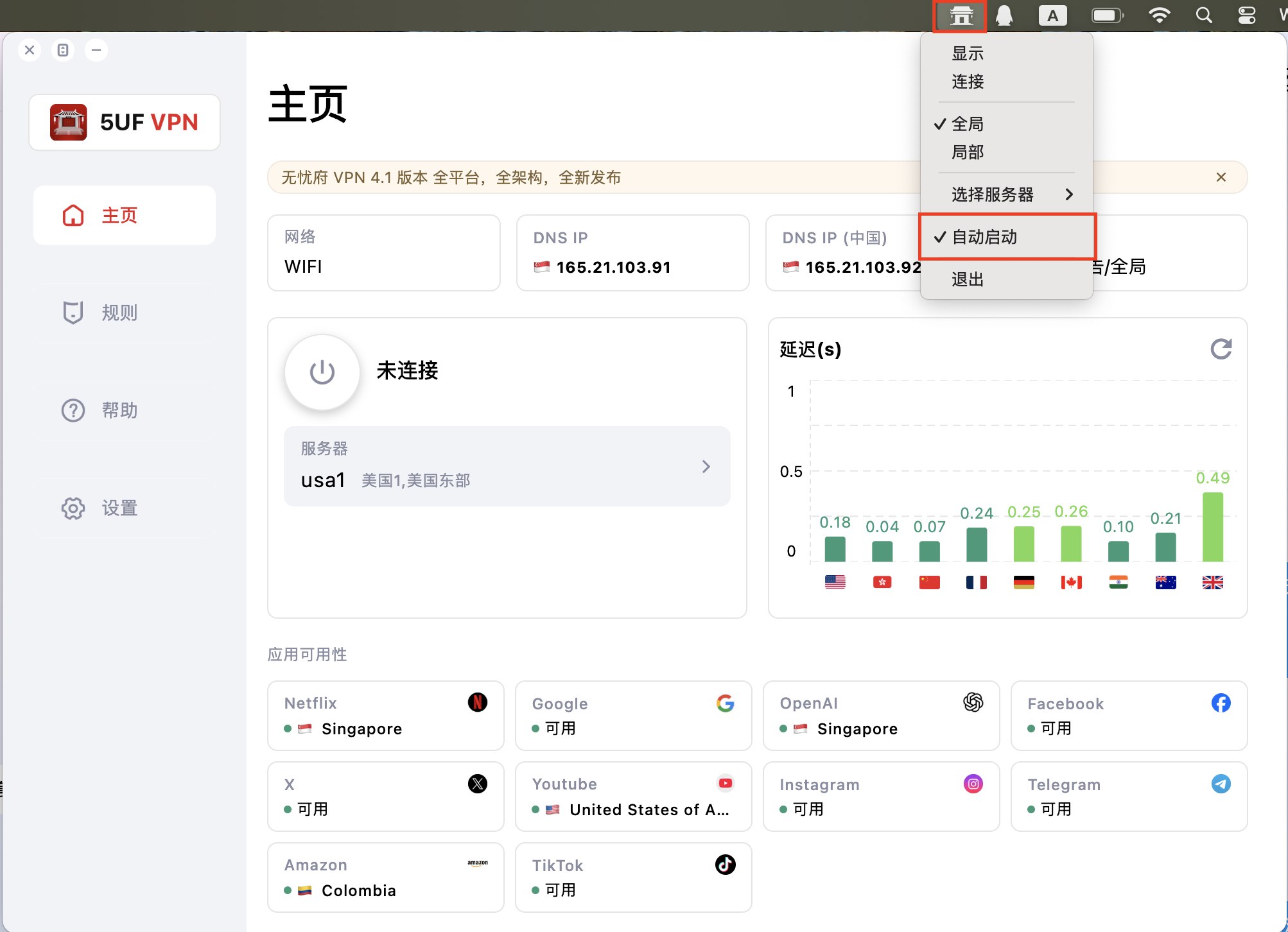
Method 2: Using System Settings
-
Open System Settings → General → Login Items & Extensions.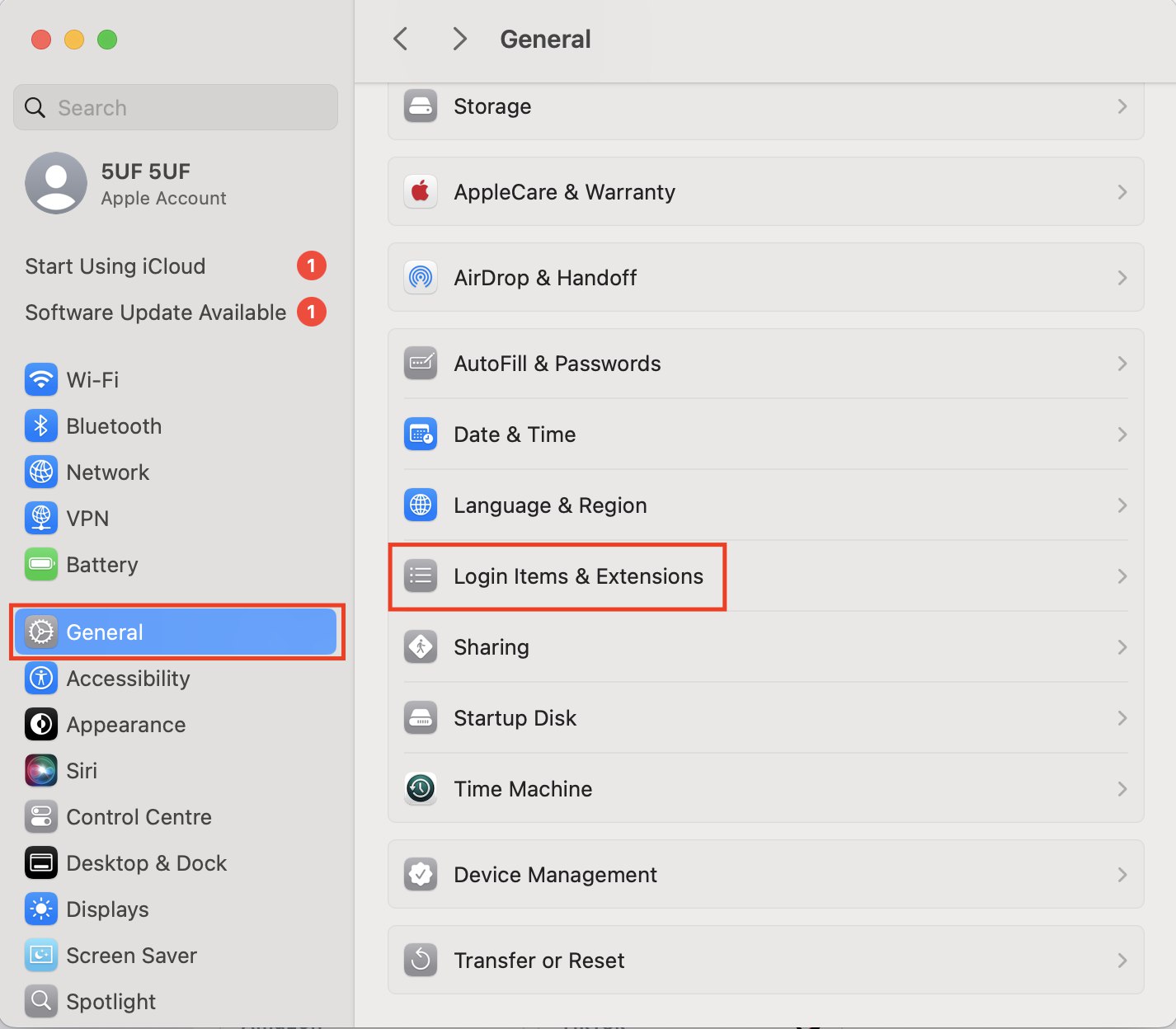
-
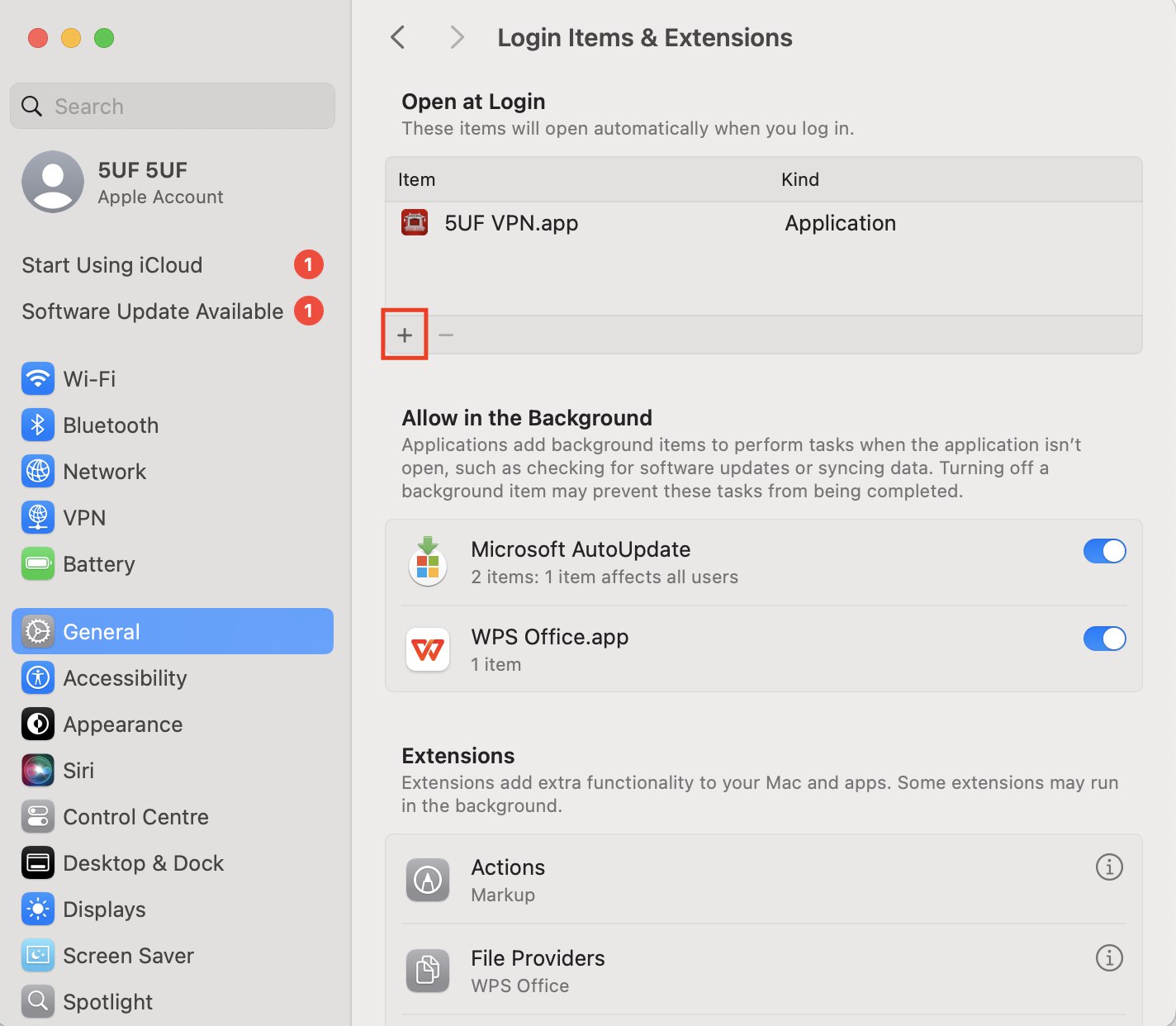
Click the + icon.
-
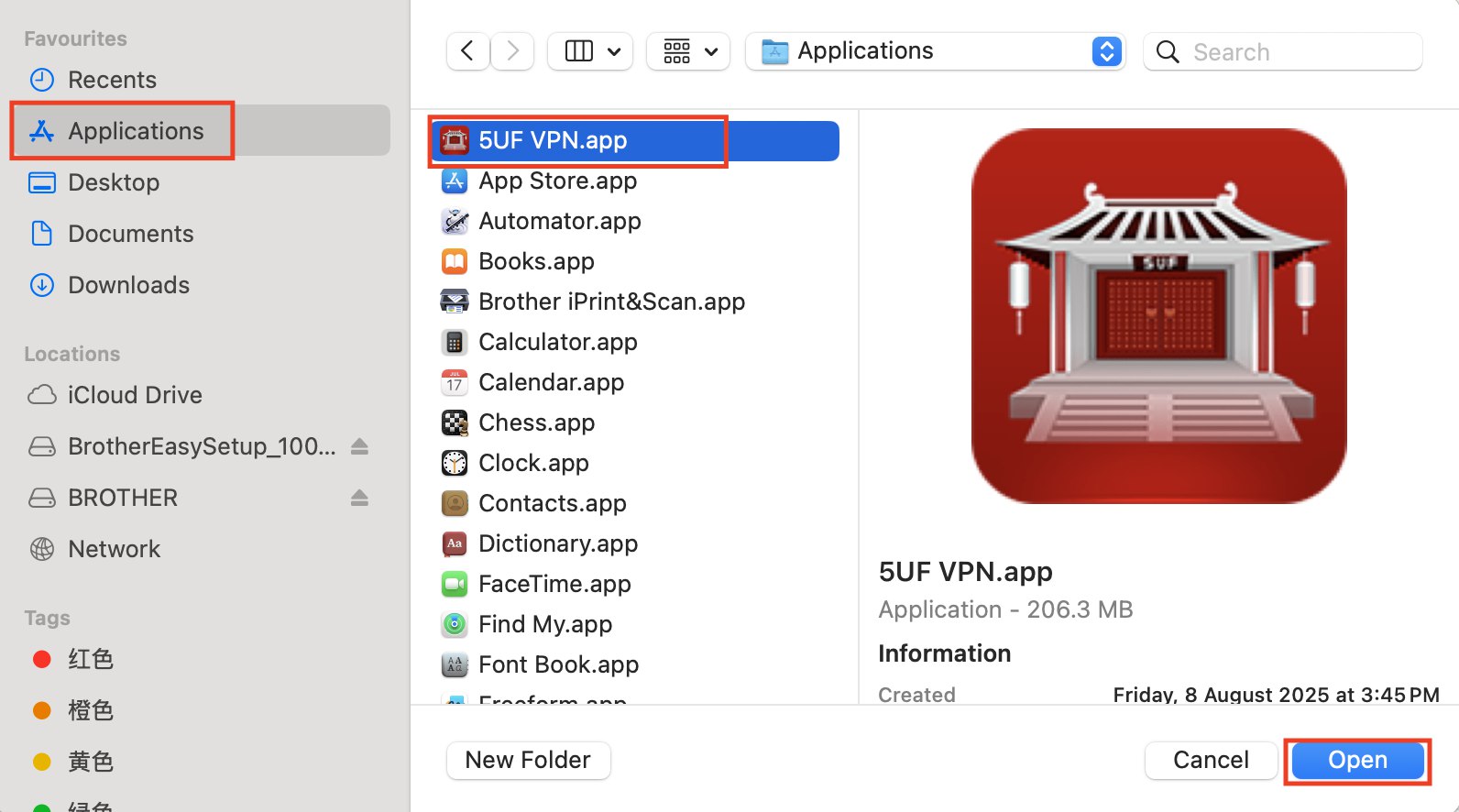
Select Applications.
-
Locate and select 5UF VPN.app.
-
Click Open to add it to your startup applications.
Open System Settings → General → Login Items & Extensions.
Click the + icon.
Select Applications.
Locate and select 5UF VPN.app.
Click Open to add it to your startup applications.
How to confirm your Mac processor
Steps to Download the Correct Version for macOS
-
Determine Your Mac’s Processor Type
-
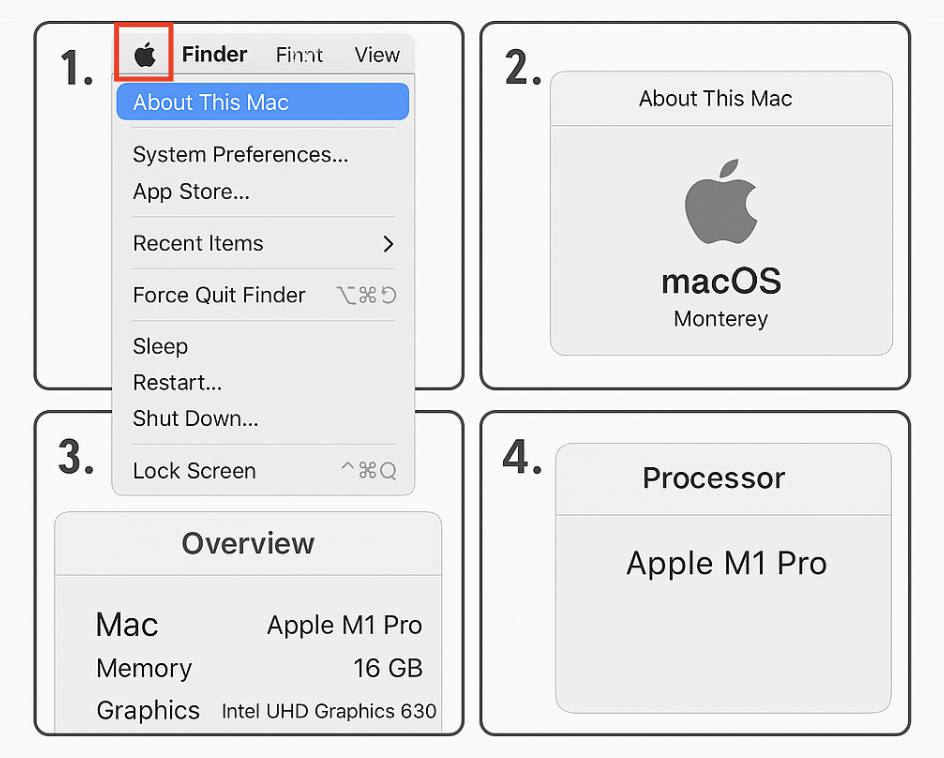
Click the Apple menu () in the top-left corner of your screen and select About This Mac.
-
Under Chip or Processor, identify whether your Mac uses Apple Silicon (e.g., M1, M2, M3) or Intel.
-
-
Access the Download Page
-
Visit: /download_app
-
-
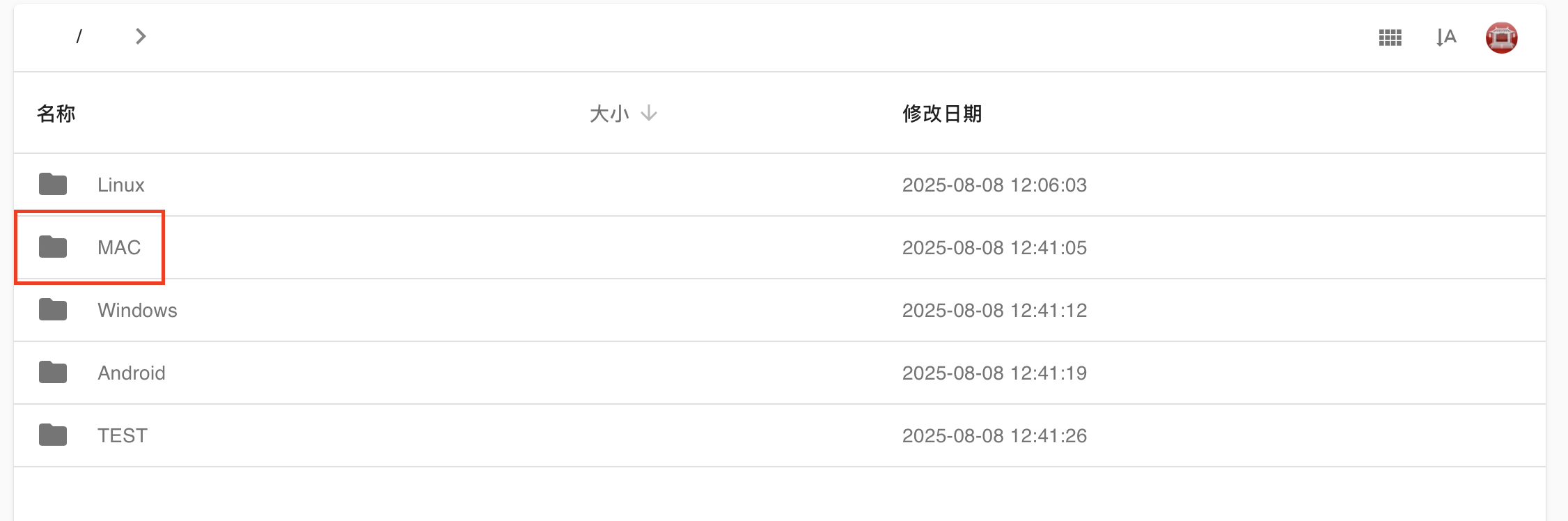
Select macOS as Your Platform
-
On the website, choose Mac from the list of available platforms.
-
-
Download the Appropriate Version
-
For Apple Silicon (M1, M2, M3) — select the ARM64 version.
-
For Intel-based Macs — select the Intel x86_64 version.

-
How to use Trojan (XRay) ClashX for MacOS
1. 下载客户端
ClashX for MacOS
https://dl.clashx.org/releases/latest/ClashX.dmg
如果上面的地址无法下载,请使用这个地址:
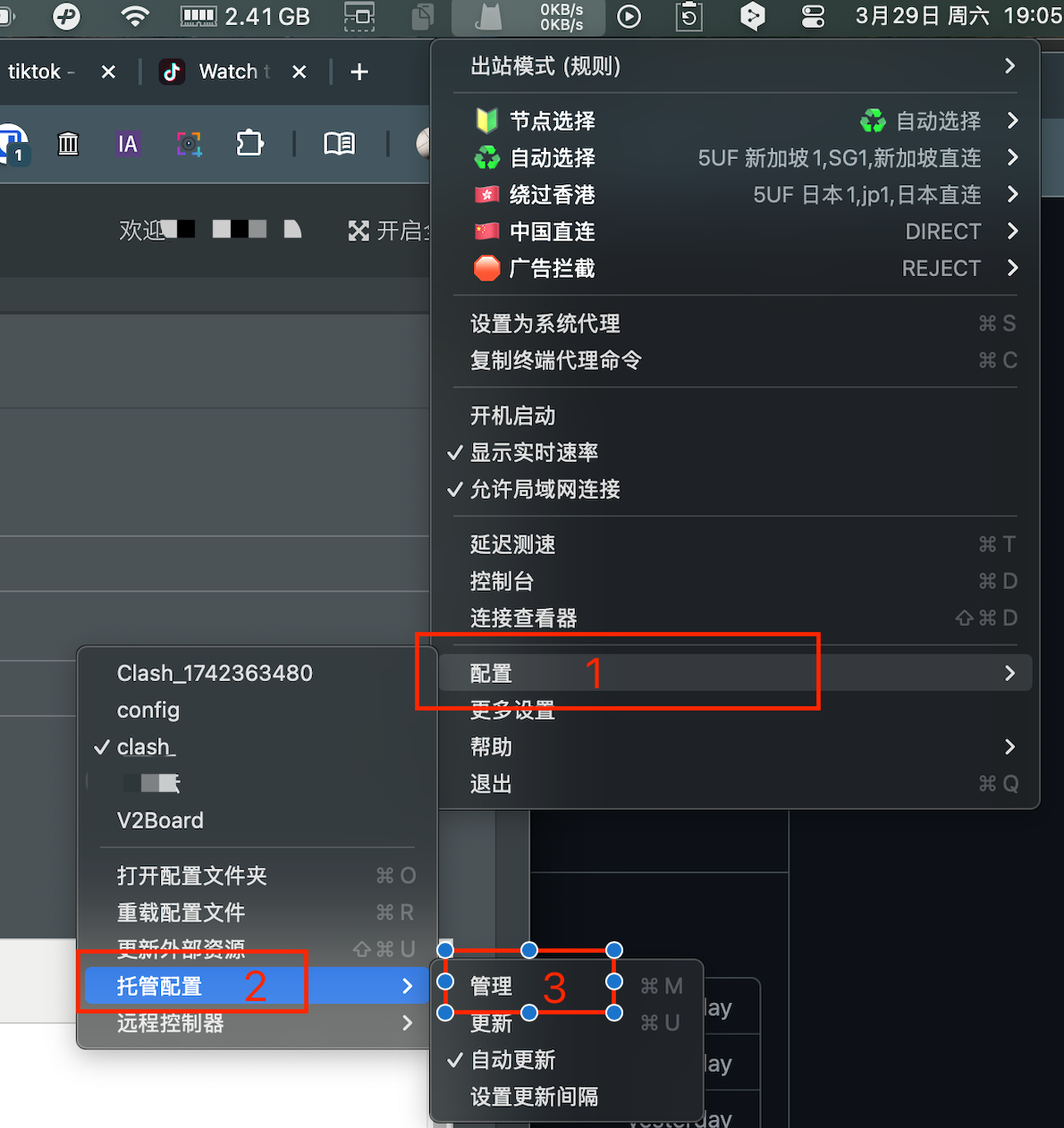
2. 点击导入
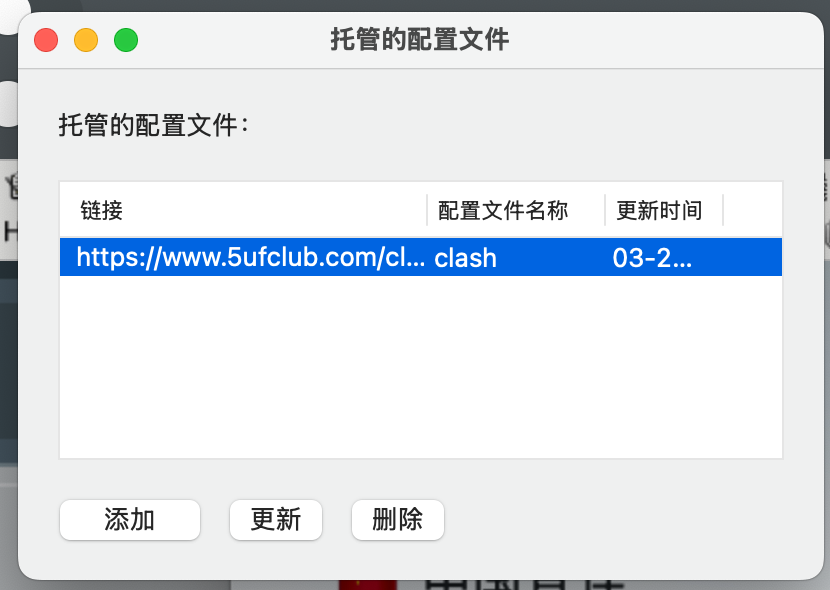
从我们的网站上获取订阅地址
改入到软件的配置中,如下图:
3. 使用
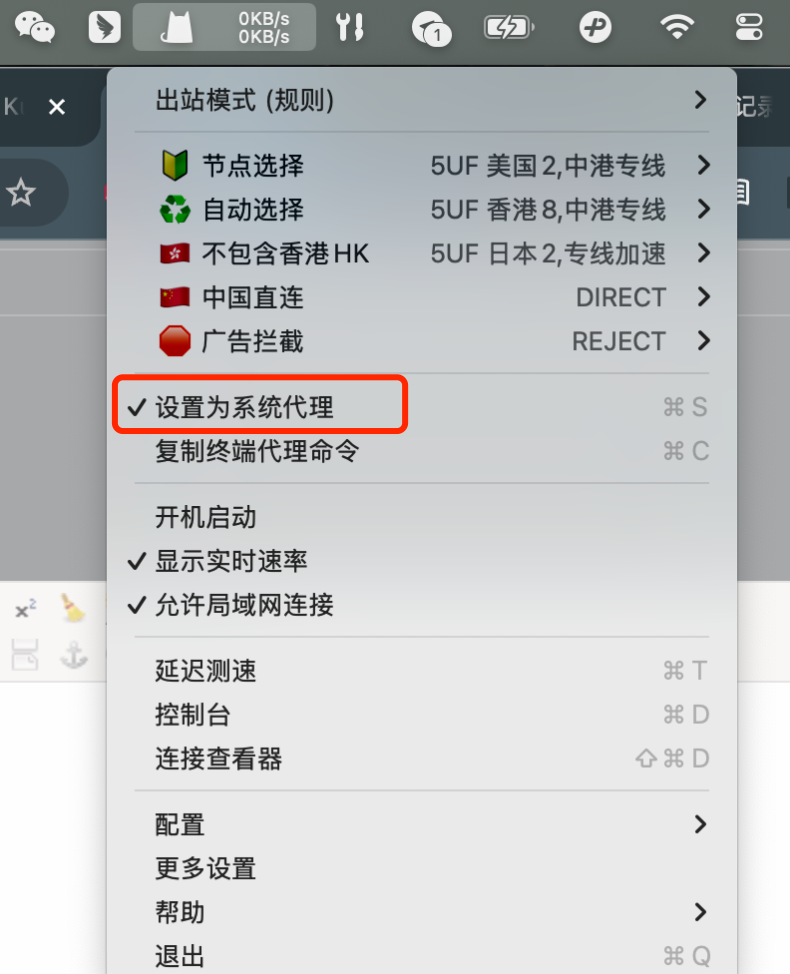
开始使用
打开“设置为系统代理”
提醒:如果和超级 VPN 同时使用可能会有冲突,需要禁用掉chrome 的相关插件,是禁用整个插件,如果有其它代理类的插件也是一样会干扰使用。