


What it is: normally your traffic goes "your computer → one server → website". With a two-hop proxy (chaining), it goes through two servers: "your computer → first hop → exit server → website".
• Websites see the exit server's IP.
• The first hop only sees encrypted traffic and doesn't know what you visit.
• The exit server doesn't see your real IP, only the first hop.
When it helps:
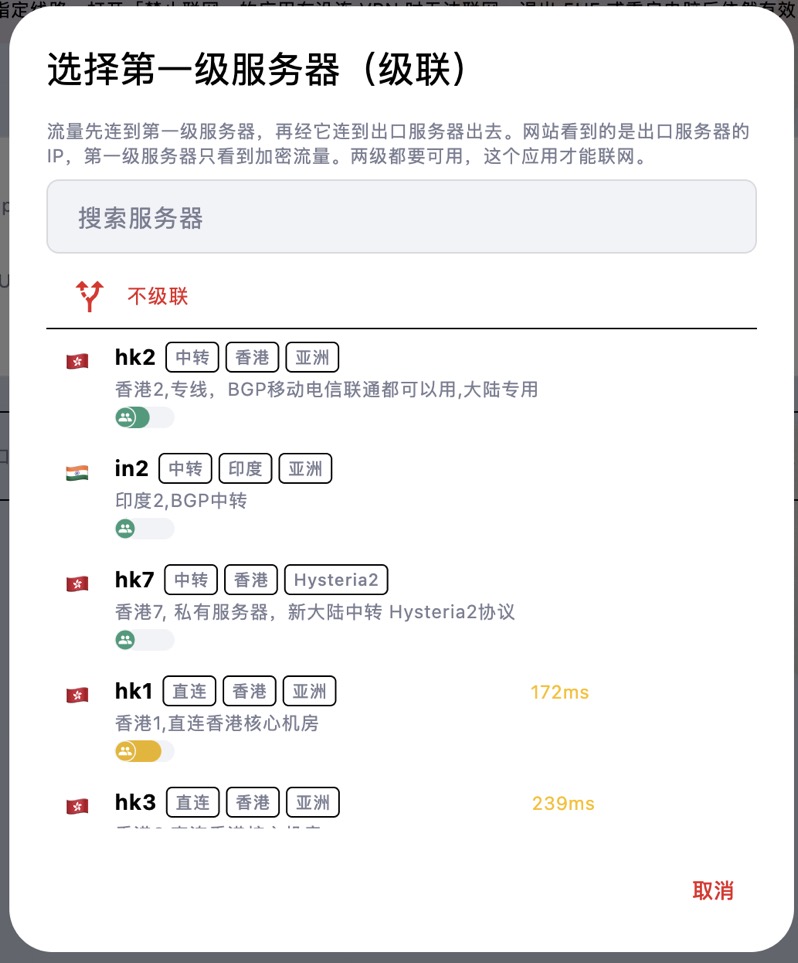
• Using it from mainland China but needing an IP in a specific country: connecting directly to a distant country may be unstable. Use a relay server optimised for mainland China (tagged as relay in the server list) as the first hop and a server in the target country as the exit, so you get both stability and the right exit location.
• Better privacy: no single server knows both who you are and what you visit.
How to set it up (Windows / macOS): chaining is set per app on the Apps page.
1. Add the app on the Apps page.
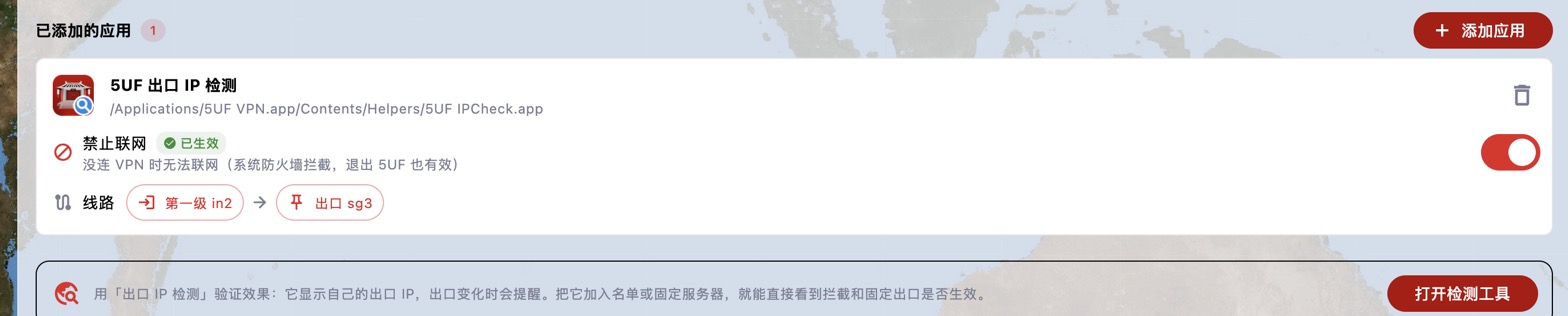
2. Click its Route and choose the exit server first.
3. A "No chaining" button then appears on the left. Click it and choose the first-hop server.
Once set, the route shows "First hop xxx → Exit xxx":
Notes:
• Both servers must be available for the app to go online. If either fails, the app can't connect; it won't switch routes automatically.
• The extra hop adds some latency, so use it for apps that need a particular exit location rather than for everything.
• To remove the first hop, choose "No chaining"; to go back to normal, set the exit to "Follow current server".
• Use the Exit IP Check tool to confirm the exit IP is the exit server's IP.


