


FAQ
On Windows, what if the Microsoft Store or other UWP apps can't go online? 
By default Windows doesn't let UWP apps such as the Microsoft Store, Mail or Weather use the local system proxy. In system proxy mode, their requests may be blocked by Windows before they reach 5UF, so they won't load or keep spinning. Turning on the virtual network adapter (TUN) as well doesn't remove this restriction.
Check and repair:
1. Open 5UF and go to Settings → Microsoft Store / UWP network check.
2. The app checks the system proxy, whether the selected app may use the local proxy, and whether Microsoft services are reachable.
3. Choose the affected app (the Microsoft Store by default).
4. If it says local proxy access isn't allowed yet, click Repair and click Yes in the Windows administrator prompt.
5. When it confirms that access is enabled and verified, fully close the app and open it again.
Repair only allows the selected app to reach local services; existing exemptions and routing rules are kept. If the Microsoft Store isn't listed, open the Store once and check again.
If some Microsoft services are still unreachable after repair, the problem isn't app permissions: check the server, DNS and routing rules, try switching to virtual adapter (TUN) mode in Settings and restarting the affected app, or use AI Diagnosis.
On desktop, how do I make specific apps bypass the VPN, or only send specific apps through it?
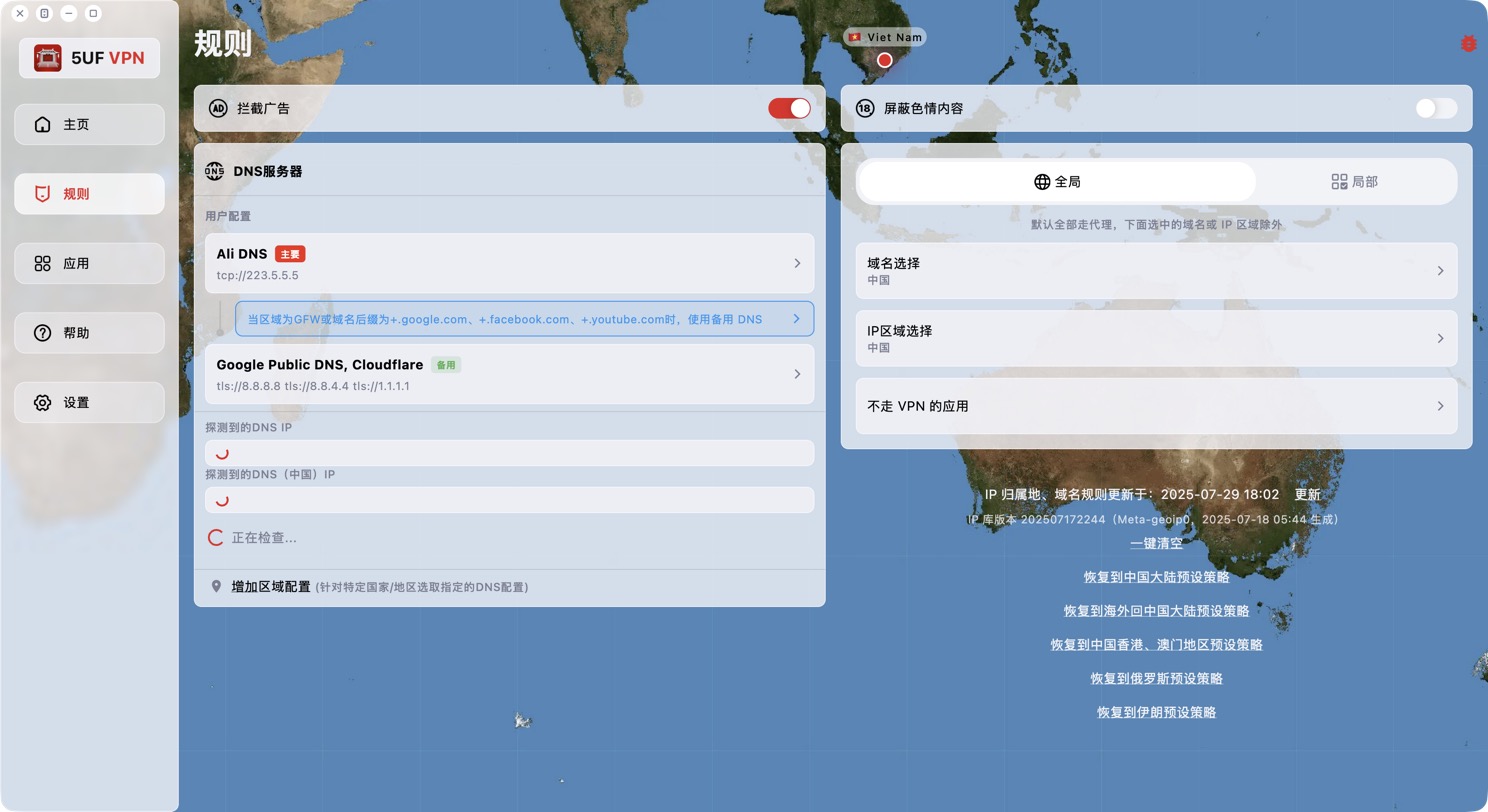
The Windows and macOS apps support per-app routing, set on the Rules page. What you choose depends on the current Global / Rule mode:
• Global mode: all apps use the VPN by default. The item is shown as "Apps that bypass the VPN"; apps you add use your local network directly, for example local banking, games or work software.
• Rule mode: traffic is split by domain and IP rules. The item is shown as "Apps that use the VPN"; all traffic from apps you add goes through the VPN regardless of the rules.
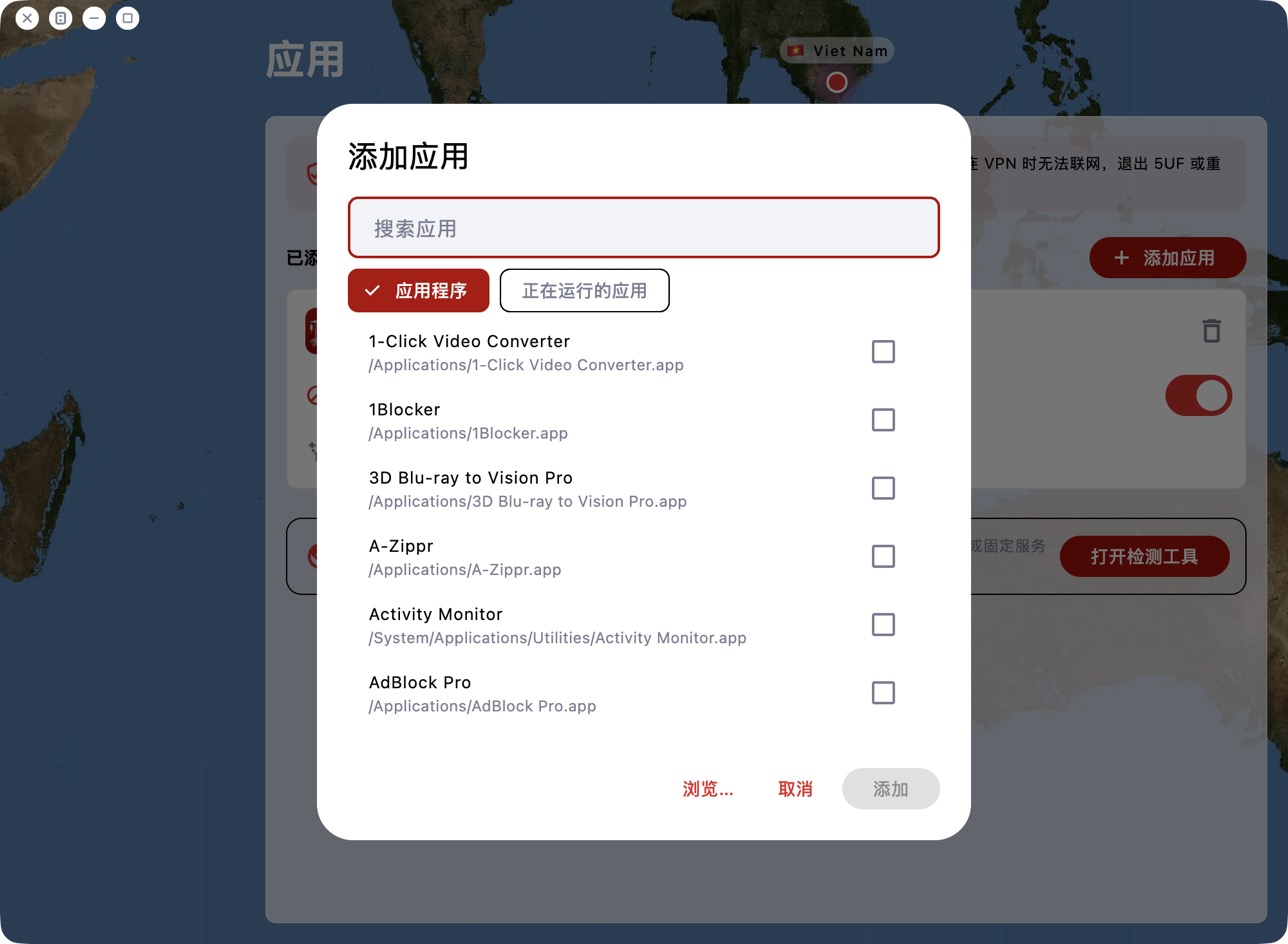
Adding apps: open the item and click Add app. Pick from Applications (Start menu on Windows) or Running apps, or click Browse… to choose a program, then click Add.
Changes take effect immediately, without reconnecting. The card at the top of the home screen shows the icons of routed apps. On macOS, choosing Safari also covers Safari's web content processes.
To clear the list, remove apps one by one; "Restore defaults" in Settings also clears it.
How can I change DNS to reduce DNS pollution issues?
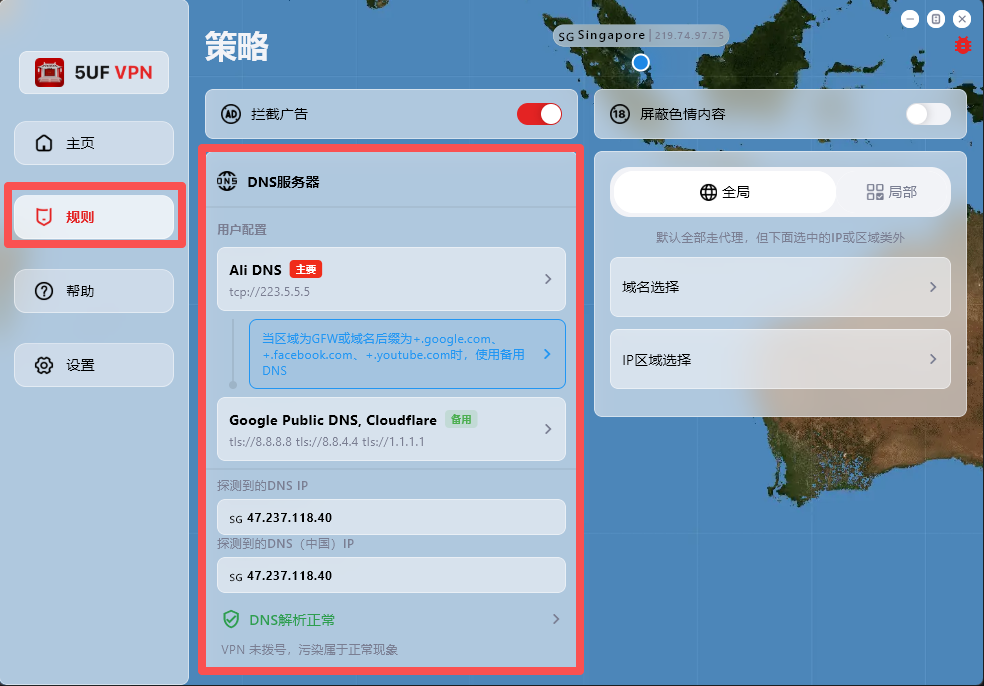
If your network access behaves abnormally, first check and adjust DNS settings in the Rules page.
The app has built-in support for:
1. Changing DNS settings after dial-up/connection.
2. DNS connectivity checks.
3. DNS pollution detection.
Where to configure: open the app main screen, go to Rules, then modify the default DNS request settings.
One-tap preset recovery: at the bottom of the Rules page, we provide built-in presets for common regions, including Mainland China, Hong Kong/Macau, and default profiles for countries/regions such as Iran and Russia.
Dynamic IP database update: the Rules page also includes dynamic IP database update, which you can run when needed.
Why detected DNS may differ from configured DNS:
DNS probing uses temporary domain resolution to identify the actual egress resolver IP within a DNS cluster, so the detected result may not be exactly the DNS address you entered.
For example, even if you configure Google Public DNS (8.8.8.8), the detected resolver may be another cluster node responding to your request.
TUN Mode vs System Proxy
- TUN mode creates a virtual network adapter on your device, intercepting and forwarding all traffic at the network (IP) layer. This ensures that all apps and services — even those that don’t support proxy settings — are routed through the VPN.
- Advantage → Full system coverage for all traffic.
- Limitation → Because it works at the routing level, connections may be less stable under certain devices or network environments.
- By attaching your system’s HTTP proxy directly to the VPN service, System Proxy offers a more stable and consistent connection.
- Advantage → Smooth, reliable, and stable performance.
- Limitation → Because some apps and websites do not support proxy mode, they may still be blocked in certain situations.
What is the difference between Global mode and Partial mode?
In 5UF VPN, Global mode and Partial mode describe how much of your traffic goes through the VPN.
Global mode:
- Most system traffic goes through the VPN.
- Good for users who want a more consistent VPN route.
- Also more suitable for apps that do not support proxy mode well.
Partial mode:
- Only selected websites, apps, or rule-based traffic goes through the VPN.
- Other traffic continues to use the local network directly.
- Useful when you only want specific traffic to use the VPN.
How should you choose?
- If you are not sure, Global mode is usually the simpler starting point.
- If you only want a small part of traffic to use the VPN, choose Partial mode.
The naming may vary slightly on different platforms, but the core idea is the same.


